How to open a GitHub repo that does not contain a solution in Visual Studio 2017 – 079

In recent years, I started dabbling in ruby, node.js, electron, etc. As time passed, I (somehow) forgot the notion of a “solution” file. I know that sounds exaggerated or cra-cra coming from me, but hold on. I’ll explain. To open an electron application (e.g. your moment of GitHub Zen app) in a non-VS editor like Atom, you’d simply `cd` into the root folder of where you cloned your repo and type in `atom .` The dot in the `atom .` means open all the files listed here.

View solution-less repo in Atom

And there in atom, you’ll see a similar experience to Solution Explorer, but instead of a solution file at the top, you see the root folder.

atom with an electron app opened

View solution-less repo in Visual Studio 2015

Now let’s say you connect to the your-moment-of-GitHub-zen repo via Team Explorer in Visual Studio 2015. But oh-no! Your solution explorer will be empty. After spending a year using Atom, it’s really odd feeling when none of your files appear available in your editor. (See! I told ya’ll I could justify forgetting about a solution file!)

Solution Explorer just looks at you

You might hope that Team Explorer will have some sort of solution available… (boom! did you see what I did there with that play on words re having a solution for not having a solution? thank you! I’m here all week…)

No solutions available

The workaround is to manually File – Open – File your files and use Team Explorer to manage your changes (or command line – I guess you can’t have too many options).

View solution-less repo in Visual Studio 2017

Hello Visual Studio 2017! What do we have here??
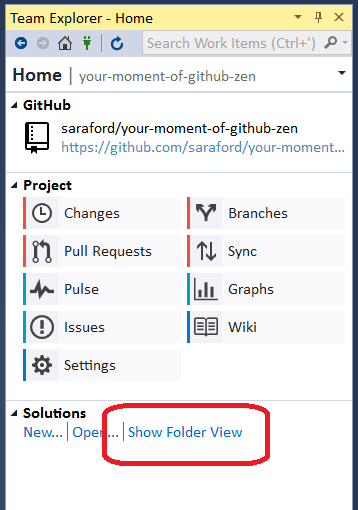
Show Folder View

Let’s see what this Show Folder View button does…
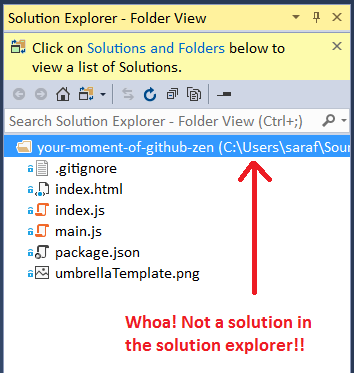
image

And there we go! You can now open a project in Visual Studio without requiring a solution. I’ve spent all of 2 minutes playing with this new feature, so I’ll have to learn where to go from here!
How to use the arrows in the View History graphs in Visual Studio – 078

There was a saying back in Mountaineering Search and Rescue* in Seattle about why you should *never* pack cotton-based clothes in your cold-weather gear. It went like, “No matter how far down you pack cotton in your bag, water will find it.”  I feel the same about Visual Studio. “If there is a clickable pixel somewhere in Visual Studio, no matter how small or obscure you place it, I will find it.”

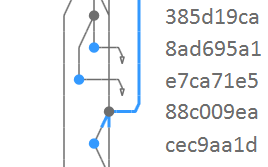
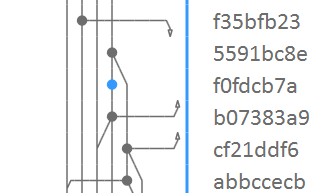
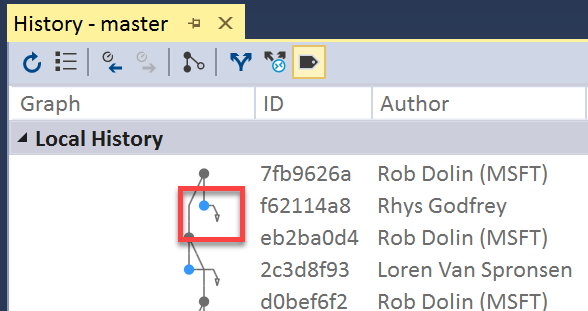
As I was prep’ing yesterday’s tip, I noticed that the View History graph showed these arrows pointing in various directions. TBH I had to ask someone to explain what the arrows meant.

Graph with arrows pointing down

If you click on this downward-facing arrow, a connector line will appear!

graph connecting line shown going offscreen

The connector line will go all the way down off screen until it reaches its commit.

connecting line reaching its commit

The idea behind these arrows is to show you that they connect to a commit that’s not currently visible on the screen.

BTW, the arrows can also point upwards as well, reaching back up to its counterpart in the graph.

arrows pointing in either direction

*So yeah, about search and rescue, well over 10 years ago, genius here wanted to volunteer to learn more about hiking and volunteer my time and whatever skills to helping out, since I love the outdoors so much. Only one small problem… I hate the cold! And I had never camped in the cold before, and at that time anything below 70 was considered cold to my NOLA standards. Anyways, it was 27 degrees one particular weekend of training. I made it the first night, but was never able to get to sleep. The second night I dropped out so my partner (who was kicking butt and taking names) could find other same skill-level people so she could pass. But yeah I still laugh at the thought of me thinking I could go find people lost in the woods when I get lost driving down the street!

How to use `git log –first-parent` to only view commits that happened on a given branch – 077

First Parent Only via Visual Studio – View History

By default the View History option in Visual Studio (from Changes – Action – View History or from the Status bar  – <branch name> – View History) shows all commits, regardless whether the commit occurred in a separate branch or on the current branch. Let’s assume master is the current branch for simplicity. I’m using Open Live Writer as an example.

Shout out to http://marcgg.com/blog/2015/08/04/git-first-parent-log/ who has a great write-up on when you’d use –first-parent.

Right now on Twitter, developers are sharing how much they have to look up things. “Hi, my name is Sara. When I look at the Git history graph, I see a praying mantis.”

local history for master branch showing crazy graph

If you only want to see the changes that occurred on master (or whatever branch you are currently viewing the history for), you can click the Show First Parent Only button.

Show First Parent Only

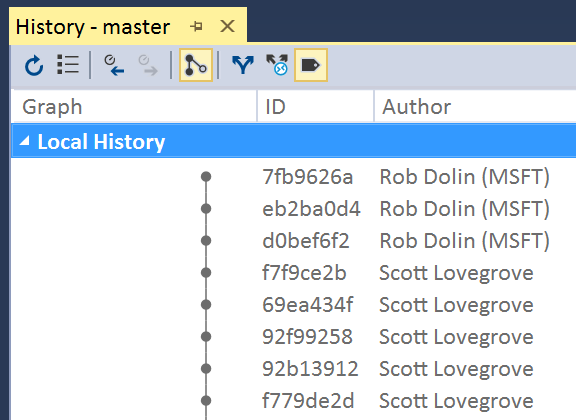
Now you’ll only see commits that occurred directly on the branch itself (and not on another branch that got merged into the current branch).

Local History now a flat graph

Command Line git log –first-parent

Rinse and repeat for command line.

From yesterday’s tip, if you run git log –graph –pretty=oneline –graph –abbrev-commit

git log --graph --pretty=oneline --graph --abbrev-commit

You’ll see all of the commits from different branches.

Now add the –first-parent option at the end: git log –graph –pretty=oneline –graph –abbrev-commit –first-parent

git log --graph --pretty=oneline --graph --abbrev-commit --first-parent

Thanks again to http://marcgg.com/blog/2015/08/04/git-first-parent-log/ for the great description! As I said above, I just see a praying mantis. 🙂

How to view a git log graph from the command line that looks like Visual Studio View History – 076

It feels like there are 100 different ways to do a git log. Here’s one possible way… I’m using the OpenLiveWriter repo to demo since it has lots of branching going on.

P.S. The way to exit these log commands is to press ‘q’ when the colon appears, if you are following along at home.

let’s start with git log –graph.

git log --graph command line

But it’s too wordy to show the graph.

Let’s try git log –graph –pretty=oneline

git log --graph --pretty=oneline

Better, but the long commit IDs are throwing everything off.

Let’s try git log –graph –pretty=oneline –graph –abbrev-commit

git log --graph --pretty=oneline --graph --abbrev-commit

And that’s about as close as I can get to a graph that looks like the graph in Visual Studio.

If you know of a better way, please share with the group! 🙂