How to stay cool when Debug – Start is disabled and Select Startup Item is shown instead in VS 2017 – 099

Another What? What? What? moment for me was when I used Team Explorer to connect to a solution-based repo (and I “opened” the solution), but Debug – Start (F5) was disabled. Instead of Start, I saw the following “Select Startup Item…”

Select Startup Item

Stay cool honey bunny*

It took me a bit of time to figure this one out, but what happened was when I “opened” the solution (the Open… link to the left in the image), I really opened the Solution Explorer – Folder View
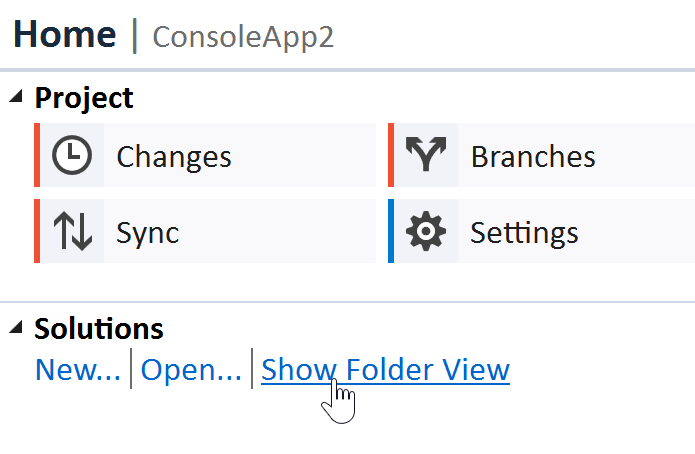
Show Folder View link

This Folder View feature is awesome when you have a repo that doesn’t contain a solution, but you want to use VS to edit the files and use TE to do your Git operations. For example, you can clone Your GitHub Moment of Zen app as a non-solution based repo. It’s an electron app, meaning it’s javascript.

But let’s say you have a legit sln-based project, but you clicked Show Folder View instead of Open… meaning you’re in the Folder View state
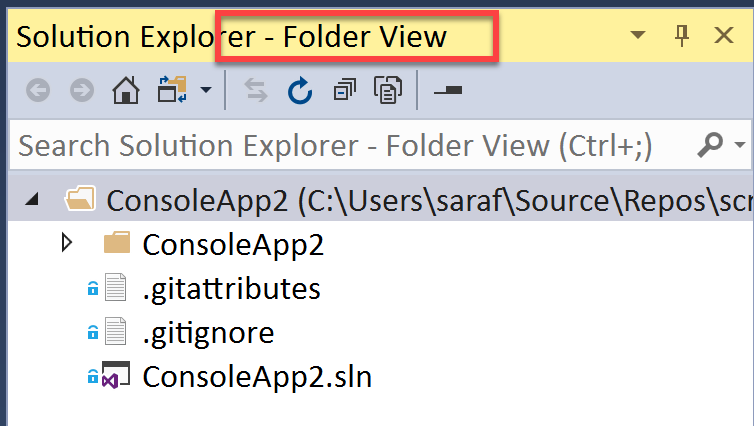
Folder View state in Solution Explorer

Sure you could open the solution via File – Open – File, or you could click on the Solution Explorer toolbar button dropdown and select the desired .sln file. I’m assuming you could have more than one solution file in your repo at the base level, because why not?

dropdown for opening a solution in SE

And volia! You’re solution is now opened in Solution Explorer. No more “Folder View”
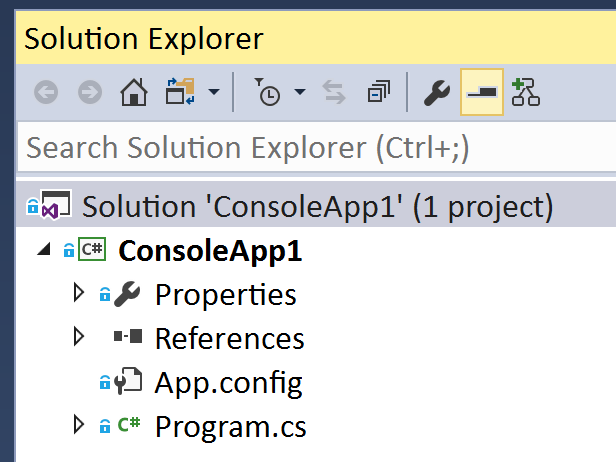
good old Solution Explorer

And of course you can switch back to just folder view using the same dropdown button.

switching back to folder view

*I’ve heard that the kids graduating from college (COLLEGE) don’t know about Back to the Future. :swoons: I just hope they know about Pulp Fiction.

How to make a commit in a detached HEAD state – 098

And one more quote from the same stack overflow answer, “it will still allow you to make commits (which will update HEAD), so the above short definition is still true if you think of a detached HEAD as a temporary branch without a name.”

What? We can still make commits? in a detached HEAD state?

Let’s be brave and give it a try in the visualization tool.

If we do a ‘git commit’ in the detached HEAD state, the visualization tools shows a commit being made to the side.

visualizing commit made in detached HEAD state

P.S. Have I proclaimed my love of this git visualization tool yet today?

So what on earth now? we have this thing floating out in nowhere. Well, we know it is a nameless branch… and we know we can merge branches… let’s try to merge it!

First, we’ll checkout master.

back to non-detached head but commit still floating out there

Then we’ll do the merge and verify the git log.

merged in floating git commit

and thus conclude my mathematical proof I truly have no idea how people are able to keep track of these one-off commits or whatever is going on in git without visualization tools. QED.

How to think about what the HEAD thingy actually is in Git – 097

My learning preference is through hands-on experimentation. I like taking things apart, putting them back together, or trying to break stuff. So let’s break apart this HEAD thingy.

According to this SO answer, it is a file.

saraf@TheBlueDog  ~/Source/Repos/scrap/detachedHeadPractice (master)
$ cat .git/HEAD
ref: refs/heads/master

and that file contains some content. I’d assume “ref” means reference, and “master” is the master branch we’ve been playing with. I’m not sure what “refs/heads/master” actually stands for, but I’ll figure that out later.

I keep hearing HEAD referred to as a pointer. This would make sense if it is a file that only contains the location(?) where to point to. That answers the literal question.

But what does the HEAD pointer do?

According to this stack overflow answer, “HEAD is a reference to the last commit in the currently checked-out branch.” Considering we have master checked out, that makes sense. Doing a git log would show all the commits in the repo.  If we switched to a branch and did a git log, we’d see all the commits for that branch.

But what about the detached HEAD state from yesterday?

Continuing with the same stack overflow answer, “A detached HEAD is the situation you end up in whenever you check out a commit (or tag) instead of a branch.”

Yep, we saw that yesterday. HEAD is pointing at the 2nd commit, whereas master is pointing at the 3rd.

visualization tool showing a detached HEAD state 

Now I had to re-read this line from the same stack overflow answer, “In this case, you have to imagine this as a temporary branch without a name; so instead of having a named branch reference, we only have HEAD.”

A temporary branch without a name??

Okay, what I think is happening is that if you were in a detached state (as shown above) and did a git log, you’d only see 2 commits, not 3.  Since you are seeing 2 commits, you are still technically on a branch. It’s just that this branch doesn’t have a name.

In other words, a Git pointer never points to just a single commit. A git pointer points to the last commit in that series of commits (which I guess is where the temporary nameless branch concept comes from). Which now begs the question… what’s really a git branch?

How to practice getting into and out of a detached HEAD state via command line – 096

Yesterday’s tip went over the visualization of what happens when you are in a detached head state. Today’s tip now applies it to the command line.

Suppose you’ve initialized a git repository using the bash script from a previous tip. I’ve only used 3 files to be concise.

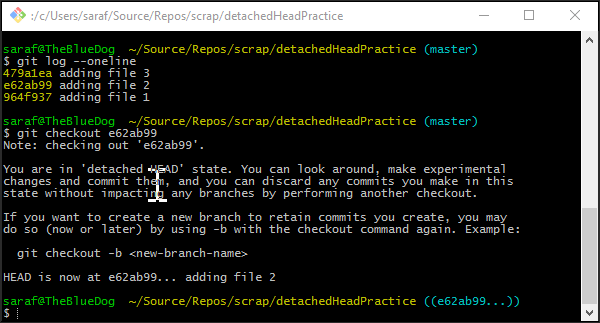
And you’ve did a git checkout <previous-commit-ID> to get into a state similar to Stephen King’s IT trailer. (don’t worry no videos here*)

detached head state

Remember your training.

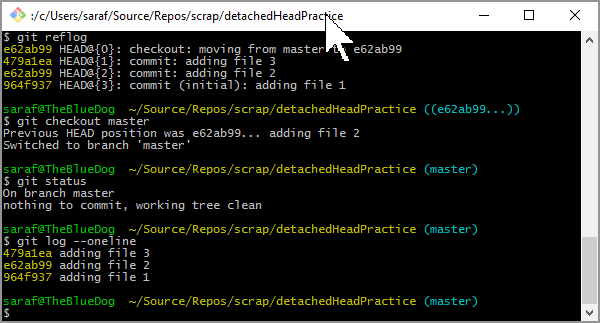
Optional: let’s do a git reflog to get that sense of security that all of our commits are still there. Even though the file 3 commit is “gone”, the reflog verifies all is well.

git reflog showing all history

Now let’s get out of that detached head state by doing a git checkout master. Previously, I would have done git checkout <last-commit-ID> and freaked out that I was still in a detached head state.

head back to pointing at master

And now all is good in the world again. We see master in blue. We see all 3 previous commits. And our git status isn’t like something from a Stephen King movie.

*As many of you know, I used to be a professional clown. Clowns don’t scare me, but wow seriously that trailer is scary!