Tag: windows-only

How to clone a public GitHub repository without signing into GitHub from Visual Studio – 060

I didn’t realize you could do this in Team Explorer. But now that I think of it, of course you should be able to. *runs and hides from team explorer people I know.*

Go to View – Team Explorer. Click the green outlet plug button for Manage Connections.

 Manage Connections

Now under Local Git Repositories, click Clone.

Copy and paste the Clone URL from the GitHub website, e.g. here’s the clone path for Open Live Writer.

As soon as you paste it in, you’ll see the local path update from NewRepo to the name of repo.
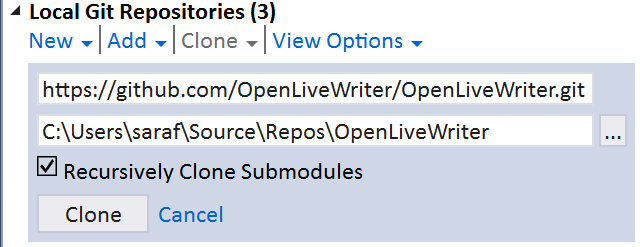
Clone button in Team Explroer for a public GitHub repo

And click Clone. (And wait a bit if you are pulling down Open Live Writer over Starbucks WiFi… d’oh!)
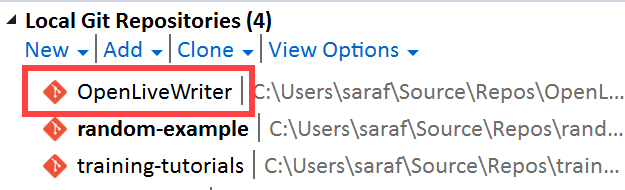
OpenLiveWriter now appearing in list of local git repos

For the non-Windows folks following along at home, this is the command line equivalent of

git clone https://github.com/OpenLiveWriter/OpenLiveWriter.git

We’ll talk about submodules later in this series, probably over the summer 🙂
How to use your preferred command line interface from GitHub Desktop – 039

After you’ve installed GitHub Desktop and authenticated with GitHub.com, you can still use a command line interface.

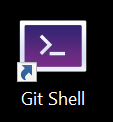
Installing GitHub Desktop will also install a shortcut icon called Git Shell.

Git Shell Desktop icon

If you right-click on the icon and select Properties, you’ll see the comment “Open your preferred shell with Git enabled.”

Let’s select your preferred shell.

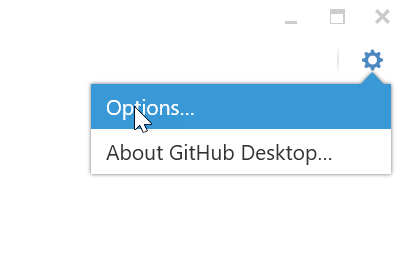
Open GitHub Desktop, and in the upper right-hand corner, click the Gear icon and select Options.

GitHub Desktop options button

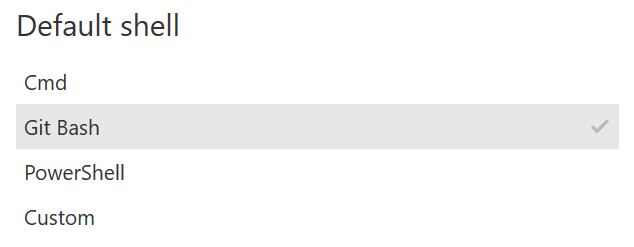
Now select your preferred shell. For me it is Git Bash, because I’ve never taken the time to learn PowerShell (I know! It’s as embarrassing as when I was still using Ctrl+c Ctrl+v as my source control a few years back).

Setting Default shell to Git Bash

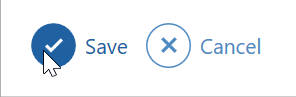
And now click Save at the bottom of the page.

Save button at bottom of options screen

And close GitHub Desktop.

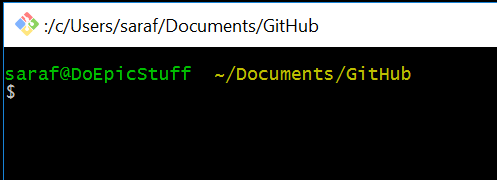
Now when you double-click the Git Shell icon, you’ll see a happy Git Bash prompt waiting for you with your authentication to GitHub.com (and other stuff we’ll cover later!) handled for you!

Git Bash opened

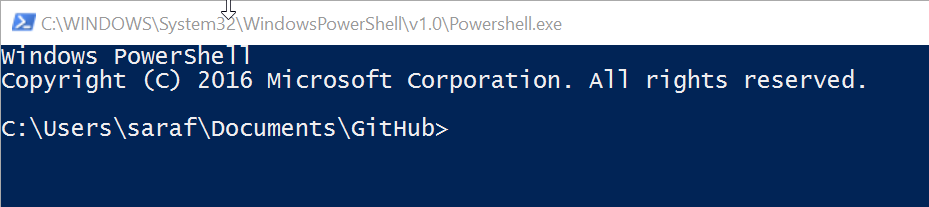
If you preferred PowerShell, then you’ll see a happy PowerShell prompt waiting for you!

Powershell prompt

And that’s it! You can now go back to your command line interface workflows!

How to setup your GitHub credentials (and handle 2FA) on Windows using GitHub Desktop – 038

If you are a Windows user, install GitHub Desktop. It “automagically” (my new favorite word of the day) sets up your credentials, including 2FA.

You are not forced to use the GitHub Desktop UI once you’ve installed it. I mention this because before I started using GitHub Desktop, I didn’t know if Desktop would play nicely alongside the command line. Actually, GitHub Desktop makes using a command line interface even easier! (stay tuned for tomorrow’s tip).

First, you’ll login using your GitHub.com username and password.

GitHub Desktop login screen

Next, you’ll be prompted for you 2FA code.

Two-factor authentication prompt

And the you’re all set! So even if you want to go back to using the command line, you still can! Just check out tomorrow’s tip.

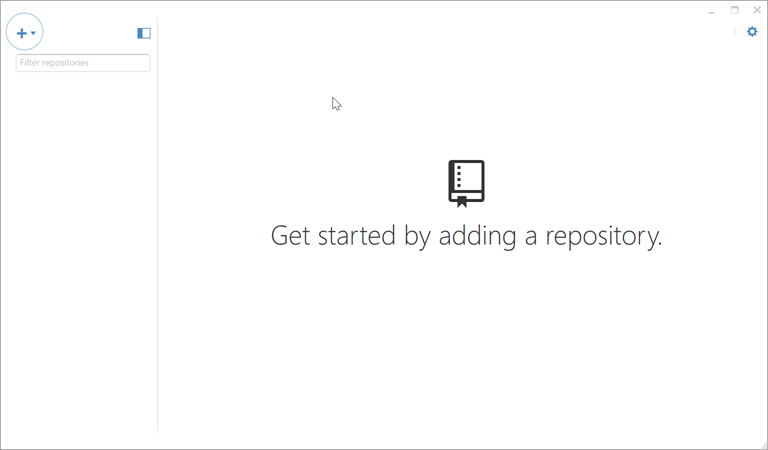
GitHub Desktop - Get started screen

Desktop also does a bunch of other stuff for you that we’ll get to later in this tip of the day series.

How to pretend the Windows Start Menu works the old Windows 7 way – 011

For those non-Windows users wondering “What the…This is supposed to be a Git(Hub) Tip of the Day!!” I promise it is. But remember, this is a Windows-first, non-Windows friendly blog series, so from time to time you’ll see some tips that only Windows users can relate to. Think about it this way. If you ever need to use Windows in the future, it can’t hurt to have a few tricks up your sleeve  😉

A coworker was telling me how much he missed the old Windows 7 Start Menu experience, where pressing the Windows Key immediately opens the Run dialog. I’m including this tip here in the series because if you are a Windows user and do not know about this yet, this tip will change your life on Windows.

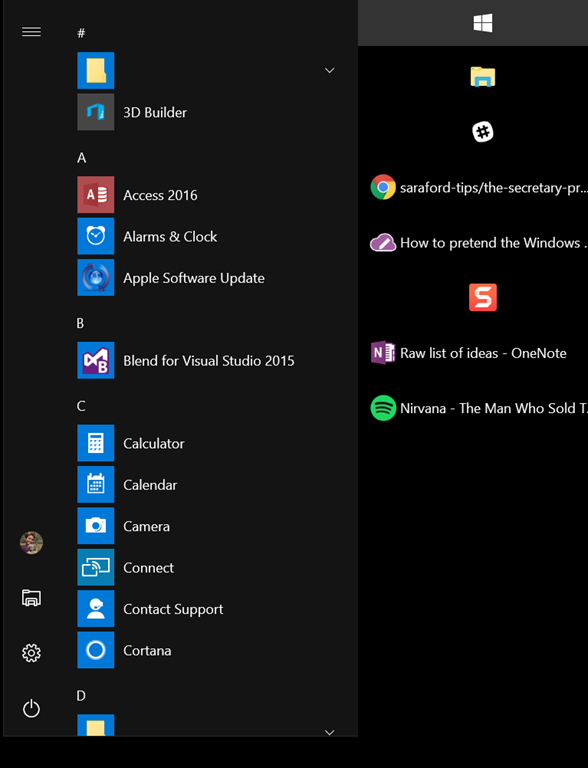
Press your Windows Key and your Start Menu appears.

Note in the following screenshot:

  1. I manually removed all of the live tiles. There’s an option to hide if you right-click on each live tile.
  2. I’ve had the Windows taskbar docked to the right side of my screen since 2005. You’re able to see more items listed and you can read more of each item name, which is especially useful if you have multi-instance apps. E.g. if I had two instances of Open Live Writer open, I’d know which blog post I’m editing. But I digress…

image

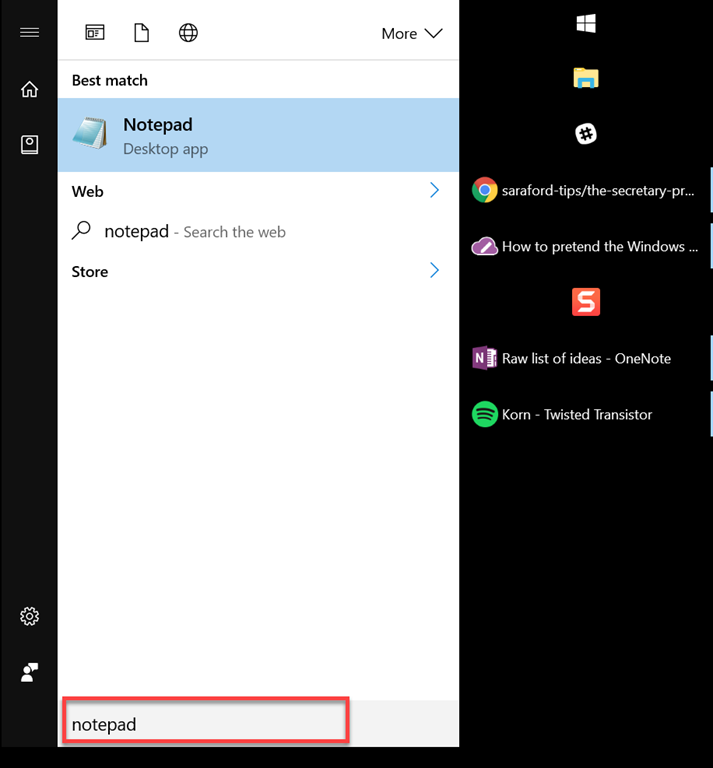
Now for the moment you’ve all been waiting for, take the leap of faith and just start typing, e.g. “notepad”

You’ll see below that the Windows start page thingy changes to the old school run dialog (of sorts). You’ll see whatever you type is shown at the bottom.

image

Be aware that if you mistype a word, like “notefoo”, Windows will kick off a Bing search in Edge for “notefoo.” There’s probably a way to customize this, but just be aware of some interesting Bing results from your typos! Smile