Tag: visual studio

How to review changes in a pull request without switching branches in Visual Studio – 065

I’m disrupting your regularly scheduled tip series to talk about the awesome work the Editor Tools team has been doing at GitHub. I’m too impatient to wait for the series to catch up!

We have a GitHub Extension for Visual Studio that’s available in Visual Studio Gallery / Marketplace which is also an open source project at https://github.com/github/visualstudio. You can go to Tools – Extensions and Updates and under Online search for GitHub to install.

Once installed, you can open the GitHub tool window from View – Other Windows – GitHub

In the interest of time, I’m going to assume you are 1. connected to GitHub (either by signing in via Team Explorer or the GitHub tool window) and 2. in Team Explorer, you’re connected to a GitHub repo, as shown below
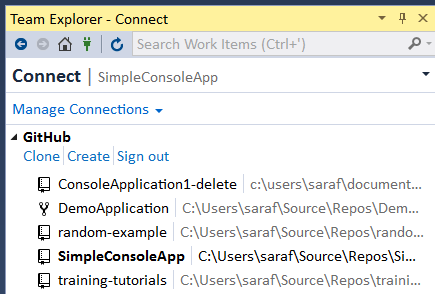
Team Explorer - Connect showing connected to SimpleConsoleApp repo

How to review changes in a pull request without switching branches

1. Go to Team Explorer –  Home – Pull Requests

Team Explorer - Home - Pull Requests button being clicked

Clicking Pull Requests will take you to the GitHub tool window, showing all of your open pull requests for your currently connected repo.

Note by default the GitHub tool window shows Open pull requests. You can filter to see closed and all pull requests.

GitHub tool window showing an open pull request 

2. Click on the title of the pull request (e.g. added a message) to view the details.

GitHub - Pull Request Details View

Ignore my funky font sizes. I’m making it to 40 without computer glasses. That one summer 10 years ago was an exception.

Lots of stuff going on here. We see

  • User drofaras wants to submit her (yes, my alias spelled backwards) branch patch-1 (the default name GitHub supplies to branches created via the website) into master.
  • A”checkout” link button, but the goal of this blog post is to review changes without switching branches. (stay tuned for tomorrow)
  • The details about the pull request and the option to view it on GitHub.
  • Lastly, there’s Changes (1) because only one file has been changed.

3. Double-Click on Program.cs to view the file diff
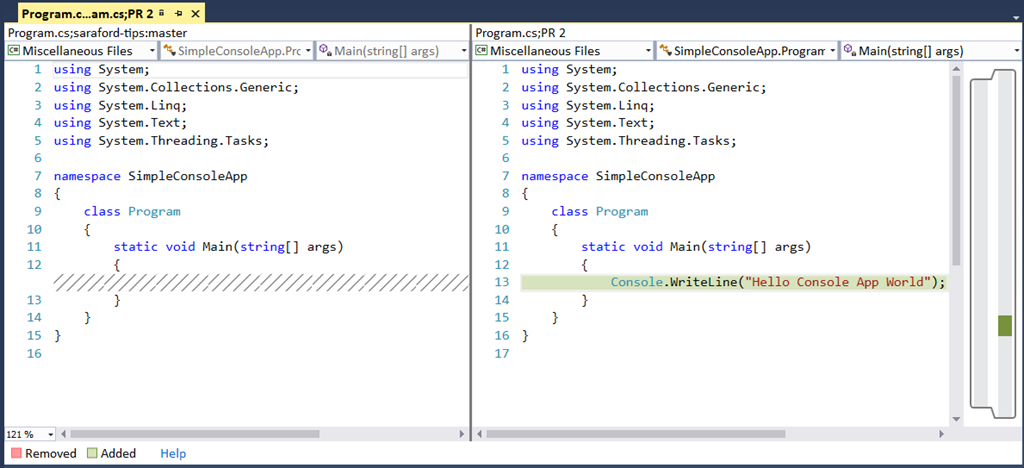
VS showing the diff between the two files

And that’s how you can do a diff between two files without switching branches within Visual Studio using the GitHub extension.

To show we’re still on the same branch as before (e.g. master), go to Team Explorer – Home – Branches to verify.
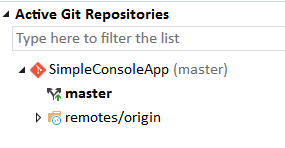
Team Explorer - Branches showing master as current branch

Got Feedback?

I strongly recommend using one of the existing channels for feedback. Of course, I’ll help anyone who leaves comments. It’s just that if you use one of the existing channels, your feedback and questions go to the entire team; whereas this blog is my nights and weekends project, so it’ll take me a while to respond, but I will respond. Just don’t ask me how small my queue of tips has become! O_O

How to view changes to your working directory in Visual Studio (and via command line) – 064

Yep this might seem trivial, but two things: 1. I discovered something new (see tomorrow’s tip) and 2. I’m playing with formatting of VS vs CLI

How to in Visual Studio

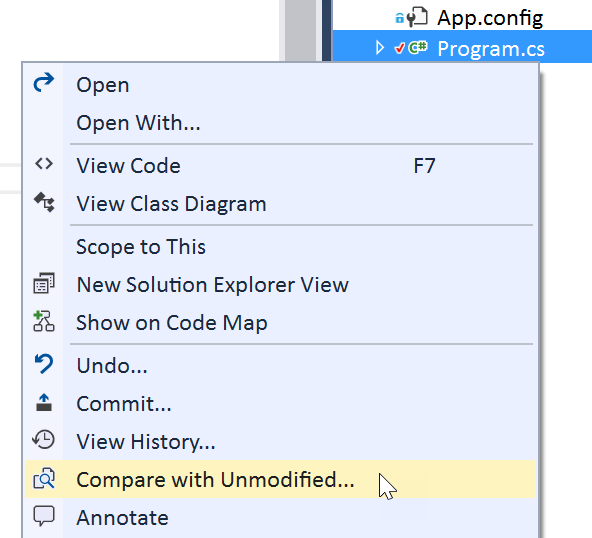
In Visual Studio, if you want to compare your current changes (i.e. changes in your working directory) to those in your last commit (where HEAD is at), you can right click on the file in Solution Explorer, in the Editor, in Team Explorer, aka practically anywhere, and select  Compare with Unmodified…

Compare with Unmodified

This command will open a diff of the file at HEAD and the file in the working directory,

Program.cs;HEAD vs. Program.cs

where you can see the changes in the diff side-by-side, where the Console.WriteLine was added.

Diff showing Console.WriteLine() message being added

How to via Command Line

Here’s how to do the same via the command line. Open the command prompt and navigate to your solution.

PSA: If you don’t have the Productivity Power Tools installed, go get them! Then you can right-click Program.cs and select “open in command prompt.”

To compare changes from your working directory (i.e. what you haven’t staged or committed yet) to your last commit (where that HEAD pointer thingy is at), run the following command

git diff

and now you’ll see the equivalent diff in the command line interface

command line showing "git diff"

How to interpret the blue pad lock icon when using Git in Solution Explorer – 063

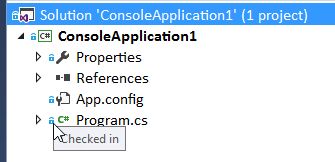
This blue pad lock icon got me the first time I opened a Git-based solution. At first I thought, “wait a sec… I just created this repo and solution, why are these files locked??” Anyone who has used Visual Studio for a while knows what I’m referring to.

tl;dr – when using Git, the blue pad lock icon means “file is unchanged,” but why didn’t they update the tooltip? In TFVC, SlnExp uses “Checked-in” but in Git, SlnExp uses “Checked in” (no dash), so why not change the words?

For non-windows readers who are interested in what TFVC (a centralized VCS) looks like or those who want more context, here’s a brief overview of what a Solution looks like under Team Foundation Version Control (aka TFS, aka VSO, aka VSTS, etc.)

Using Team Foundation Version Control in Solution Explorer

When you first create a project, you’ll notice that the files have a green + icon, indicating that this file is newly added, but not checked into source control. 

Newly added file to TFVC

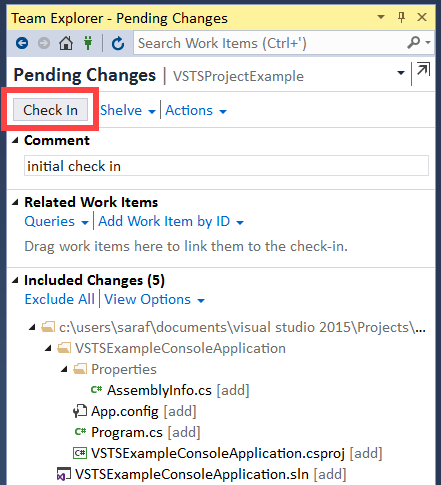
And after you’ve check-in your new files,

Team Explorer - Pending Changes window showing "check in"

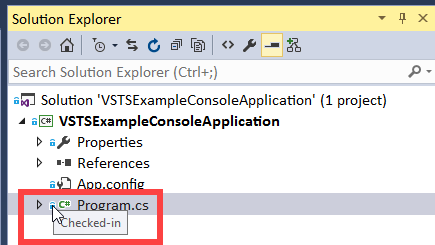
you’ll now see the blue pad icon

Checked-in icon showing in Solution Explorer

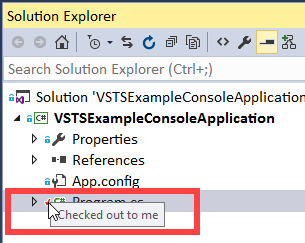
where you can now Right Click to “check out” your file or just simply start editing to “check out” your file.

Checked out to me icon in Solution Explorer

Using Git in Solution Explorer

Let’s pause for a second and consider the workflow of Git being DVCS. So “check in” and “check out” states don’t directly map. But Visual Studio users are used to icons have certain meaning. My guess (and this is just my guess, considering I haven’t been on the team in ages) is that they went with the existing set of check-in and check-out icons, hence mapping their semantic meaning to the Git states. Sure, it’s a little strange at first (as mentioned above), but then you adjust and go on with your life.

For example, this is a Git repo with `git status` that has nothing to commit and working tree clean.

git repo saying "checked in" in Solution Explorer

So although we’re supposed to interpret this as “unchanged”, it’s interesting that the tooltip doesn’t have the dash between Checked and In. At first when I started writing this blog post, I figured SlnExp was using the exact same icons and tooltips, but clearly something is different in a Git repo. I tried having only changes locally versus pushing up to GitHub, but that doesn’t add the dash back.

So despite the missing dash, I’ll adjust and go on with my life 🙂

How to create your own local Git remote repo that’s not hosted on a Git server (–bare option) – 062

I highly recommend Ed Thomson’s Git for Visual Studio O’Reilly course. It’s one of the several training courses I’ve taken to put together this series. In fact, stop reading this series and go watch Ed’s course now!

Ed mentions that you are not required to clone from a Git server. He shows how he could clone from F:\shared.git, where the F: drive is where he mounted a UNC share. This got me thinking… what is `shared.git` (is it a file, folder, etc?) and how do you create or get one locally.

After a bunch of SO’ing and reading several answers, I’ve learned that you can create your own local remote repo (I seriously have no idea what this type of repo is called. bare repo? Help me out in the comments if you know.)

1. Create the shared.git folder

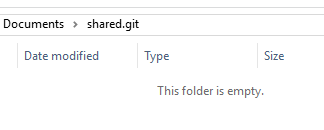
This `shared.git` thingy is actually a folder. You can created it by creating a new folder somewhere but calling it `shared.git` as the folder name, e.g.

shared.git as a folder name

2. Create a bare repo inside shared.git

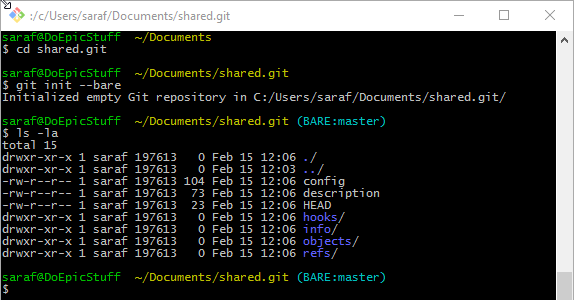
cd inside the shared.git folder and run the command

git init –bare

This command creates a bare repo, which apparently is a repo without a working directory, meaning you can’t do something like `ls` to see the contents of the git repo. But clearly it has all the underlying plumbing when you do a `ls –la` on the folder’s contents.

command prompt showing creating and viewing contents of a bare git repo

3. Create a local git repository to contain your actual files, like you normally would

I’m going to head back over to my \Source\Repos directory and create a new local git repository using the command

git init

command prompt showing git init a new repo

And I’ll create a README.md file with some content and add/commit it to the repo, as you’ve done a 100 times by now.

command prompt showing adding a readme file to a new repo

4. Push your changes to your bare remote

Now it’s time to pretend that your shared.git repo is like all the other git repos you’ve ever interacted with that is hosted on a server.

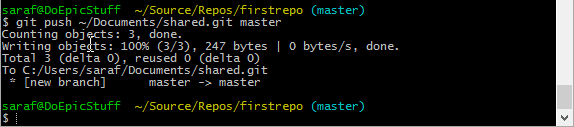
Remember your training. The command is `git push server-name branch-name`, so in my case, I’ll run

git push ~/Documents/shared.git master

Note I’m not passing in a `username@server` because I’m using Git Shell, and that’s been taken care of for me. 

pushing your changes to a local bare git remote

Remember we can’t do a `git ls-files` here in the shared.git folder because it is a bare repo and has no working directory. However, we can note that the objects folder has had its timestamp updated.

command prompt exploring contents of shared.git

5. Clone from Visual Studio

All that setup! Now, let’s get back to Ed’s example…

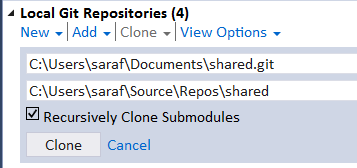
Now I paste in the location to my shared.git remote.

Team Explorer cloning from shared.git

and now hitting clone we’ll see an info message at the top of Team Explorer indicating that the repo was cloned successfully.

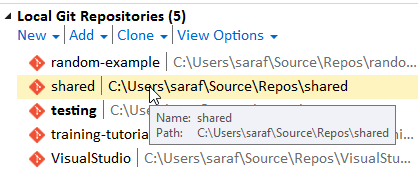
Double-click to switch to the newly cloned shared.git repository.

Double click in Team Explorer to switch repositories

Note Visual Studio is just going to look at you because there’s no solution file to open. That’s okay. We can old school open that readme via File – Open – File and selecting the readme over at C:\Users\saraf\Source\Repos\shared (or wherever your default repo location is at.)

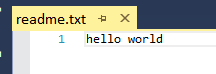
And volia we see the readme.txt file open in Visual Studio showing our “hello world” contents. (Hello Visual Studio File Tab Channel my old friend. I’ve come to blog about you again.)

readme.txt file opened in Visual Studio

6. Go Explore!

Now you can go explore and play with your newly created local git remote thingy (I’ll update name when I find out what it is technically called). I’ll leave it up to you to make changes here in VS, push those changes back up (or over?) to shared.git, and then use your original `firstrepo` repo to pull down any changes from Visual Studio.

And I mean it when I say check out Ed’s excellent Git for Visual Studio videos.