Tag: git

How to use Visual Studio as your external merge tool – 106

Hmm, I wonder what could possibly be my tip for the day after yesterday’s tip!

In yesterday’s scenario, you saw how to use VS to do a diff. In today’s tip, you’ll see how to do a merge when you do `git merge branch-name` and get into a merge conflict. Hopefully you’re feeling a bit more confident when you see merge conflict now. (Yeah that’s actually my hope for myself.)

First, go to Team Explorer – Settings – Git – Global Settings and for Merge tool, click Use Visual Studio

Merge Tool: Use Visual Studio

Suppose you have a file in one branch (mine is called readme) that contains a conflict. When you go to merge into master, you’ll see a merge conflict.

You can open the mergetool by running

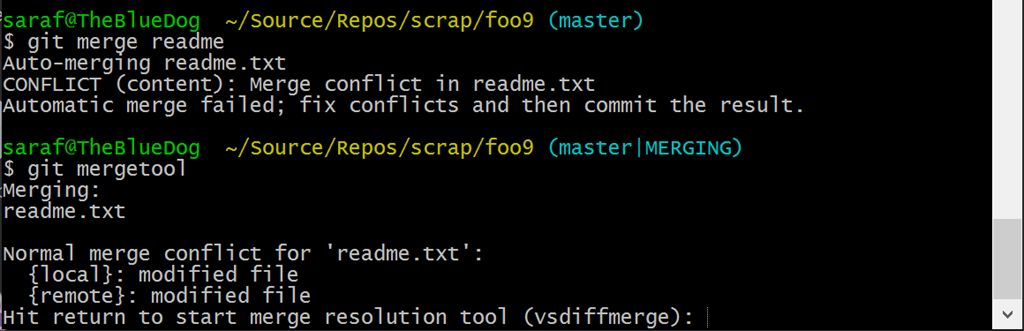
$ git mergetool

git mergetool prompting to open in VS

Follow the instructions and hit Enter.

Now the VS Merge tool appears

VS merge tool

Clean up your readme.txt in the bottom part of the screen (or however you want to use the merge tool).

Now we’ll see that we have changes in our working directory.

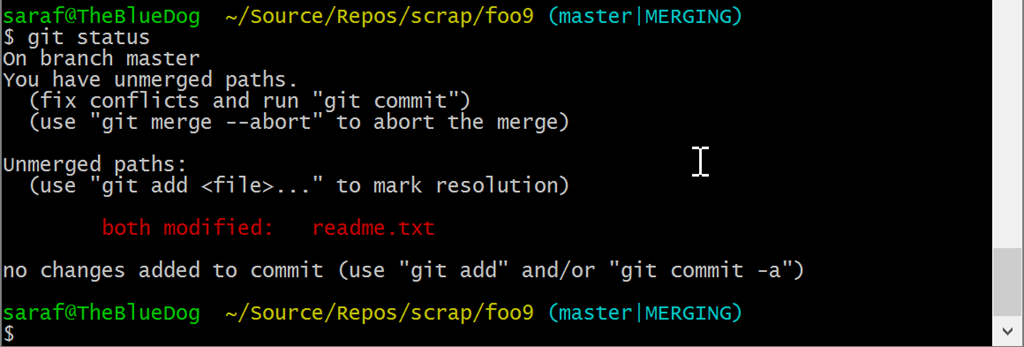
need to do git add to stage changes from merge

You can do a `git add readme.txt` to add this file to staging.

file added to staging

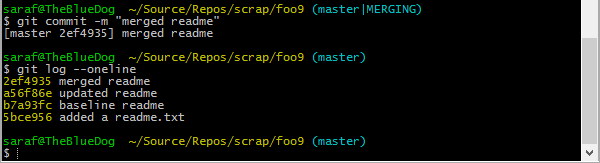
And now we commit our merge commit via `git commit -m “merged readme”`

committing our merge commit

and the `git log` confirms our merge.

How to use Visual Studio as your external Git difftool – 105

Thanks again to Ed Thomson’s Git for Visual Studio O’Reilly course! I searched for a solid hour how to manually configure VS as your external diff and merge tool. I knew I had seen it somewhere. Then I remembered Ed’s course!

Go to Team Explorer – Settings – Git – Global Settings. Then for either difftool or mergetool or both click Use Visual Studio

Diff Tool: Use Visual Studio

Suppose you have at least one commit and you’ve started making changes to that file in your working directory.

Now you can do

git difftool

which will bring up a prompt asking you to confirm launching your external diff tool vsdiffmerge (the tool VS uses).

Press ‘Y’

git difftool prompt

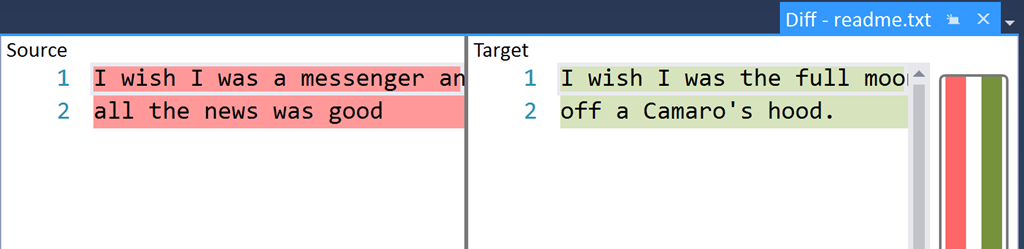
And now VS will launch and open with the diff tool showing the original Source (i.e. the file in the last commit) vs the changed file Target (the one you changed in the working directory)

I wish I was a messenger and all the news was good - diff in VS

BTW the reason why the tab is shown on the right side of the file tab channel in VS instead of the left is because this is a temporary file that isn’t listed Solution Explorer. Back in the day, you’d have to add this to the miscellaneous project, but not sure how that all works today. But I digress….  🙂

So let’s see what the Use Visual Studio link did by using these two commands

$ git config diff.tool

$ git config difftool.vsdiffmerge.cmd

git config diff.tool and git config difftool.vsdiffmerge.cmd

And the `difftool.vsdiffmerge.cmd` line is the magic line I was hunting the Internet for. Thanks Ed’s course!

How to configure an external diff and merge tool in Git – 104

One of my favorite Nintendo NES games was Dragon Warrior. It made you finish the game. At level 30, you couldn’t gain any more experience points. The mentor wizard person (because there’s always a mentor wizard person) would tell you, “Aren’t you strong enough to defeat the DragonLord?”

As I debated whether I knew enough to write a tip about configuring your git diff and merge tools, I ask myself “Aren’t you strong enough to defeat the git diff merge config tool?!”

More about the game at bottom of post…

For today’s tip, I’m using the git-scm instructions and this translation for Windows

Let’s start by engaging in epic battle with the git-scm instructions. I’m going to assume you’ve installed p4merge. Yes I know there are others, but for now, I’m going to follow these instructions. The journey to 3rd degree black belt starts with a single punch.

These are the two lines I get stuck on:

$ git config --global merge.tool extMerge
$ git config --global mergetool.extMerge.cmd \
  'extMerge "$BASE" "$LOCAL" "$REMOTE" "$MERGED"'

so why need two lines? Perhaps I’m not recalling enough of my shell programming or the translation fails over to Windows? The instructions say

Set up a merge wrapper script named extMerge that calls your binary with all the arguments provided

so `extMerge` is a variable. But why can’t you have it all on the same line?? What am I missing?

and also, what is “mergetool”? is it yet another variable? and how does it differ from merge.tool?

Anyways…

I’ll assume you have p4merge installed here in C:\Program Files\Perforce

Thanks to these for Windows we can setup p4merge as our merge and diff tools using Git Shell (I’m using Git Bash)

$ git config –global diff.tool p4merge
$ git config –global difftool.p4merge.path ‘C:\Program Files\Perforce\p4merge.exe’

$ git config –global merge.tool p4merge
$ git config –global mergetool.p4merge.path ‘C:\Program Files\Perforce\p4merge.exe’

Now let’s create a merge conflict, but this time, I’m going to keep my heart rate low when the (master|MERGING) appears! Btw I called my branch `conflicting` just because.

merge conflict state

now you can type in git mergetool

git mergetool showing p4merge

I’m not going to go over p4merge, but I think the “error” showing for the base file is because p4merge is trying to do a 3-way merge, but only has 2 files. Don’t quote me on this.

After modifying the resulting myfile1.text and hitting save in p4merge and closing it, we’re back to the merge conflict state. This used to freak me out because git didn’t “move on”. But now I know what to do!

You can do a `git status` to verify where you are at.

git status showing myfile1.txt as staged to be committed

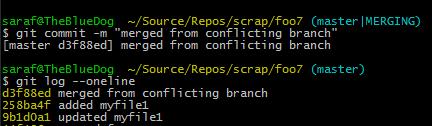
Perfect! We’re done with myfile1.txt and it is staged. Since it is staged, we can simply commit it via `git commit -m “my merge message”`

committing the merge shows in the log

And boom! I’ve now done epic battle with one of my most feared Git foes.

The most memorable aspect of the game was the ending… but not for the reasons you’d think. The game had their basic “hero” ending, but it also offered a twist. Before going into battle with the Dragonlord, he’d ask you to join him in being evil and taking over the universe. If you said yes, the game would “freeze” and IIRC, it would erase your saved game! I’ve never heard of another game doing this. There’s the “did you give a dog a sandwich?” story, but not a “come join the dark side” option destroying your saved game!

How to manually commit your own merge commit – 103

Following from yesterday’s tip, suppose you have a branch that you plan to merge, but before the merge is committed, you want to verify things. Perhaps you want to hit F5 or perform some other testing. In other words, you are telling git, “Do the merge, but allow me to hit the commit button.”

I guess this is an inverse of “sudo make me a sandwich” which would be “hey sudo, about that sandwich, if you take all the stuff out of the refrigerator, I’ll finish making it myself.”

git merge –no-ff –no-commit branch-name

Note: I’m using the –no-ff option because I don’t have an actual merge conflict in my branch, so I need to tell git not to do a fast-forward.

git status showing all conflicts fixed but you are still merging

If you do a `git status` you’ll see that all conflicts fixed, but you’re still merging, just as the scary (master|MERGING) tells you.

Notice how the next line tells you to do a `git commit`and the Changes to be committed looks like a good old staging message.

From here, we just need to do a `git commit` (which would open your `git config core.editor` – mine is set to notepad. baby steps)

Or you could skip the editor (in case the scary Vi appears) and do

git commit -m “my merge message”

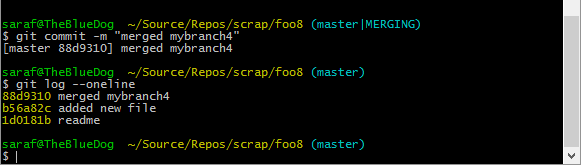
git commit -m "merged mybranch4" then a git log

And doing a `git log` shows the initial readme being added, then the commit from the mybranch4, then the merge commit!