How to use the VS status bar buttons as a shortcut to Team Explorer panes – 083

Something new in Visual Studio 2015 and still there in Visual Studio 2017 is the ability to click buttons(!!!) in the status bar O_O.

You can switch branches without having to touch the Team Explorer pane.

branches button shown in status bar w list of branches to checkout

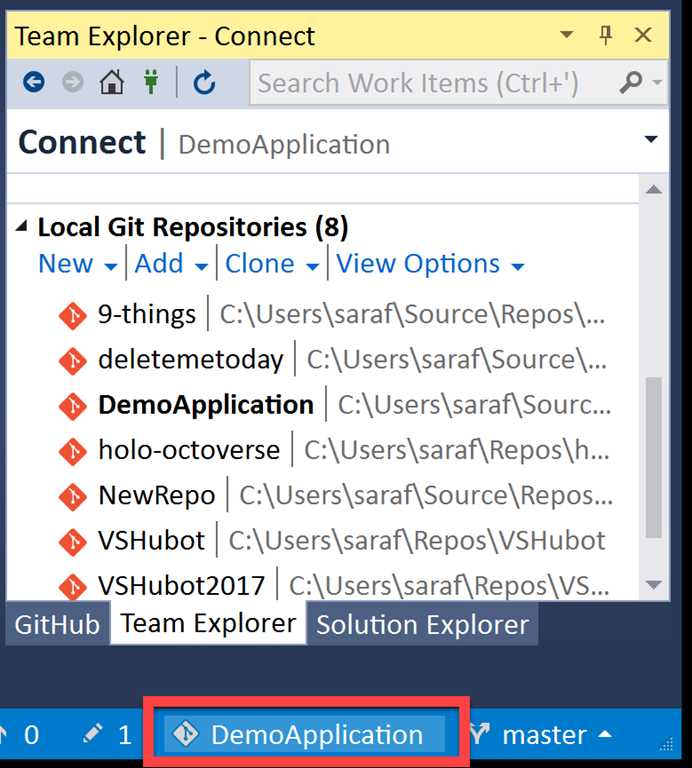
You can jump to the Connect pane, which will save you time when you’re debating “is it the Home icon or the green Plug icon?”

repo button in status bar showing Connect pane

Yeah, I guess I need to get around to deleting deletemetoday one of these days…

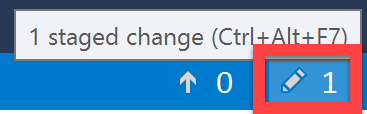
You can jump to the Changes pane, regardless whether you have uncommitted changes (or staged changes as shown in my screenshot – yeah SDET skills die hard).

This button won’t automatically commit your changes, but only takes you to the pane.

pen or pencil icon button for Changes pane

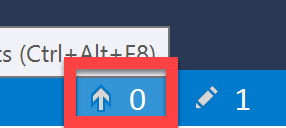
And last but not least, you can jump to the Sync pane. Again, it doesn’t perform any commands other than just navigating to the pane.

up arrow button for Sync pane

Looks like you can click the Line, Column, and Character status bar “buttons” and new UI appears for Visual Studio 2017!! (provided you have a file opened).

Must focus on Git and GitHub tips

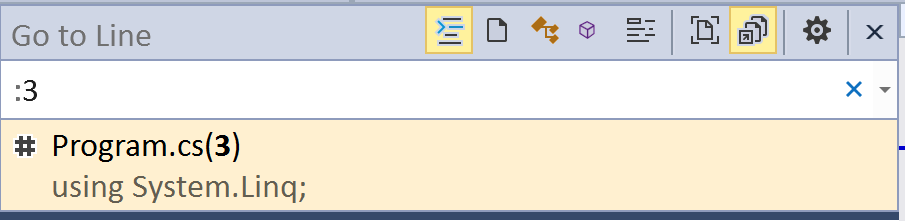
Okay, it looks like if you double-click on any of those status bar buttons, you’ll get a new Go To Line dialog, which seems to be part of a global search window…

new Go to Line window in VIsual Studio 2017

but it doesn’t seem to let you specify columns or character positions.

Yeah, old habits die hard, even when trying to focus.

How to fix the "oh no! I’ve accidentally committed on master instead of a branch" – 082

If you haven’t seen http://ohshitgit.com yet, stop reading this blog series and go check out that site, then come back here. I’m going to play out this scenario using the Visualizing-Git tool from yesterday.

I need to print this out this accidental-commit-master section and have it laminated on my desk. How many years have I gone to work, fired up Visual Studio, and started typing? And now all of a sudden I have to create a new branch first? I feel like this is the pilot equivalent of having to lower the landing gear before taking off. Nah, I don’t regret my career/life choices at all!

As my above drama illustrates, you’ve been coding along on a new feature and then you realize, “oh no! I’m still on master!” What I’ve done for years is Ctrl+C, Ctrl+V, diff my changes, delete either the last commits and/or working directory, and then create the branch and move over my changes. At least I’m being honest.

We’ll follow these steps from ohshitgit.com via command line. But don’t stress if it doesn’t make sense. Once we rinse and repeat from Visualizing Git, it will make much more sense!

Part 1 – Command Line to the rescue!

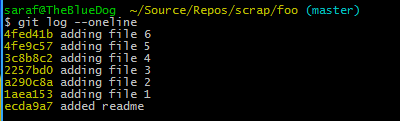
Let’s say you’ve been working, working, working on your code, and suddenly you realize all these files you’ve added have been to master instead of a new feature branch!
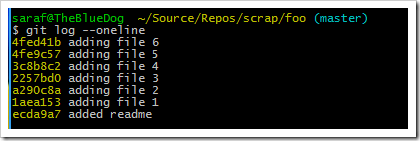
 git log w 6 files added to master

First, don’t panic. Take a deep breath and don’t delete anything 🙂

Next, create a branch (git branch branch-name), but don’t check it out, so no `git checkout -b branch-name` shortcut!

git checkout feature-work

Now do `git reset –hard <commit ID to roll back to>`, e.g. I want files 1-6 added to my feature-work branch, so I’ll use the commit ID for the readme.

Note: since you are using the –hard, in the future, you’ll need to make sure that you don’t want to keep anything in your staging or working directory.
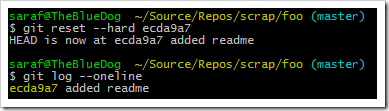
git reset --hard commitID

What?? Is our work gone?? There’s no commit logs for files 1-6. and doing a `ls -la` or `dir` or a `git ls-files` only shows the readme!

It might not seem like it but our work is still there. To quote my inner matrix, “the answer are coming.”

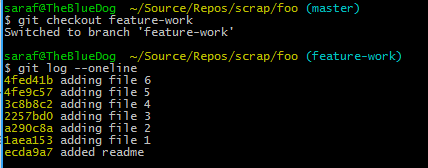
Now finish this by checking out the branch…

checking out the branch brings back the commits

WTF? Don’t give up. The answers are coming. I promise. (This is a conversation I would have had with myself from a week ago.)

Part 2 – Visualizing Git to the rescue’s rescue

Okay how on Earth did that work? Let’s rinse and repeat using the Visualizing Git tool.

First I’ll commit a readme and then 6 files.

inital setup visualization

now we’ll create that branch, but don’t check it out!
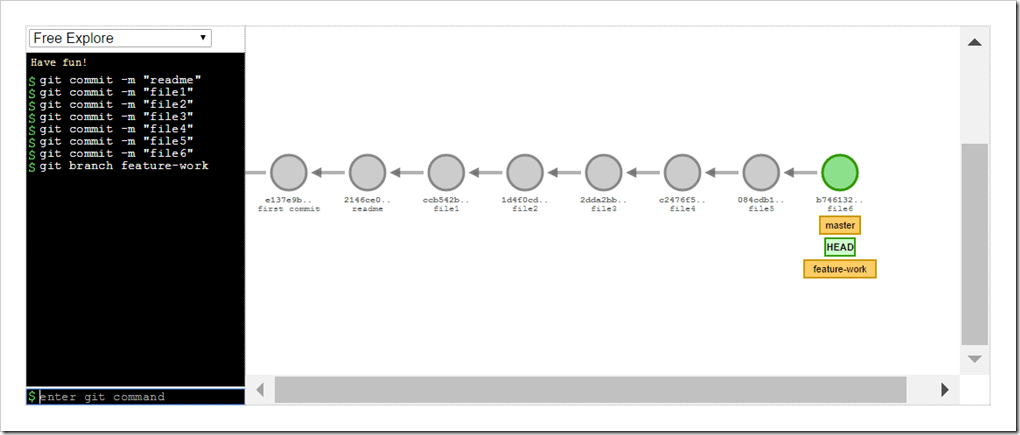
created a new branch

Remember that a branch is a pointer. Reminds me of a high school teacher who said “A logarithm is an exponent” over and over and over again in hopes we wouldn’t panic when we had to deal with logarithms in the future.  

But now we can see that the branch points to where master (another branch) is pointing. This is my ah-ha moment! In my mental model I’ve been visualizing a branch as a collection of commits from some starting point to some ending point, but here I can clearly see it is just pointing to the last commit I created it at.

Now let’s break down`git resert –hard commitID`

  • git reset means that it is moving where the current branch is pointing at (aka the tip) back to some previous commit.
  • — hard means Git will reset both staging and working directory to the changes you’re resetting to, so make sure `git status` is clean
  • some instructions show HEAD~. HEAD is a pointer as shown in the illustration. HEAD~ means move back one commit (HEAD~1 does the same as HEAD~). But since we want to remove all the files from master and not just file 6, we’d either have to do commitID or HEAD~6. CommitID is just easier to follow in this example.

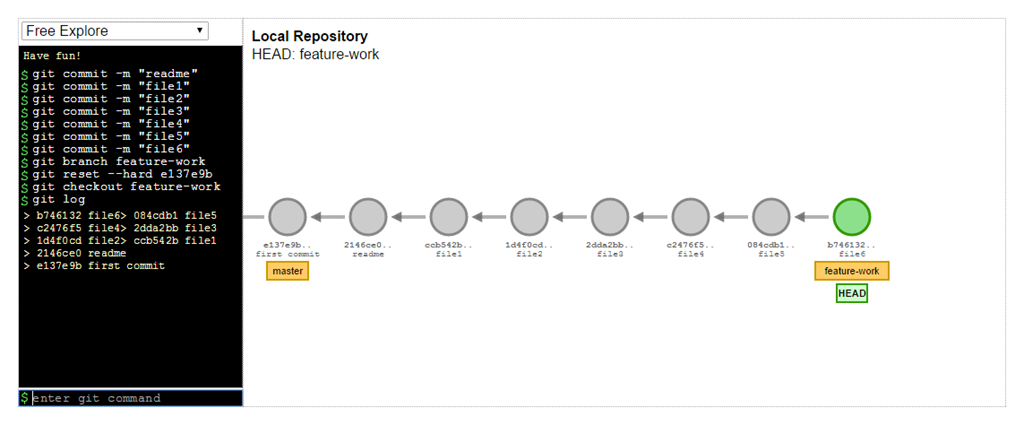
When you type in `git resert –hard <commitID-for-readme>` you’ll see the following:

git reset --hard <commitID-for-readme>

Now things are making A LOT more sense. The feature-work pointer still points to all of our work since we’re only moving the tip of the master branch back.

and for the grand finally, you can now switch to that branch.
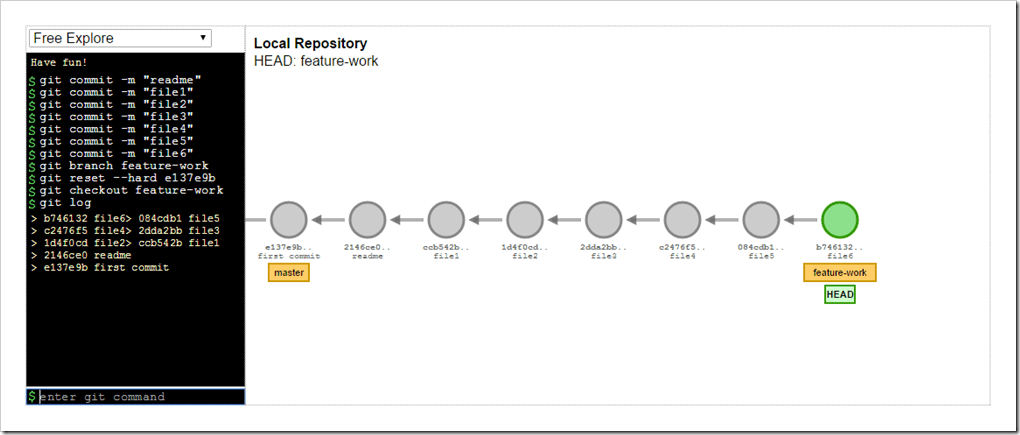
git checkout branch

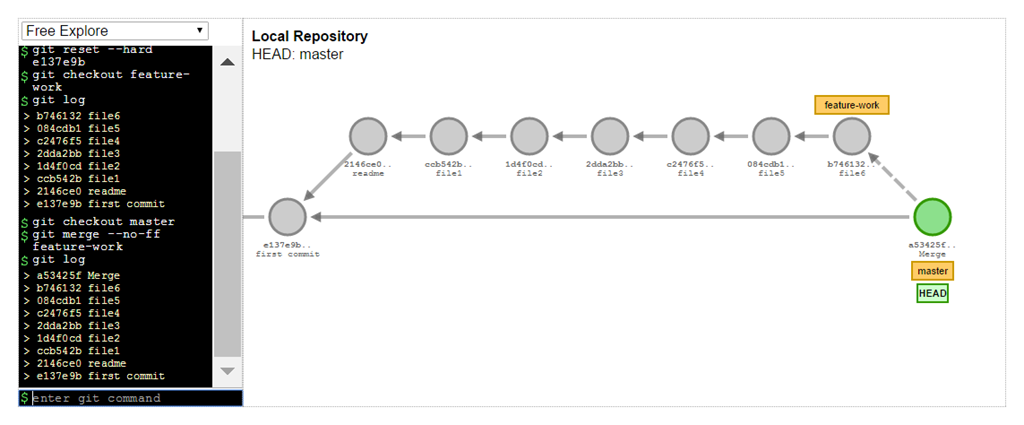
And just to finish this all off since we’ve come this far after all, you can either do a merge (which will automatically do a fast-forward because no conflicts) or if you want to show that this work was always on a branch, you could do 1. `git checkout master` and 2. `git merge –no-ff feature-work`but we’ll talk about this in future tips.

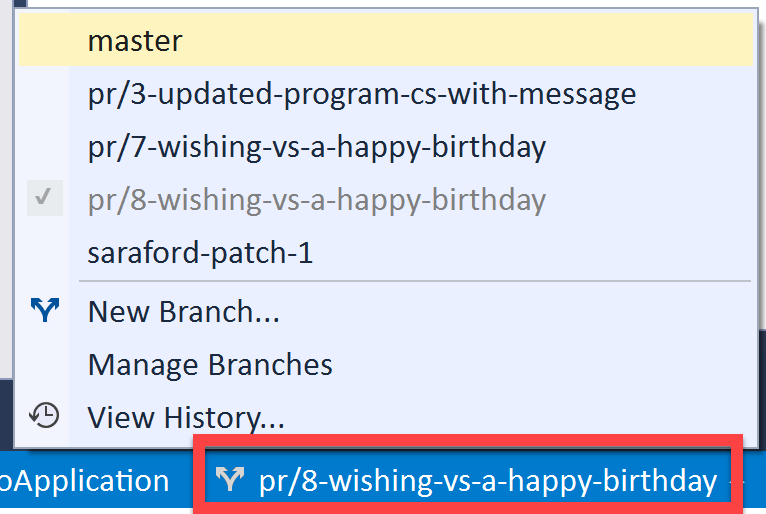
non-fast forward merge of feature-work branch

How to demystify Git commands using Visualizing Git – 081

A  couple of githubbers (aka those who work at github) put together an interactive visualization of git commands (as an open source project). For whatever reason, being able to play with this particular visualization tool allowed git things to click big-time, which you’ll see more in tomorrow’s tip.

http://git-school.github.io/visualizing-git/

visualizing a git merge no fast forward

A couple of commands to know that are only for the visualization tool itself and nothing to do with Git:

  • “undo” – undoes your last command to the tool. not a git command.
  • “clear” – gets you back to a clear Free Explore state – see the dropdown

Note that the tool doesn’t have a concept of

  • staging or a working directory – so no getting to practice the differences between `git reset –hard` or `git reset –mixed` or `git reset –soft`
  • interactive rebase

But like I said before, just being able to visualize what on earth is happening has been a huge lightbulb moment.

They are taking pull requests, so if you know of a good example, why not put together an example demo script for their examples folder?

How to find when a line was last changed in Visual Studio – 080

Previously, I mentioned how to use Blame on GitHub.com to find the commit that changed a specific line. Today we’re going to rinse and repeat this scenario within Visual Studio.

I told think anyone ever realized how scared I was of the world (if not plain neurotic) as a small child. I remember once in first grade (6 years old) being asked by the teacher for the answer to a multiple choice question. I thought it was ‘D’ but the answer was ‘C’. When the teacher said no that was wrong, I broke down sobbing from fear and embarrassment. I didn’t know what was going to happen to me for getting it wrong. I thought perhaps I’d get into serious trouble when I got home or lose my recess or something. Unfortunately, the teacher completely misread why I was crying (she thought I was acting out for attention) and scolded me, etc., which was my first foray into the self-fulfilling prophecy*.

I share this story because the first time I saw “Blame” on GitHub, I felt the same emotion as I did as a little kid. Why would I ever want to put myself into a position of having people call me out publicly via my code and blame me? But as I said in my previous post, Blame doesn’t mean “to imply blame” but rather “look up the commit that changed this line of code.”

I was happy to see this command referred to as Annotate in Visual Studio 2015, but a bit saddened to see now called Blame (Annotate) in Visual Studio 2017. I get it. I get it. When in Rome… but I often muse what would be the equivalent of commercial airline pilots who have to reskill like we do in the software industry. Would they start lowering the landing gear prior to take off? Would they refer to Air Traffic Controller as Air Traffic View or Air Traffic Model? (see what I did there? #PointsMe!)

In today’s scenario, I want to know two things:

  1. When was a specific line of code changed? as in, which commit changed a given line of code?
  2. What changed in that line?

1.  open the file that contains the line in question (either via Double-Click in Solution Explorer or File – Open – File provided you are connected to the repo in Team Explorer)

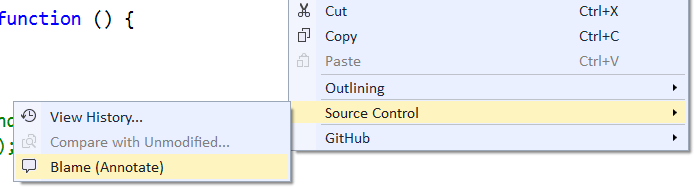
2. anywhere in the file, right-click and select Source Control – Blame (Annotate)

Source Control - Blame (Annotate) in context menu for file

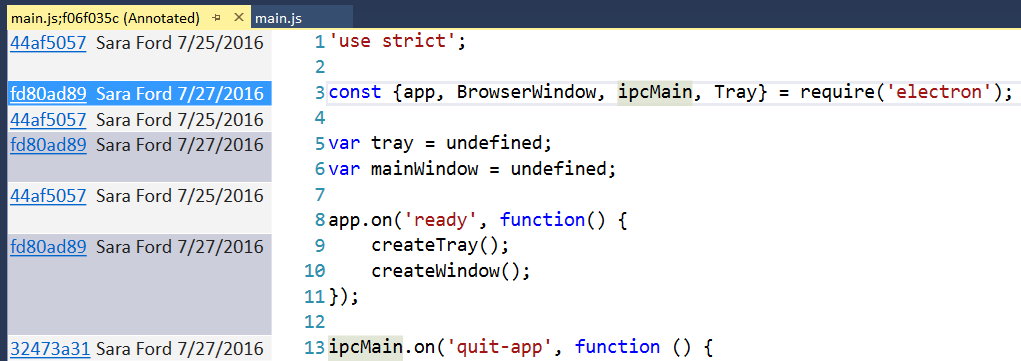
The Blame / Annotate window will appear on the left hand side. This window shows for each line what was the last commit that modified it.

Annotated window shown for a given file

In the above example, lines 1-2 were last modified by commit ID 44af5057 (most likely my initial commit). But line 3, the one I’m interested in, was last modified in commit fd80ad89.

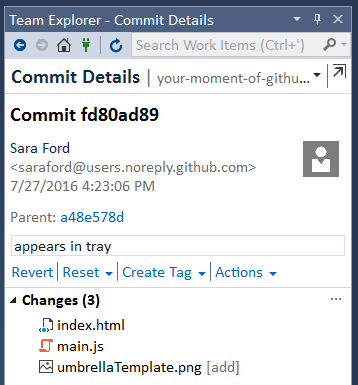
As any long time Visual Studio user will do… let’s click the fd80ad89 and see what happens!

Commit details for the last commit that modified line 3

Seeing the Commit Details appear in Team Explorer answers the part one of my scenario – the when. Now it is time to figure out the what – what was changed in the line…

TE - Commit Details - Changes - main.js - Compare with Previous

By clicking on the Compare with Previous… command in the context menu for the main.js file listed in the Changes list for that commit, you’ll see the file diff view appear.

"Tray" shown added to list of const

And now we  have “the what” for what has changed in the file. The “Tray” const was added to the list, giving it a type of Electron.Tray, so I could put the app in the Taskbar tray (or Mac tray thingy at top of screen).

*Sometimes I wonder if I’m the reincarnation of Rod Serling (technically, he died before I was born) or a zen master looking for a challenge. But then again, I’ve always hated smoking, so I’m not the former. And during the Visual Studio 2017 Launch Event when they were showing my Happy Birthday Visual Studio video, I was at home yelling at the Yoga DVD Instructor over the “share  your breath with the community” breathing stuff, so it can’t be the later either.