How to manually commit your own merge commit – 103

Following from yesterday’s tip, suppose you have a branch that you plan to merge, but before the merge is committed, you want to verify things. Perhaps you want to hit F5 or perform some other testing. In other words, you are telling git, “Do the merge, but allow me to hit the commit button.”

I guess this is an inverse of “sudo make me a sandwich” which would be “hey sudo, about that sandwich, if you take all the stuff out of the refrigerator, I’ll finish making it myself.”

git merge –no-ff –no-commit branch-name

Note: I’m using the –no-ff option because I don’t have an actual merge conflict in my branch, so I need to tell git not to do a fast-forward.

git status showing all conflicts fixed but you are still merging

If you do a `git status` you’ll see that all conflicts fixed, but you’re still merging, just as the scary (master|MERGING) tells you.

Notice how the next line tells you to do a `git commit`and the Changes to be committed looks like a good old staging message.

From here, we just need to do a `git commit` (which would open your `git config core.editor` – mine is set to notepad. baby steps)

Or you could skip the editor (in case the scary Vi appears) and do

git commit -m “my merge message”
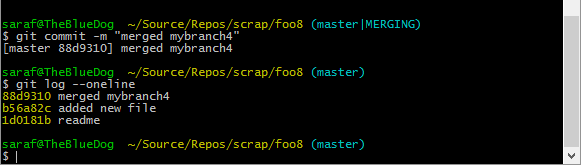
git commit -m "merged mybranch4" then a git log

And doing a `git log` shows the initial readme being added, then the commit from the mybranch4, then the merge commit!

How to practice not freaking out when you see (master|MERGING) by using git merge –abort – 102

I feel that a lot of Git tutorials forget what that raw, primal panic feels like when you see your branch name change to (master|MERGING). For me personally, 80% of the panic comes from not knowing “how do I get out of this state?! How can we pretend this never happened??”

Today’s tip is about how to get into and out of a merge conflict state, without creating any actual conflicts! I say no conflicts because the easier the setup, the easier it will be to practice, and eventually you’ll build up enough muscle memory to stay calm in future situations.

I have a branch called mybranch3 that simply contains a new file (e.g. touch myfile.txt). If I did just a `git merge –no-commit mybranch3` git would apply a fast-forward, so you have to add the –no-ff. I guess the fast-forward check take precedence in the git world. 

The –no-commit tells Git not to automatically do a merge commit, but rather, let you manually do the merge commit, as we’ll see in tomorrow’s tip.

git merge --no-ff --no-commit mybranch3

You could do a `git status` to figure out how to finish the merge (e.g. `git commit -m “merging mybranch3″`), but today’s tip is about practicing, “I’m taking my ball and going home.” You show Git who’s boss!

You’ll want to run the command `git merge –abort`

git merge --abort

and as you see from the `git log –oneline`, nothing was merged in from mybranch3. (the readme commit was my initial commit. I guess saying initial commit would have made more sense.)

P.S. this was my original vision for this series: take each option of each git command, play with it, try to break it, and blog about it. And it’s still my vision! But got to get through some of the more conceptual stuff first. I also want to get to the internal plumbing of trees, blobs, etc. Maybe in December 😉

How to know that a merge creates a git commit whereas a fast-forward does not – 101

I’m using several resources to teach myself Git: Ed’s Git for Visual Studio O’Reilly course, the Pro Git book, this particular Git Visualization tool, and the Git for Humans book. (If I’m missing a good intermediate resource, lmk!) As I study a concept in one course, I’ll go back and re-read that section in another book or course to see if there are any surprises that I didn’t catch the first time.

As I started re-reading the section on merging in Git for Humans, it hit me that I had missed one important difference between a git merge and a fast-forward – the merge commit!

I’ll use the Git Visualization tool to demo:

When you do a fast-forward merge, the commits from the feature branch (source branch?) are simply added to the master branch (target branch?), as soon in Tip 92 – how to do a fast forward merge 

git visualization tool showing how a fast forward does NOT introduce new commit ID

However, if we’re doing a real merge (e.g. there are conflicts that have to be resolved or you pass in the –no-ff option as we’ll have to do with this visualization tool), you’ll see that a new commit, called a merge commit, is added.

doing a real merge creates a merge commit

I guess Farris had it right (source)

I saw that movie when I was in elementary school. I promised myself when I got into high school I would take a day off and do all the things in that movie. The float scene was possible because of growing up in New Orleans, but the baseball part would have been challenging. I think the closest I’ve ever come to doing something like Farris Bueller was driving to Nintendo HQ (right by the gym I used to go to in Redmond), jumping out of the car, and screaming, “YES I MADE IT!” in homage to all those times as a little kid I entered to win a trip to Nintendo HQ via all those Nintendo Power magazines.

How to fix the oh no! I committed on master from within Visual Studio – 100

Previously, I’ve blogged about how to get uncommitted changes off of master onto a new branch and I’ve blogged about how to get committed changes off of master onto a new branch from command line. Today’s tip fixes the oh no! I’ve been committing on master this entire time from within Team Explorer, thanks to blog reader Luke Kolodziej

Let’s say you’re motoring along and you realize that you’ve been checking into master (or some other wrong branch) this entire time.

history of master branch showing oops! commits

Don’t delete your .git folder! There’s a better way!

First, create a branch but do not check it out!

Go to Team Explorer – Branches, then Right Click on master and select New Local Branch From. Now in the TE window, give your new branch a name, but uncheck the checkout branch.

Checkout branch unchecked

Click Create Branch.

Now you’ll go back to your History – Master tab and do a Reset – Delete Changes (–hard) on 2nd to last commit. We’re defaulting to –hard because we have no uncommitted changes in working directory or in staging.

Reset - Delete Changes in master on previous commit

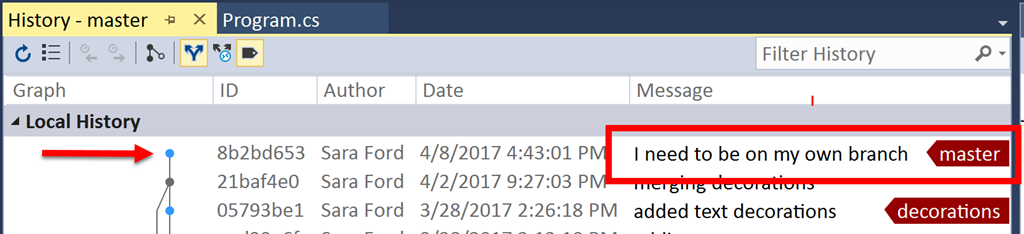
Now hit Refresh on the History – Master tab and you’ll see that your commits are no longer on master.

I need to be on my own branch commit gone from master

But where did this commit go?

Remember the visualization from the previous tips. Just because we rolled back the HEAD pointer doesn’t mean the commit is lost. Remember git reflog holds the truth!

Okay, now if you switch to the newline branch (e.g. using the status bar button at the bottom right), and going to View History (either from Branches – Actions – View History or from Status bar – branches list – View History)

I need to be on my own branch still on newline

I still to this day feel freaked out that this works. One day I’ll be able to conceptualize master, HEAD, branches, etc as pointers versus the other way around (i.e. commits suddenly disappearing if they don’t show up in the git history). One day.