Category: Git(Hub) Tip of the Day 2017

How to use git revert to undo a previous commit – 084

“undo”, “reset”, “revert” – ah English! Perhaps the author of The Giver used Git in the past, since one of their rules was “use precision of language.”

What do we mean by “undo a previous commit?” Let’s say we had 3 commits A, B, and C. And we realize ‘B’ was a mistake. Perhaps we changed a color to red, and it should go back to white. But we don’t want to pretend that ‘B’ never happened. That would mean modifying Git history, and Git really hates changing history if you have the repo shared with others.

So yeah, you could rewrite the code to manually undo the changes introduced in ‘B’, or you could let Git do that for you by running `git revert <commitID>`

git revert <commitID>

As you see in the above graph, using this git visualization tool, a new commit is made with the changes introduced from ‘A’ removed. The take home message is that a new commit is made, instead of “commit A” vanishing.

I like this Stack Overflow answer:

If I found B I committed before is wrong, and I want to “undo” its change, git-revert-ing B will cause:

A <- B <- C <- B'
               ^ HEAD

for which B' is reversing the change done in B

Now to the command line to see this in action!

Say you’ve added three files: A.txt, B.txt, and C.txt for commits A, B, and C, respectively. (One day, I’m going to blog about a list of files being out of order, “dis-respectively “)

We want to “undo” the changes introduced in B.

git log showing commits A, B, C

—STOP!!—

If you are following along at home, let’s pause for a second and make sure your core.editor is configured to use your preferred text editor.

The read between the lines: you’ll want to know how to exit whatever editor comes up.

git config --global core.editor showing notepad

Right now I’m using notepad to give me a fighting chance instead of the vi editor, aka the destoryer of CS careers. YMMV, so check out this GitHub help article on setting up an preferred text editor. Hint: it’s `git config –global core.editor notepad` if you want to use notepad across all your repos.

Okay with that taken care of, let’s do the revert. We want to “undo” the B.txt commit, so let’s party w `git revert <commit id for B>` and suddenly a wild notepad appears!

image

Since I’m cool with the default commit message “Revert ‘B’ for this demo (remember, git revert creates a new commit so it has to get a commit message from you), simply close notepad (File – Exit or ‘x’).

Now if you do your git log –oneline, you’ll notice the new commit. If you do a `ls` or `dir` and the git-equivalent to see what files git is tracking `git ls-files`, you’ll see that B.txt is no where to be found.
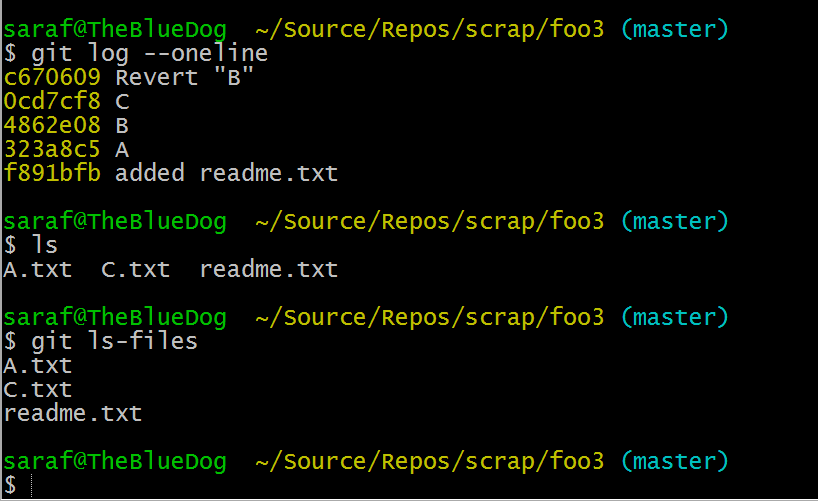
git log, ls, and git ls-files not showing B.txt

Once again to recap what we did. We could have simply deleted the file B.txt and committed those changes. But for a more complex scenario where you need to remove a feature that consists of more than a single file or line change, you should consider using `git revert`.
How to use the VS status bar buttons as a shortcut to Team Explorer panes – 083

Something new in Visual Studio 2015 and still there in Visual Studio 2017 is the ability to click buttons(!!!) in the status bar O_O.

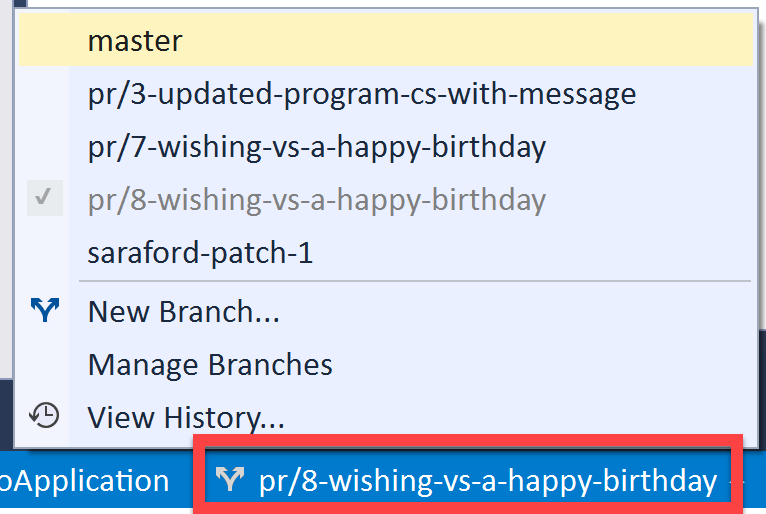
You can switch branches without having to touch the Team Explorer pane.

branches button shown in status bar w list of branches to checkout

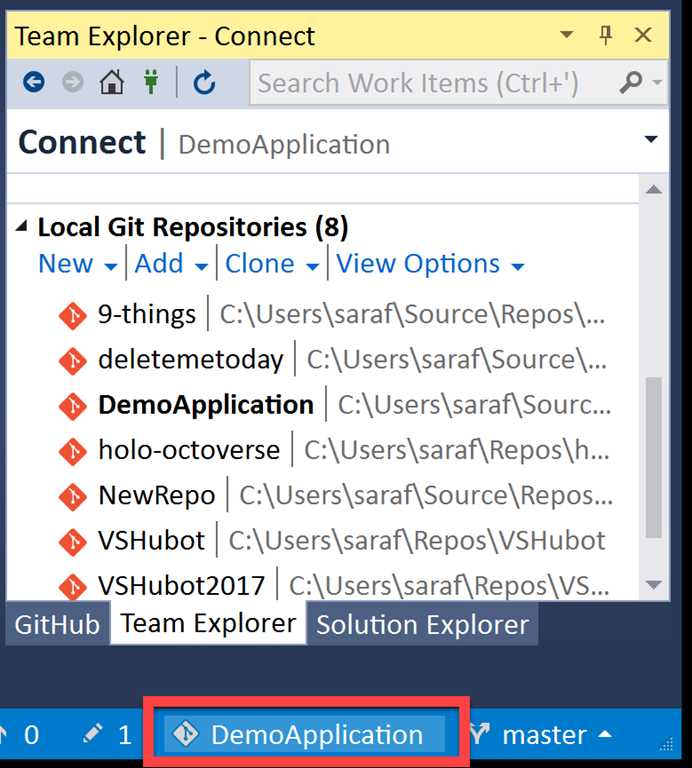
You can jump to the Connect pane, which will save you time when you’re debating “is it the Home icon or the green Plug icon?”

repo button in status bar showing Connect pane

Yeah, I guess I need to get around to deleting deletemetoday one of these days…

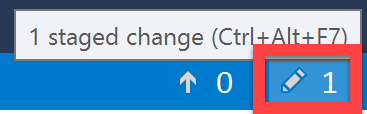
You can jump to the Changes pane, regardless whether you have uncommitted changes (or staged changes as shown in my screenshot – yeah SDET skills die hard).

This button won’t automatically commit your changes, but only takes you to the pane.

pen or pencil icon button for Changes pane

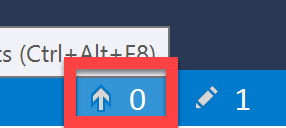
And last but not least, you can jump to the Sync pane. Again, it doesn’t perform any commands other than just navigating to the pane.

up arrow button for Sync pane

Looks like you can click the Line, Column, and Character status bar “buttons” and new UI appears for Visual Studio 2017!! (provided you have a file opened).

Must focus on Git and GitHub tips

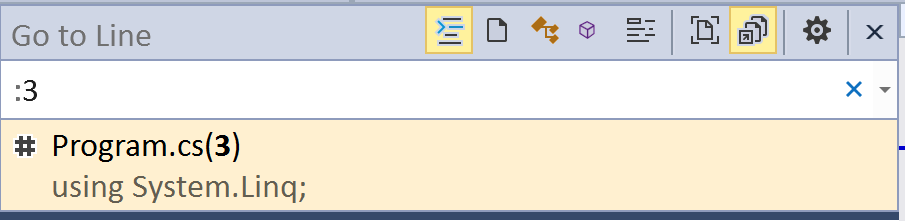
Okay, it looks like if you double-click on any of those status bar buttons, you’ll get a new Go To Line dialog, which seems to be part of a global search window…

new Go to Line window in VIsual Studio 2017

but it doesn’t seem to let you specify columns or character positions.

Yeah, old habits die hard, even when trying to focus.

How to fix the "oh no! I’ve accidentally committed on master instead of a branch" – 082

If you haven’t seen http://ohshitgit.com yet, stop reading this blog series and go check out that site, then come back here. I’m going to play out this scenario using the Visualizing-Git tool from yesterday.

I need to print this out this accidental-commit-master section and have it laminated on my desk. How many years have I gone to work, fired up Visual Studio, and started typing? And now all of a sudden I have to create a new branch first? I feel like this is the pilot equivalent of having to lower the landing gear before taking off. Nah, I don’t regret my career/life choices at all!

As my above drama illustrates, you’ve been coding along on a new feature and then you realize, “oh no! I’m still on master!” What I’ve done for years is Ctrl+C, Ctrl+V, diff my changes, delete either the last commits and/or working directory, and then create the branch and move over my changes. At least I’m being honest.

We’ll follow these steps from ohshitgit.com via command line. But don’t stress if it doesn’t make sense. Once we rinse and repeat from Visualizing Git, it will make much more sense!

Part 1 – Command Line to the rescue!

Let’s say you’ve been working, working, working on your code, and suddenly you realize all these files you’ve added have been to master instead of a new feature branch!

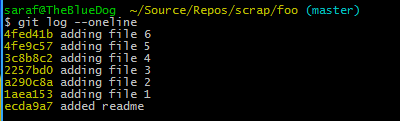
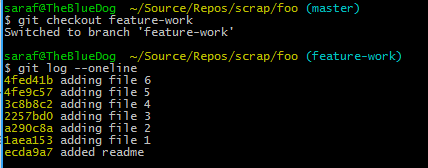
 git log w 6 files added to master

First, don’t panic. Take a deep breath and don’t delete anything 🙂

Next, create a branch (git branch branch-name), but don’t check it out, so no `git checkout -b branch-name` shortcut!

git checkout feature-work

Now do `git reset –hard <commit ID to roll back to>`, e.g. I want files 1-6 added to my feature-work branch, so I’ll use the commit ID for the readme.

Note: since you are using the –hard, in the future, you’ll need to make sure that you don’t want to keep anything in your staging or working directory.

git reset --hard commitID

What?? Is our work gone?? There’s no commit logs for files 1-6. and doing a `ls -la` or `dir` or a `git ls-files` only shows the readme!

It might not seem like it but our work is still there. To quote my inner matrix, “the answer are coming.”

Now finish this by checking out the branch…

checking out the branch brings back the commits

WTF? Don’t give up. The answers are coming. I promise. (This is a conversation I would have had with myself from a week ago.)

Part 2 – Visualizing Git to the rescue’s rescue

Okay how on Earth did that work? Let’s rinse and repeat using the Visualizing Git tool.

First I’ll commit a readme and then 6 files.

inital setup visualization

now we’ll create that branch, but don’t check it out!

created a new branch

Remember that a branch is a pointer. Reminds me of a high school teacher who said “A logarithm is an exponent” over and over and over again in hopes we wouldn’t panic when we had to deal with logarithms in the future.  

But now we can see that the branch points to where master (another branch) is pointing. This is my ah-ha moment! In my mental model I’ve been visualizing a branch as a collection of commits from some starting point to some ending point, but here I can clearly see it is just pointing to the last commit I created it at.

Now let’s break down`git resert –hard commitID`

  • git reset means that it is moving where the current branch is pointing at (aka the tip) back to some previous commit.
  • — hard means Git will reset both staging and working directory to the changes you’re resetting to, so make sure `git status` is clean
  • some instructions show HEAD~. HEAD is a pointer as shown in the illustration. HEAD~ means move back one commit (HEAD~1 does the same as HEAD~). But since we want to remove all the files from master and not just file 6, we’d either have to do commitID or HEAD~6. CommitID is just easier to follow in this example.

When you type in `git resert –hard <commitID-for-readme>` you’ll see the following:

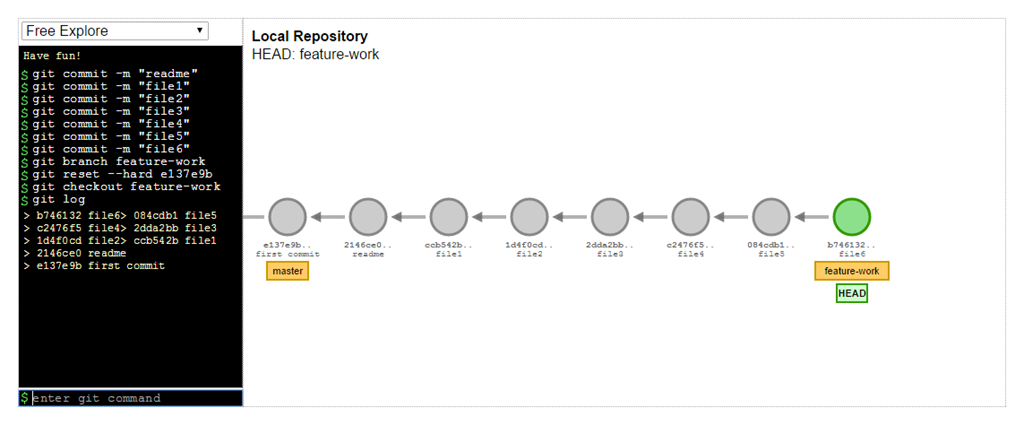
git reset --hard <commitID-for-readme>

Now things are making A LOT more sense. The feature-work pointer still points to all of our work since we’re only moving the tip of the master branch back.

and for the grand finally, you can now switch to that branch.

git checkout branch

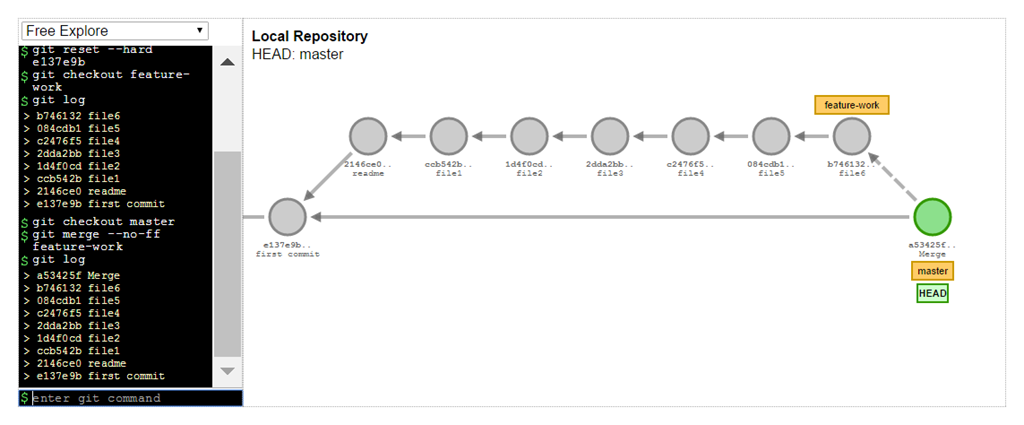
And just to finish this all off since we’ve come this far after all, you can either do a merge (which will automatically do a fast-forward because no conflicts) or if you want to show that this work was always on a branch, you could do 1. `git checkout master` and 2. `git merge –no-ff feature-work`but we’ll talk about this in future tips.

non-fast forward merge of feature-work branch

How to demystify Git commands using Visualizing Git – 081

A  couple of githubbers (aka those who work at github) put together an interactive visualization of git commands (as an open source project). For whatever reason, being able to play with this particular visualization tool allowed git things to click big-time, which you’ll see more in tomorrow’s tip.

http://git-school.github.io/visualizing-git/

visualizing a git merge no fast forward

A couple of commands to know that are only for the visualization tool itself and nothing to do with Git:

  • “undo” – undoes your last command to the tool. not a git command.
  • “clear” – gets you back to a clear Free Explore state – see the dropdown

Note that the tool doesn’t have a concept of

  • staging or a working directory – so no getting to practice the differences between `git reset –hard` or `git reset –mixed` or `git reset –soft`
  • interactive rebase

But like I said before, just being able to visualize what on earth is happening has been a huge lightbulb moment.

They are taking pull requests, so if you know of a good example, why not put together an example demo script for their examples folder?