Category: Git(Hub) Tip of the Day 2017

How to create a branch in Visual Studio – 088

It seems that I have to write these tips in triplicate: 1. command line, 2. Visual Studio, 3. git visualization tool. But that’s been the only way to prove to myself I’m grasping the concepts.

Command line

A college French professor once gave me the advice to never use contractions in class unless I was prepared to never ask him to slow down. I had just learned the equivalent of “I do not know” vs “I don’t know” (something like that).

Applying that advice to software, I don’t want to start using git shortcuts by combining commands until it is clear what the two commands are independently doing. (Yep, I’ll show the shortcut in a second… )

First, you’ll want to create a branch:

> git branch my-branch

Next, you’ll want to switch to that branch:

> git checkout my-branch

git branch addColor; git checkout addColor

Git Visualization

Okay that’s pretty straight forward, but what’s happening conceptually?
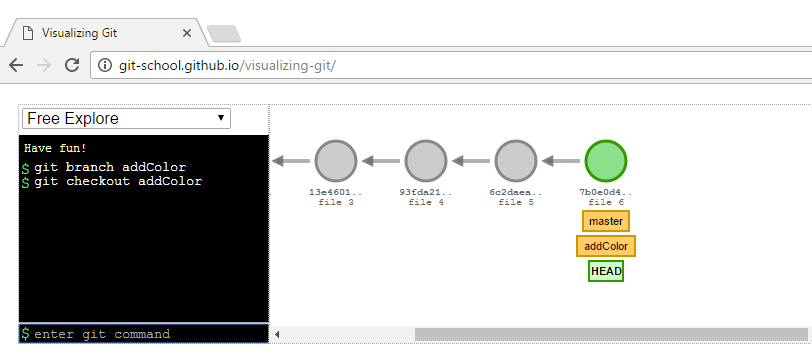
git visualization of creating and switching a branch

We are on master when we created a branch called addColor while on master and then switched to addColor.

The take home message is that addColor has everything that master has because we created the branch addColor while on Master.

Git Command Line Shortcut

Before we jump into the IDE, let’s take a sneak peek at that shortcut.

Note: in case anyone is following along at home, I first switch back to master to delete the addColor and then recreate using the shortcut.

The shortcut is

> git checkout -b addColor
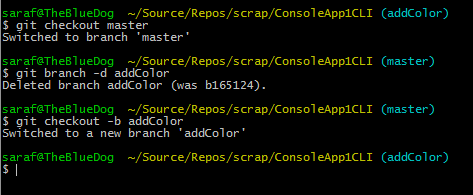
deleting branch and then recreating using the shortcut

This shortcut says to checkout to addColor and if it doesn’t exist, create it.

Visual Studio

When you’re in Team Explorer, you can go to Branches, right click on the branch you want your new branch to be based on, right-click, and select New Local Branch From…

New Local Branch From... command in Team Explorer - Branches

Then give your new branch a name (and verify in the drop down you picked the correct branch) and leave the checkbox checked…

checkout branch option in Team Explorer

If you have the Checkout branch checkbox, you’re telling VS to create the branch and do the checkout so you’re now on the addColor branch instead of master.

If you uncheck it, it is the equivalent of creating the branch on the command line, but staying on master.

To confirm you’ve created and switched to the addColor branch, you’ll see that addColor is now in bold.
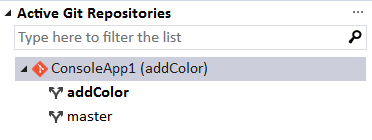
branches showing addColor now checked out

And the branch is also shown in the Visual Studio status bar.

addColor from status bar

How to recover from the "oh no! I did a git reset and now my files are gone!" – 087

If you don’t know about git reflog, your life is about to get much, much better. Prepare yourself. Git is about to make just a bit more sense.

Note: I use the git visualization tool at the bottom of this post, in case you want to jump straight to the “How on earth is this possible?! I give up. Git is just magic.”

Using yesterday’s tip, suppose you have a repo with 6 files each with their own commit.

git bash showing 6 commits

Cool. Now let’s say you did a `git reset –hard <commitID for file4>` to reset back to file 4. Note: any flavor of git reset will work for today’s scenario, since we’re not making any changes in our working directory (or so I think).

To recap these past several days:

  • git reset changes history and should be avoided if you’ve already shared those commits with others (e.g. you use it when you haven’t pushed yet.)
  • git revert undoes a commit by creating a new commit with those changes uncommitted (wow, what a sentence. My apologies.)

image

Notice how the above image confirms the git log only shows the commits up to file 4.

In addition,`ls` and `git ls-files` shows how files 5 and 6 are “gone”!

ls and git ls-files not showing files 5 and 6

will the real Git Log please stand up? please stand up. please stand up.

The command`git reflog` will show you the actual history of your git commands AND THEIR COMMIT IDS!!

output of git reflog

what?! what?! what?!

The lightbulb moment for me was that git was keeping those commits around, and not to mention git is also keeping an actual log of everything going on alongside my repo’s git log.

Let’s get those files back.

You’re going to do another git reset, but this time, you’re going to change history by rolling forward instead of rolling backwards.

so you’ll do `git reset –hard <commit id for file 6>`

git reset --hard commitID showing files 5 and 6 come back

and all our files are back. In fact, if we do a `git log` we’re back to where we were at.

git log showing all commits back

How on earth is this possible?! I give up. Git is just magic.

Let’s learn some magic tricks using the git visualization tool at http://git-school.github.io/visualizing-git/

alrighty. let’s rinse and repeat the setup

git visualization showing head and master at file 3

notice how the commits for files 4, 5, and 6 are there, but just dotted out (or whatever the official term is).

So we never “deleted” those commits. We just told git to hide them from ourselves, but not from git.

Now for the magic. We can do a reflog here in this tool.

using git reflog and git reset back to file 6 in tool

Notice how HEAD and master pointers just move back to that commit ID. That’s it. These HEAD and masters pointers are just that… pointers.

This is why people say “don’t delete your .git folder and start over.” Your changes aren’t “gone”. They are just playing hide and sneak because you told them to.

Got to  get back. Back to the past. Samurai Jack!!

How to write a Bash or PowerShell script to quickly create test repos – 086

TFW you learn something that saves you a ton of time.

Our GitHub services team has on-demand content for learning Git, including a Git out of Trouble section. On page 2 git-set-up they show you how to create a script to create several files, commit them to your repo, one file at a time.

I’m using Git Bash, so here’s the Bash script

for d in {1..6};
 do touch file$d.md;
 git add file$d.md;
 git commit -m "adding file $d";
 done

First, you’ll want to do `git init` otherwise, you’ll get yelled at by your shell for not being in a git repository.

Just copy and paste that into your shell (terminal or whatever),

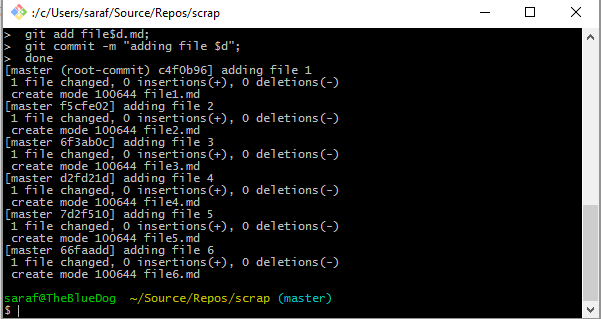
script pasted into a Git Bash command prompt

Press Enter,

 git messages shown as script is run

and enjoy your Git out of Trouble explorations!

git status showing a commit for each file

How to revert changes in Visual Studio – 085

Yesterday’s tip talked about how to use `git revert` from the command line. Today’s tip describes the functional equivalent in Visual Studio.

TBH I clicked the wrong command in VS initially when I started writing this post. I clicked “reset ” then the “–hard” option, which should have been a hint. Revert doesn’t have the soft, mixed, or hard options. But, I was able to fix my git history (by going to the command line) to write this tip without deleting my .git folder and starting over, which is a first for me. So perhaps all this work writing out these tips is working!

Let’s say you have a console application that shows a blue background. And you’re like “no.”

console app with blue background

You want to remove this commit altogether. If you’ve been committing in small, atomic chunks of code, you should be able to revert this background color change. But don’t take my word for it. I wouldn’t know because I’m still trying to train myself to do small commits.

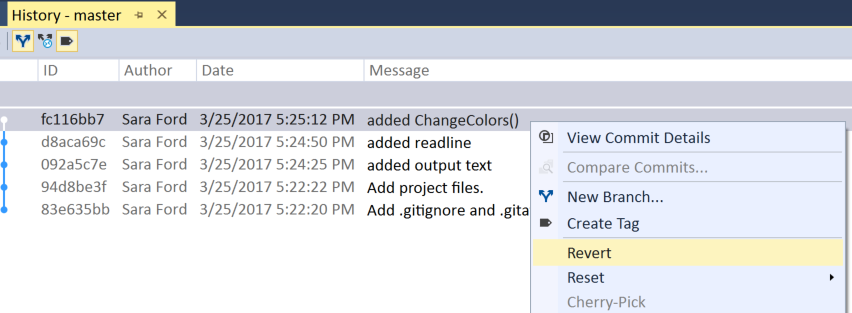
Going to the history shows where this change was introduced, i.e. “added ChangeColors()”. You can revert this commit by right-click and selecting “Revert.”

History - Revert on selected commit

Click Yes on the confirmation prompt.

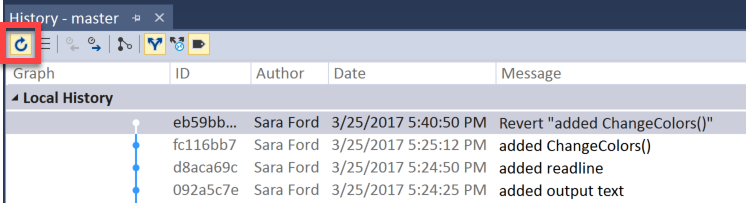
If you refresh History, you’ll see the new commit.

Revert "added ChangeColors()"

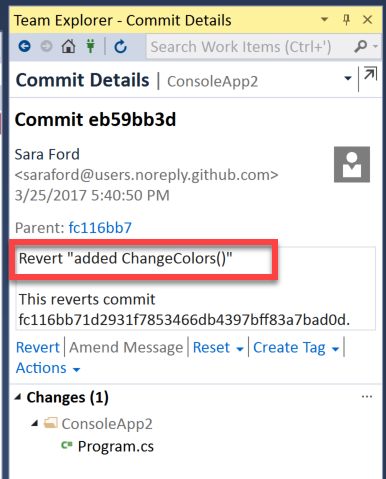
You can double-click to open that commit’s details. If you edit the commit message, the Amend Message option will become available.

reverted commits details

Double-clicking on the Program.cs file listed under Changes for the Commit Details pane shows what’s been removed or “reverted” from the codebase.

Changes for Program.cs showing the ChangeColors method removed

And to verify we are back to our familiar console application background, let’s run the project.

default black background for console app