Tag: visual studio

How to not quit your career when Git (via Visual Studio) adds <<<< HEAD into your code – 094

I studied Shotokan Karate for 20 years. At the start of each class, you’d say the Dojo Kun. At the beginning, I viewed the sayings as the rules of engagement, similar to FIFA laws. But over the years and decades, it starts to bleed into your subconscious as a way of viewing other situations in life. The most important of these rules is the last, “Refrain from violent behavior.”  The idea is you’re supposed to avoid any fights, etc. at all costs. Because of this philosophy, I have argued that karate is really the study of non-violence. I could go on and on about the importance of the only winning fight is the one that isn’t started, there’s no such thing as a first punch in karate, and so forth.

The first time I saw <<< HEAD and >>>> branch-name edited into my code*, my coffee mug went flying across the room.

Today’s tip is a walkthrough of resolving a merge conflict from within Visual Studio. We’ll cover command line in upcoming tips. Must… pace… self…

Suppose you have some existing output text in our ConsoleApplication in master. And you’re going to merge in text from a branch called decorations that also includes output text. Because both branches have changes in the same section, you’ll get a merge conflict. Let’s see how Visual Studio 2017 handles it.

First, do everything as shown in previous tips…
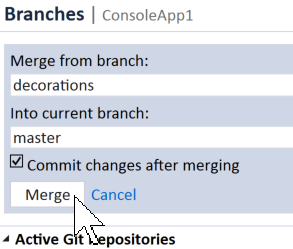
merging from decorations into master

But this time when you hit Merge, you’ll see the following
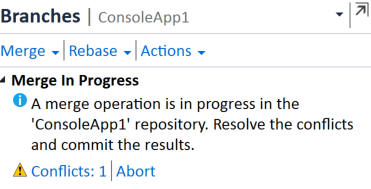
Merge in Progress - Conflicts: 1 message

Take a deep breath.

Now take another deep breath.

Resist the temptation to “fix” your code by removing the <<< HEAD and >>> decorations modifications. Let your build errors light up like rush hour traffic in your VS code margin gutter thingy.

Now click Conflicts: 1

You’ll be given an option to either Merge or simply take either the code from decorations or master w/o “merging”
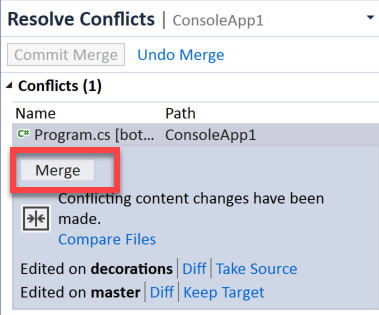
Merge button for a conflicting file

Clicking the Merge button will take make use of that <<<< HEAD and >>> decorations gobbledygook by presenting you with a merge tool (in this case presented within VS).

Suppose you want both changes. You can click the checkboxes on both sides and you’ll see the result in the bottom screen.

VS merge tool

Notice how the resulting merge shows the Console.WriteLine() at the wrong location, which makes sense. The two code blocks were merged in a way that makes sense.

The bottom window is editable. A quick cut and paste puts the WriteLine() before the ReadLine() so it can be seen before the keypress to exit.
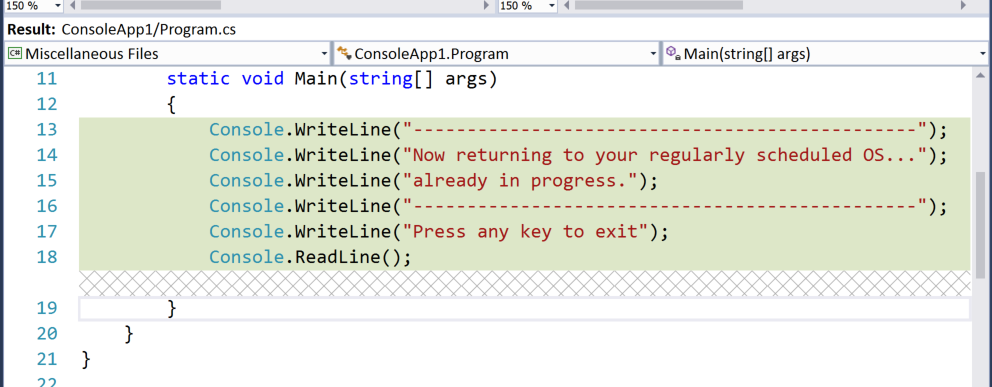
editing the resulting window screen

Hit Save and then hit Accept Merge at the top of the merge tool
Accept Merge button at the top of merge tool

And yet another button!! O_O

Now back in Team Explorer, click Commit Merge.
Commit Merge

Finally, we’re going to finish the merge by typing in a custom commit message and clicking Commit Staged
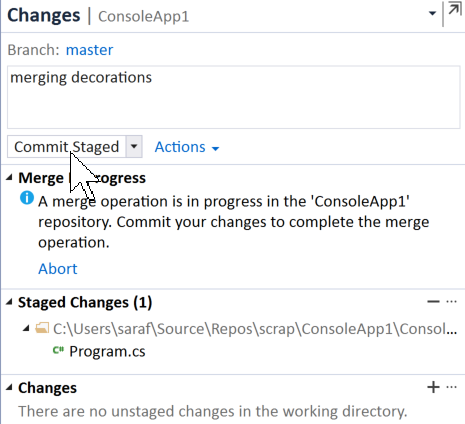
committing the merge with a custom message

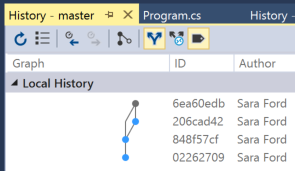
And now when you view history, you’ll see the merge into master.
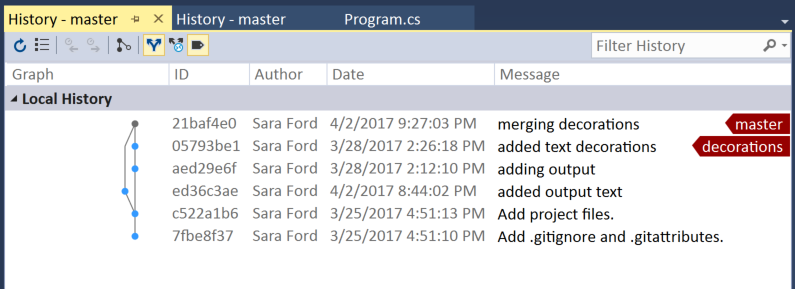
History - master w merge from decorations

*What I’ve realized from learning RoR and Node.js last year is that when you’re not using a full end-to-end IDE (e.g. text editors like atom, vi, sublime, etc.) you need another way to communicate changes and other sort of “metadata.” Hence the content of the code is modified, e.g. adding the <<<< HEAD directly into the file or adding a readme.md file to your repo (which doesn’t participate in the build). Once you start to know the backstory why things are the way they are, the world becomes a lot safer for coffee mugs.
How to do a non-fast forward merge in Visual Studio – 093

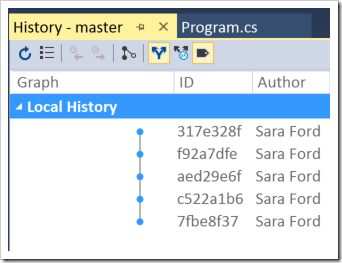
Yesterday’s tip was about how to do a fast forward merge, which shows all the commits still in a linear graph.

linear graph from a fast forward

Today’s tip is how to do a non-fast forward merge, meaning the graph history will show the branch being merged in

graph showing the branch merge for non-fast forward

Note: I had to use Visual Studio 2015 for this demo. There seems to be a bug in Visual Studio 2017 where the checkbox isn’t respecting local repo settings.

Let’s suppose you have a branch called test that you want to merge into master, but you want to retain the merge history in the graph.

Follow all the steps from yesterday’s tip, but today, you’ll uncheck the Commit changes after merging

image

Now you’ll get a message in Visual Studio. note: VS 2017 ignored the unchecked box and did the commit anyways.

merge in progress message

Train yourself to take a deep breath whenever you see a message from Git.

Switch to the Changes page, write a commit message, and hit commit staged.

committing a merge in progress in Changes window

And now your git history shows the merge from the branch.

merge from the branch now in the graph history

Visualizing what we did

We have a commit on the test branch we wish to merge, but retain the history.

git visualization tool showing a test branch

Now we’ll do a merge, but notice we’re using the –no-ff option, which means “no fast-forward” this time.

test being merged into master using no fast foward

Note: looks like the visualization tool requires at least 2 commits to demo the –no-ff option. Otherwise, you’ll get an error.

Does someone want to open a bug in the tool’s repository and call First! in the comments below?  I’m too tired from trying to stay awake to watch Samurai Jack. Why Comedy Central? Why did you think it was an okay April Fool’s Day joke to put some random cartoon on at the 8pm slot??  It’s only 9:47pm and I can’t stay awake to log bugs, much less make it to 11pm for Samurai Jack repeat. Or what if they don’t show Samurai Jack and repeat the cartoon?! See what your April Fool’s joke has done?!  I‘m off to bed.

How to do a fast forward merge in Visual Studio – 092

Yay!! I’m over 25% of the way into this series!! Which also means OMG is 2017 already 25% over yet?!?!

Today’s tip demos how you can do a straight forward merge in Visual Studio. No conflicts, etc.

Suppose you have have a method called DoNothing() that lives in a donothing branch.

1. Switch to the branch you want as a target

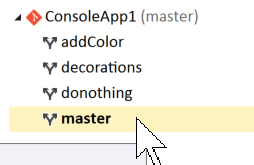
Double-click on the branch name. The bolded name will be the target branch. Checking out the target branch mimics Git command line functionality.

master branch checked out and bolded

2. Right-click the target branch and select Merge From…

Merge From... context menu

3. Click the merge button

We’ll get to what the checkbox means in a bit. As if I could stay away from blogging about a checkbox in VS!  =D

Merging donothing into master

And if all goes well, Team Explorer will give you a message

Repository updated to commit id in Team Explorer status bar

We’ll cover merge conflicts later.

Note this was a fast forward merge because there was nothing to merge, so there’s only the linear graph. A fast-forward is where Git realizes that you could have done each commit on that target branch, so it makes it look like that in graph form.

linear graph in commit history

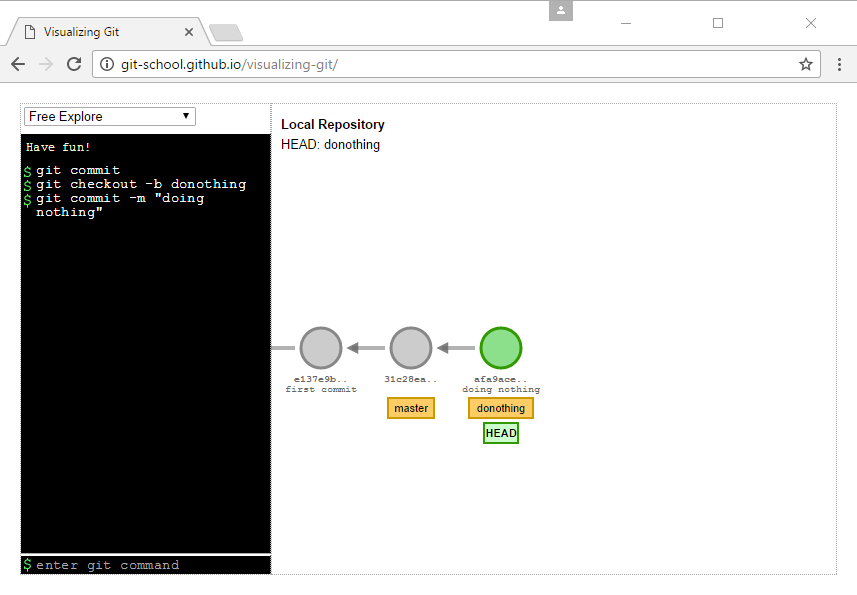
To visualize what we’ve done in Git, here’s the setup. We have one commit in donothing that’s ahead of master.

branch donothing one commit ahead

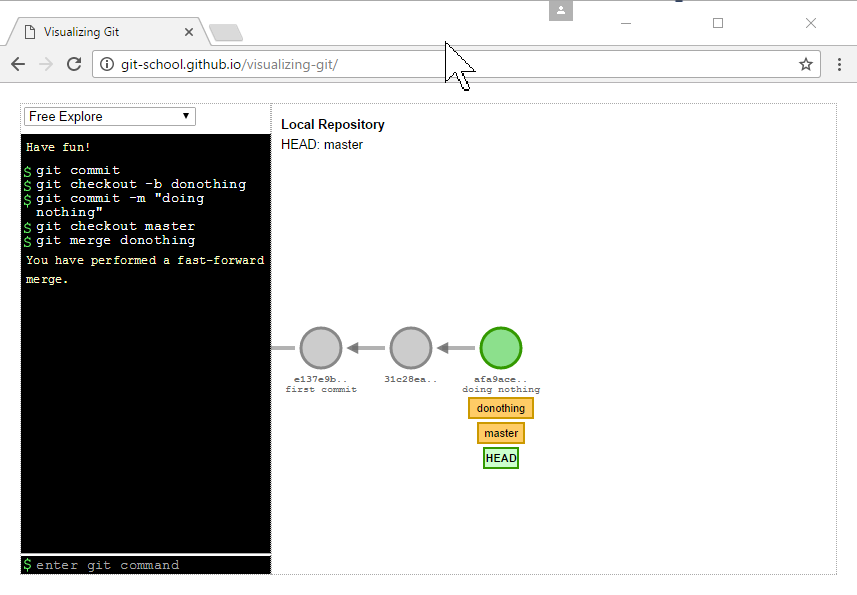
Now we checkout master and do a git merge

git merge from donothing into master

Note how the tool assumes it’s a fast-forward merge. The tool must assume this because the tool doesn’t have a concept of a working directory or staging, so it can’t diff any files to detect conflicts. So the tool assumes there are no conflicts, hence a fast-forward merge.

We’ll look at non-fast forward merges next. 

How to fix the "I’ve started making changes on master. How do I get those to another branch?" using Visual Studio – 090

For 20 years, Visual Studio users have started their workday by launching VS and start coding. Now we have to break that “muscle memory” by stopping to think, “Hmm which branch am I on? Do I need to switch branches first?”

You are allowed to switch to a branch, provided that branch doesn’t already have different changes to the same file. You’ll see the happy case, then the #sadtrombone case.

Help wanted:  This tip is only for saved changes, *not* committed changes. I don’t know how to undo the “oh shit! I’ve committed on master!” *from within Visual Studio* without dropping to the command line. If someone knows, please share in the comments or on twitter! aka please get my attention – references to Samurai Jack seem to work very well 🙂

Happy Case

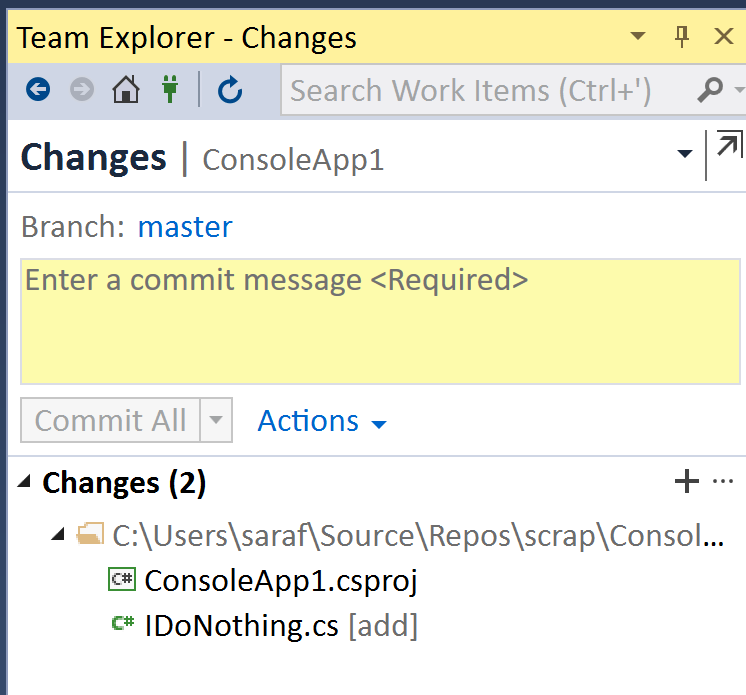
Suppose you have a Console Application and you need to add a new file called IDoNothing.cs – yep, how I roll.

IDoNothing.cs being added in Changes window

Note that I haven’t committed anything else. These files are only saved.

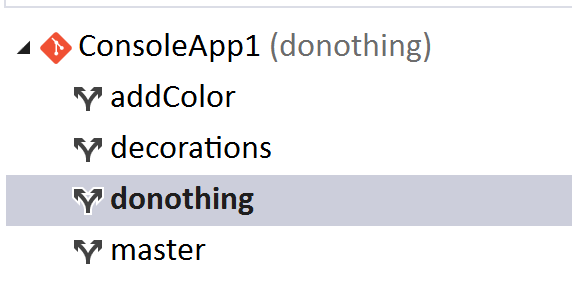
Team Explorer will still allow you to switch branches. Go to Team Explorer – Branches, and switch to the desired branch.

donothing branch switched to

Then you can commit your IDoNothing.cs file into the donothing branch.

#sadtrombone case

From a previous tip, we’ve made changes to the output in our decorations branch. So let’s switch back to master and make some changes to Program.cs, e.g. adding a new method call.

DoingNothing() method added to Program.cs

We’ve saved the changes, but haven’t committed them. Now when we try to switch to decorations branch we get an error message.

error message: cannot switch becaues uncommitted changes

Yes, that reminds me of the old joke about the helicopter that’s lost over Microsoft HQ. When they the folks on the ground where they are at, they hear, “You’re in a helicopter.” The pilot says, “Thank you!” and plots a new course. The passenger says, “WTF? How do you know what to do after that answer?” He said, “it’s clearly MSFT. You ask a question and get the most technically accurate, but yet not really useful for the given situation answer back.”

Yes, true, you cannot switch because of uncommitted changes, but why is this different than before? Because decorations branch already has a different Program.cs file than what’s in our current branch (master).  In the happy case, by adding a new file, I knew there would be no conflict (and given it’s a Console Application, i don’t have many options for a demo 🙂 But when modifying Program.cs, there’s a conflict, so VS says to see Output Window for details:

> Cannot complete the operation because of existing changes to the following file:
    ConsoleApp1/Program.cs

Now that’s a useful answer! 🙂