Tag: git

How to add a custom Git command to your Visual Studio menu – 110

Following yesterday’s tip, you can also add a custom Git command as an external tool.

For example, my output window shows the output of `git log –oneline –graph –decorate`
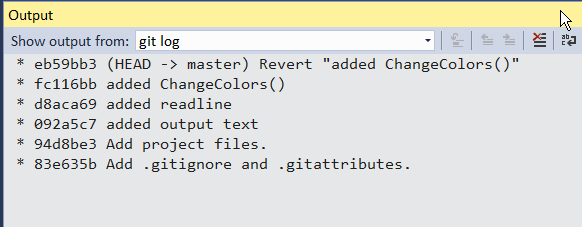
output of git log

Go to Tools – External Tools and add a custom tool similar to the screenshot I have below, where Title = `git log`, Command = `git.ext`, Arguments = `log –oneline –decoreate –graph`. If you click the Right Arrow button to the right of Initial Directory, you can choose where the current directory is for git commands. I’m using Current Solution $(SolutionDir) which is an internal variable to Visual Studio.
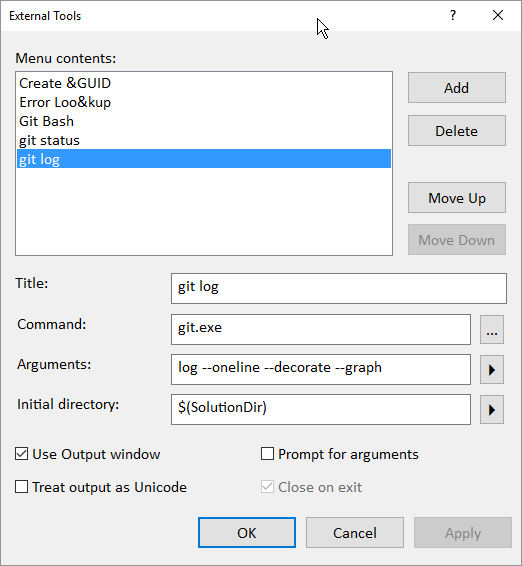
git log

After you add it, you’ll see your command appear under Tools menu next to External Tools.

Tools - git log

How to add Git Bash to your Visual Studio menu – 109

You can add Git commands to your main menu bar in Visual Studio.

Git - Git Bash as a VS menu item

For today’s example, you’ll see me add a Git menu with a command to open Git Bash in a command prompt.

command prompt opened outside VS

Part 1 – Add Git Bash as an External Tool

I promised myself I wouldn’t blog about VS tips in this series. I’m sure if you searched you’ll find my old posts how the External Tools works 🙂

External Tools showing Git Bash added

Just note the order in which Git Bash is listed above. In my example, it is External Tools 3. This will be needed in a second.

Part 2 – Create a Git menu in VS

Same story as above. I’m certain you can find my ancient posts, so here’s the quick version. Go to Tools – Customize – Commands

Then click Add New Menu and click Modify Selection (yeah, that’s some ancient UI) to give it a name, e.g. Git, and an icon and such if you want.

Tools - Customize - Commands

Lastly, switch the Menu bar: to Git (or whatever you called your menu). Click Add New Menu and select Tools – External Command <your number from above>

Menu bar dropdown switched to Git

And you should be good to go!

Thanks again to Ed’s O’Reilly course on Git for Visual Studio for the inspiration!

How to know what the capitalized letter means in [Y/n] – 108

I promised myself I’d be honest, brutally honest, about all the things I’ve had to learn. And one of them is about the capitalized letter when you’re presented with such a question in a command line interface.

I’ll admit I was typing in ‘Y’ as a response. Perhaps it wants me to be really sure. Kinda like when you want to get hot water out of a water cooler, you have to press 2 buttons or hold one button down, etc.

The capitalized letter is the default if you were to simply press enter.

For example, if you want to open VS as your external diff tool, as you saw in yesterday’s tip

$ git difftool branch-name file-name

Launch 'vsdiffmerge' [Y/n]?

You can simply press enter, and the vsdiffmerge command will be run!

How to diff a file between two branches using VS as your difftool – 107

Suppose you want to diff a specific file between two branches. The best* git command I’ve found is in this SO answer (only because I’ve found a couple of other sites reference it)

$ git diff branch-name path/to/file

The SO answer says to use `..` in front of branch-name, but I’ve found it works without it. There are WAY too many variants of these commands to keep track of.

I’d love to figure out where this command option is in the official docs but it is pretty overwhelming list.

In a previous tip, you saw how to use VS as your external diff tool. As the blog post title describes, here’s how to do it

$ git difftool branch-name path/to/file

for example, the name of my branch in the image below is `readme` and my filename is `readme.txt`.

I don’t have to provide a path to the readme file since it is at the same location as my current directory.

image

and volia Visual Studio appears**

diff of two different pearl jam song lyrics across branches

* I have no idea if this is the best answer. I’ve read that there’s old syntax and new syntax. I’d love to hear people’s suggestions in the comments!

**I’ve noticed in VS 2017 that VS must be running. Otherwise, the IDE is launched, but the tool doesn’t appear. If you re-run the command via command line, the dif will appear. YMMV

And yeah, I wonder what genre of music I listen to when I write 🙂