Tag: git

How to do a rebase in Visual Studio – 114

Suppose you’ve added a new file to your solution in a branch called `experiment` for experimental purposes. You are happy with this new file and want to merge this back into master. Well, let’s say you (or someone like you*) made a change in master.

Since this is on your local machine, you can decide “do I want to have the history of the experiment branch or do I want a clean, linear timeline?” Guess which adventure you’re going to choose today 🙂

Here’s the visual setup.
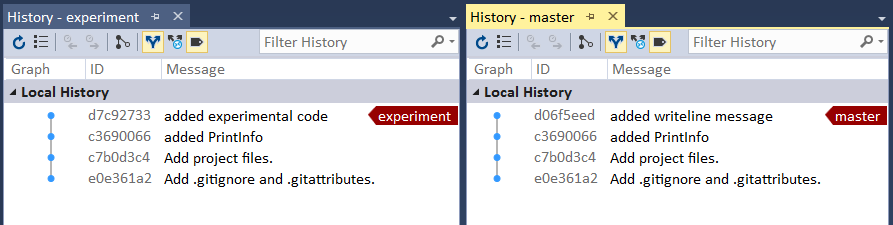
experiment vs master branches histories side by side in VS

Notice how the tip of experiment has a commit that’s not in Master, and vice versa, the tip of master has a commit that’s not in experiment.

First, we’ll use Team Explorer to rebase experiment unto master. BTW I love how Team Explorer uses full sentences to confirm your intent.

rebase from the current branch experiment onto branch master

Now after the rebase, you’ll see two things:

    1. The commit from master is now shown in the experiment branch (recall the visualization from previous posts – the master pointer is now behind experimental pointer)
    2. The commit ID for “added experimental code” has changed (You can compare to the first image in this blog post to verify)

master pointer shown in experiment branch history

And lastly, let’s get master caught up to experiment by doing a merge. Yay for full sentences in the below image!

Merge from branch experiment into current branch master

And now when you refresh Master history, you’ll see the changes.

master pointer pointing to same commit as experiment

*I couldn’t resist. I listened to way too much Matchbox 20 in my youth, “I wish the real world would just stop hassling me .”

How to understand the "current branch is up-to-date" error when rebasing – 113

This might be a bug with the Git Visualization tool. Via the command line, if your branch can already perform a fast-forward merge, Git won’t let you do a rebase. However, the visualization tool allows for it.

Suppose you create a new branch `experiment` and add 1 commit. Then you try to do a rebase on master. You’ll get the following error.

Current branch experiment is up to date

My guess why this makes sense is because Git is protecting you (or others from you) from rewriting history. In other words, there’s nothing to rewind, so no rebase.

However, the visualization tool allows for it, but I think this is a bug. Hence why always important to experiment IRL!

thinking this visualization is a bug

How to practice a rebase on the command line – 112

In yesterday’s tip, you saw how to visualize a rebase. Today’s tip allows you to practice performing a rebase via the command line.

First, we’ll have master contain one extra commit that isn’t included in your `experiment` branch. For example, you were working on `experiment` and a new commit was added to master (either by you, e.g. bug fix, or from a remote).

master log containing a fileMaster commit

Next, you’ll have a commit on `experiment` that isn’t on master.

experiment log adding a fileExperiment not on master

Since you are on your local machine, you can rewrite history because you haven’t shared or pushed these changes.

From the `experiment` branch, you’ll run

$ git rebase master

git rebase master

and then checkout master and merge in experiment to do the fast-forward merge.

fast-forward merge

One thing the visualization is able to emphasize is how the commit IDs are different for the “added fileExperiment”.

new commit ID

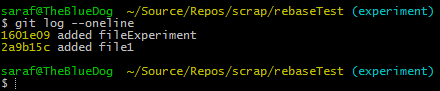
The commit ID `f041b71` is no longer `1601e09` (as shown in the 2nd image for added fileExperiment).

How to visualize a rebase in the Git Visualization tool – 111

If it wasn’t for this visualization tool, I’d never grasp Git concepts. Today’s tip follows the Git documentation for Rebasing

Suppose you’re experimenting locally on one branch (called creatively, `experiment`) and you want to rebase back onto master. For now, let’s imagine that master is a remote that you’ve cloned from somewhere. When the time comes to push those changes back, you don’t want your local Git history* to show merges commits from your local explorations. You’re going for the linear “look! I got it all right on the first try” history.

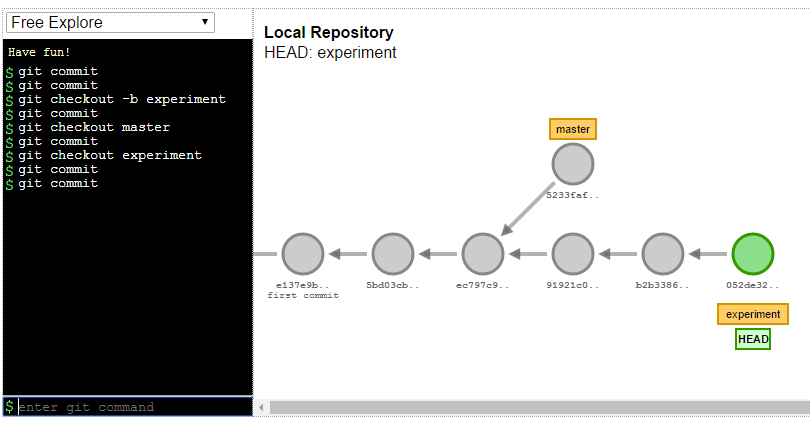
visualization setup of master vs experiment branches

First, you’ll want to make sure you’re on the `experiment` branch.

Next, you’ll use the command to rebase your current branch (experiment) onto master. I silently verbalize “onto” as the preposition to help me understand what the rebase command is going to do.

$ git rebase master

rebase visualization

Note how the rebase results in new commit IDs. If you take nothing else away today, note this:

Whenever you do a rebase, you are changing history.

more on this later.

Now to “finish the rebase.” This is where I’m so grateful for this visualization tool. Before seeing what was happening, I’d thought everything would be done for me.  Thanks to the visualization I can see based on the master pointer that I need to merge the experiment branch.

$ git checkout master

$ git merge experiment

moving master up to experiment

This last step should look familiar. The rebase makes our history look like all of our changes were based on the last commit on master. This would be the equivalent of being on the last commit of master, checking out a branch, making commits, and then performing a fast-forward merge from master.

There are just so many moving parts here that a visualization tool helps greatly.

*I mentioned previously about doing rebases on your local git history. The rule of rebasing is you should never do it if those commits have been previously pushed or shared somewhere, since you’re changing history, and Git hates it when you change history. There are ways out of it, but I’m saving that to explore in October timeframe.

A good recap from the documentation (last sentence, of course. always amazing how the most important info is often found at the very end of a document or email. a trick someone taught me once is to write out what you want to say, and the reverse the order of the paragraphs. I guess this blog post is proof of concept 😉 since I’m leaving the most important piece at the bottom!)

In general the way to get the best of both worlds is to rebase local changes you’ve made but haven’t shared yet before you push them in order to clean up your story, but never rebase anything you’ve pushed somewhere.