Tag: CLI

How to clone your forked GitHub repository using via a command line interface – 040

It is time to get into coding examples from the command line!

In previous tips, you used either the Create new file or Edit file buttons on GitHub.com itself to make changes to a repo. Then you selected the Create a new branch for this commit option in either the Commit new file or Commit changes form to create a new branch (which will be used by a Pull Request).

In the upcoming days, you’ll see how to setup a branch in your local repo so you can submit a bug fix to the base repo as a Pull Request.

From your favorite Command line Interface (I’m using GitHub Desktop’s Git Shell that opens Git Bash – see yesterday’s tip), you’ll want to

  1. Clone the repo
  2. Create a branch (see tomorrow’s tip)
  3. Make your changes (see tomorrow’s tip)
  4. Push your branch back up to your GitHub repo (see the day after tomorrow’s tip)

But first, let’s clone the repo.

Go to the desired repo. For this example, I’m using saraford-tips/your-moment-of-github-zen

You can get the clone instructions from clicking the Clone or download dropdown button, and then coping the URL (either select the text inside the edit box or click the Copy to clipboard button).

Clone with HTTPS window showing URL

Now from the command line, run git clone <copied url>

image

Now cd into your repo, and you are all set locally! I always do a git status just out of habit.

showing git status from local cloned repo

How to use your preferred command line interface from GitHub Desktop – 039

After you’ve installed GitHub Desktop and authenticated with GitHub.com, you can still use a command line interface.

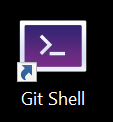
Installing GitHub Desktop will also install a shortcut icon called Git Shell.

Git Shell Desktop icon

If you right-click on the icon and select Properties, you’ll see the comment “Open your preferred shell with Git enabled.”

Let’s select your preferred shell.

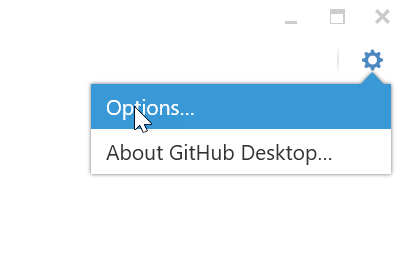
Open GitHub Desktop, and in the upper right-hand corner, click the Gear icon and select Options.

GitHub Desktop options button

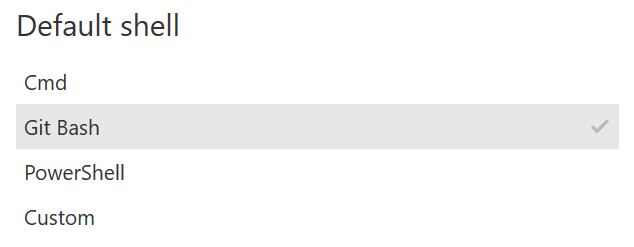
Now select your preferred shell. For me it is Git Bash, because I’ve never taken the time to learn PowerShell (I know! It’s as embarrassing as when I was still using Ctrl+c Ctrl+v as my source control a few years back).

Setting Default shell to Git Bash

And now click Save at the bottom of the page.

Save button at bottom of options screen

And close GitHub Desktop.

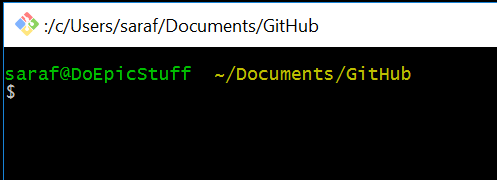
Now when you double-click the Git Shell icon, you’ll see a happy Git Bash prompt waiting for you with your authentication to GitHub.com (and other stuff we’ll cover later!) handled for you!

Git Bash opened

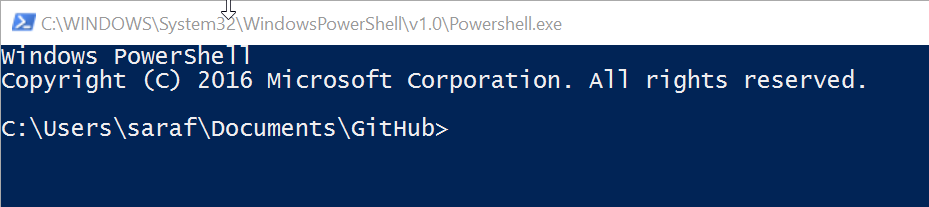
If you preferred PowerShell, then you’ll see a happy PowerShell prompt waiting for you!

Powershell prompt

And that’s it! You can now go back to your command line interface workflows!

How to commit an optional extended description from command line (Git Bash) – 007

As you saw from previous posts, the UI on GitHub.com allows you to specify an optional extended message.

Commit new file - Add an optional extended description edit field

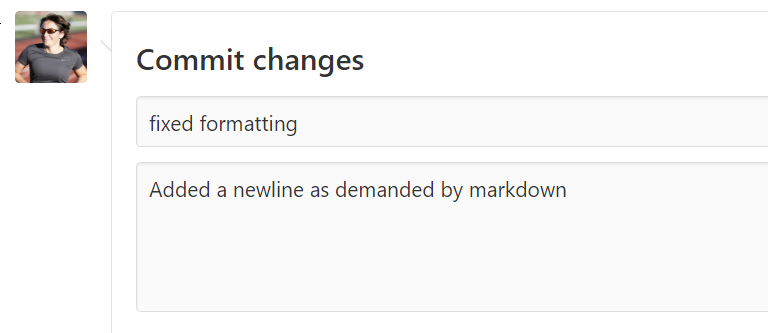
If you fill this optional extended description out,

Added a newline as demanded by markdown - extended description shown

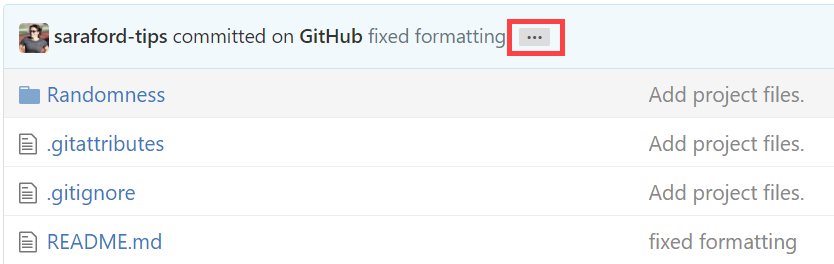
you’ll see your extended description comments behind the `…` ellipsis.

ellipsis as a button on the commit message

Clicking the ellipsis shows the optional extended description.

extended description showing behind ellipsis

How to do add the extended description from the command line

I’ve looked at a few stack overflow answers. There are answers using  two -m arguments, using a literally formatted string (i.e. the ‘$’ at the start of the string), and using a vim editor. This also works for other editors I’ve played with.

For my examples right now, you’re watching me use Git Bash (i.e. Git Shell as setup from Desktop for Windows – I’ll cover more about Desktop for Windows in the upcoming tips).

Using the two -m arguments approach,

git commit message with two -m parameters

and pushing that up to GitHub, you’ll see the optional extended description under the ellipsis.

github.com showing the extended description from command line

Old SDETs never die! What if I added 3 -m arguments?? What will GitHub do?

git commit message with three -m parameters

Looks like each extra -m adds a newline  in the optional extended description, as shown on GitHub.com.

github.com showing a commit message with a newline in description