Tag: CLI

How to view a git log graph from the command line that looks like Visual Studio View History – 076

It feels like there are 100 different ways to do a git log. Here’s one possible way… I’m using the OpenLiveWriter repo to demo since it has lots of branching going on.

P.S. The way to exit these log commands is to press ‘q’ when the colon appears, if you are following along at home.

let’s start with git log –graph.

git log --graph command line

But it’s too wordy to show the graph.

Let’s try git log –graph –pretty=oneline

git log --graph --pretty=oneline

Better, but the long commit IDs are throwing everything off.

Let’s try git log –graph –pretty=oneline –graph –abbrev-commit

git log --graph --pretty=oneline --graph --abbrev-commit

And that’s about as close as I can get to a graph that looks like the graph in Visual Studio.

If you know of a better way, please share with the group! 🙂

How to amend changes to your code in your most recent commit – 074

Yesterday’s tip was about making changes to your commit message. Today’s tip is making changes to your code as well.

Hey my Git experts friends reading this! I’m not sure what the command line equivalent is, so can someone look at my section below on using the CLI and tell me why I have to use –allow-empty?

We’ll start with Team Explorer in Visual Studio and then rinse and repeat with what I think is the equivalent git command.

Amend using Visual Studio

It looks like Team Explorer will let you amend based on whatever changes are in the working directory, but just in case you only want to change one file, I’d suggest staging the file(s )you want to amend first. In a command line scenario, whatever files are in staging are the ones that will be amended. (See previous tips)
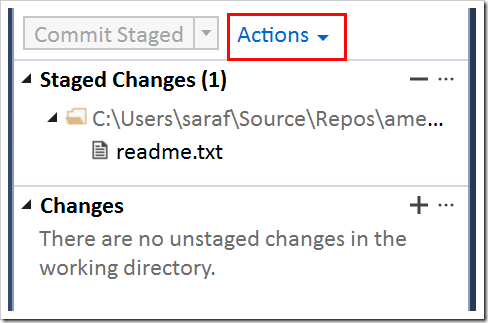
Actions button in Team Explorer

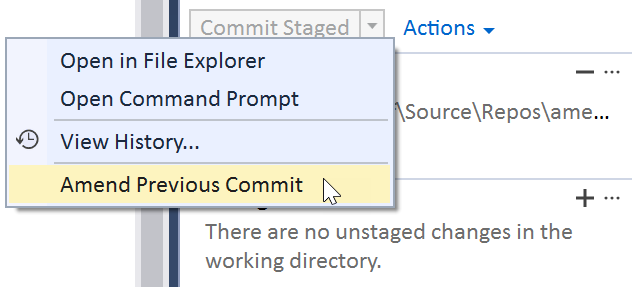
Click on the Actions button and select Amend Previous Commit.
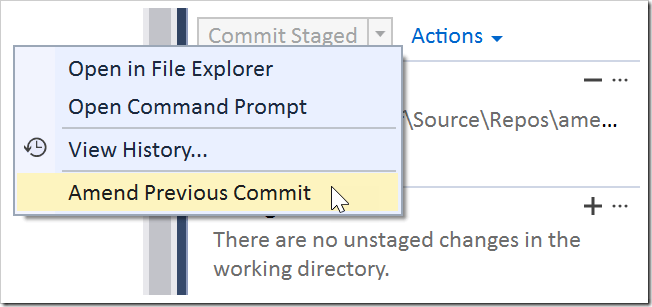
Amend Previous Commit

And you’ll get a new commit ID.

new commit ID shown in TE info bar

Amend using Command Line

Full disclosure: I don’t know when to use the –allow-empty option. I also don’t know what the ramifications of using it are. It seems I need to use this option even though 1. the staged changes are different than those in the commit history and 2. I’ve specified a commit message. TBH I’m not sure what is going on here.

But this is my best guess at the command line equivalent of what Team Explorer is doing.

  1. make changes to your file
  2. use git add to add those changes to staging
  3. git commit –amend -m “new message” –allow-empty or git commit –amend –allow-empty (but I’m not sure)

The below screenshot shows what happens when I don’t use the –allow-empty option.

git commit --amend -m "new message" wants the --allow-empty even though changes are staged

and here’s what happens when I use the –allow-empty, which turns out to be the behavior I want (or as far as I know!)

git commit -m "update readme" --amend --allow-empty shows success

So yeah, if you know what is going on wrt to the –allow-empty option, please let me know!!

How to push a new branch to your repo on GitHub via the command line – 042

I’ve never thought about Feb 11 being the meaning of life day…

Let’s assume on your local repo, you’ve created a branch and made some changes to that branch. Now you want to push up to your repo. It doesn’t matter if your repo is a fork of someone else’s repo or if you created the repo from scratch.

Before I push my changes, I like to review the logs. This is totally optional, but a good sanity check from time to time to make sure you’re not sharing your email address.

To review your logs, use the command

> git log

viewing your logs in git that will go up to github

and I see my email address is using the noreply one from GitHub so I can still get credit for my contributions. (See upcoming tip.)

And now I can push these changes up by using the following command:

> git push origin windows-fix

and you can verify these changes in your GitHub repo.

your recently pushed branches: windows-fix

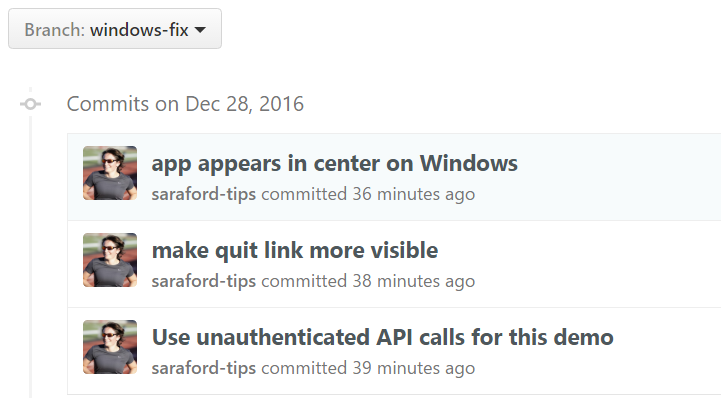
and if you switch to this branch (by clicking the branch name in the previous image), you’ll see the 3 commits listed there.

windows-fix branch showing the 3 commits

If you’re wondering why I’m doing this blog series, it is because I constantly have to look up these commands. That’s the problem you run into when you haven’t been paid to code in 10 years. I’m having to come up with other creative ways to grok this material. I always think this command is either git push <branch-source> <branch-destination> or git push <repo-destination> <repo-source> which neither is the case. The command is actually git push <remote-name> <branch-name> See github documentation. I always forget this because I think that master is the name of the local repo (from doing git push origin master all the time). But again, this isn’t the case. Master is the name of the default branch (and not the repo).

How to create a new branch on your forked GitHub repo via the command line – 041

Suppose you’ve forked a repo and have cloned a local copy. You’re ready to start making changes, but wait! first you’ll want to create a new branch first before making your modifications. (Don’t worry if you forget this step. I always do. Fortunately, you’re using Git now and there’s a way to do anything and everything it seems. I’ll cover how to get out of this state gracefully in a future tip.)

You could use two separate commands

> git branch <branch-name>

> git checkout <branch-name>

or use a shortcut that automatically creates a branch and switches to it using the –b switch:

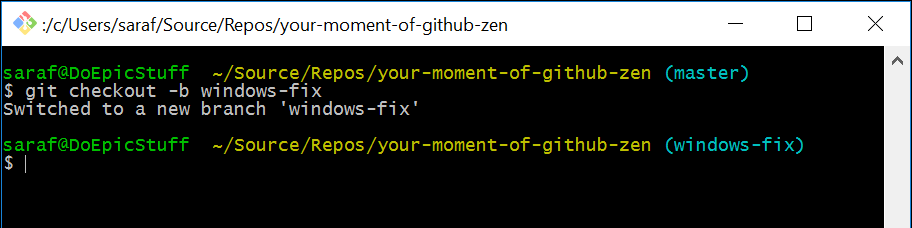
> git checkout –b <branch-name>

as shown in the image below

git command to create and switch to a new branch

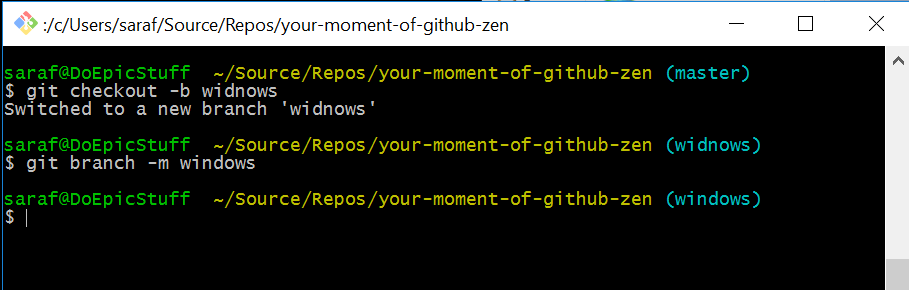
Suppose you’ve made a typo and misspelled windows as widnows.

You can fix this by renaming the current local branch using the following command:

> git branch –m windows

As seen in the image below.

renaming misspelled branch

Now you might be wondering why a –m switch and not a –rn switch. This is because –m stands for move, and since Git started on UNIX-based systems, Git uses a lot of the UNIX nomenclature. So to rename a file in a UNIX system, you need to move the file to its new name. Thanks to this SO answer.