How to visualize a rebase in the Git Visualization tool – 111

If it wasn’t for this visualization tool, I’d never grasp Git concepts. Today’s tip follows the Git documentation for Rebasing

Suppose you’re experimenting locally on one branch (called creatively, `experiment`) and you want to rebase back onto master. For now, let’s imagine that master is a remote that you’ve cloned from somewhere. When the time comes to push those changes back, you don’t want your local Git history* to show merges commits from your local explorations. You’re going for the linear “look! I got it all right on the first try” history.
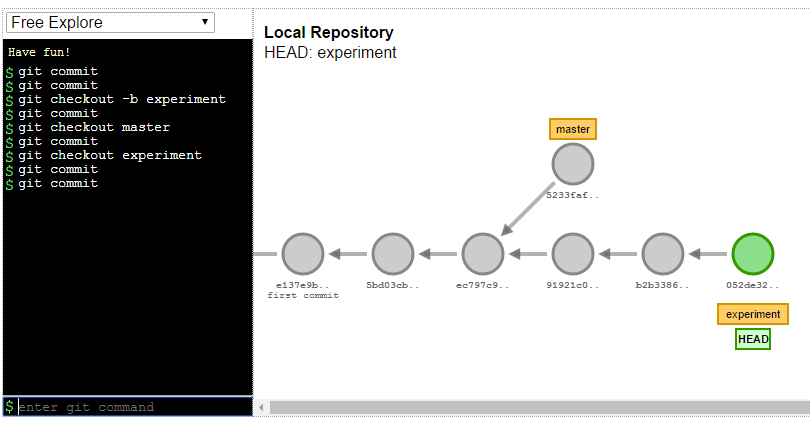
visualization setup of master vs experiment branches

First, you’ll want to make sure you’re on the `experiment` branch.

Next, you’ll use the command to rebase your current branch (experiment) onto master. I silently verbalize “onto” as the preposition to help me understand what the rebase command is going to do.

$ git rebase master

rebase visualization

Note how the rebase results in new commit IDs. If you take nothing else away today, note this:

Whenever you do a rebase, you are changing history.

more on this later.

Now to “finish the rebase.” This is where I’m so grateful for this visualization tool. Before seeing what was happening, I’d thought everything would be done for me.  Thanks to the visualization I can see based on the master pointer that I need to merge the experiment branch.

$ git checkout master

$ git merge experiment

moving master up to experiment

This last step should look familiar. The rebase makes our history look like all of our changes were based on the last commit on master. This would be the equivalent of being on the last commit of master, checking out a branch, making commits, and then performing a fast-forward merge from master.

There are just so many moving parts here that a visualization tool helps greatly.

*I mentioned previously about doing rebases on your local git history. The rule of rebasing is you should never do it if those commits have been previously pushed or shared somewhere, since you’re changing history, and Git hates it when you change history. There are ways out of it, but I’m saving that to explore in October timeframe.

A good recap from the documentation (last sentence, of course. always amazing how the most important info is often found at the very end of a document or email. a trick someone taught me once is to write out what you want to say, and the reverse the order of the paragraphs. I guess this blog post is proof of concept 😉 since I’m leaving the most important piece at the bottom!)

In general the way to get the best of both worlds is to rebase local changes you’ve made but haven’t shared yet before you push them in order to clean up your story, but never rebase anything you’ve pushed somewhere.
How to add a custom Git command to your Visual Studio menu – 110

Following yesterday’s tip, you can also add a custom Git command as an external tool.

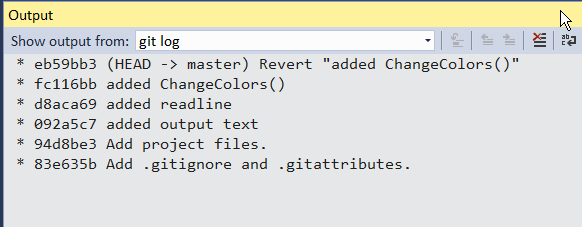
For example, my output window shows the output of `git log –oneline –graph –decorate`

output of git log

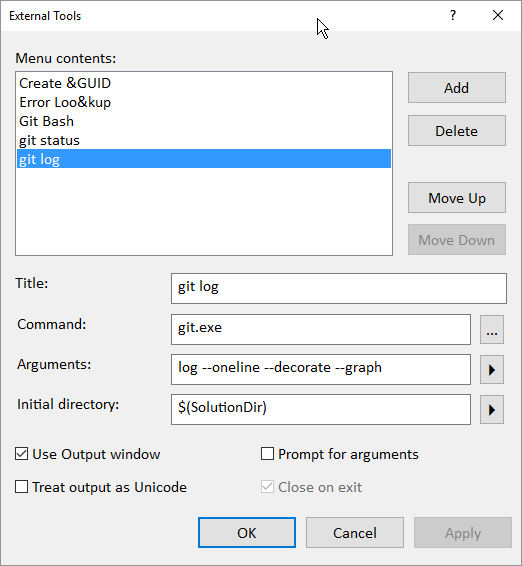
Go to Tools – External Tools and add a custom tool similar to the screenshot I have below, where Title = `git log`, Command = `git.ext`, Arguments = `log –oneline –decoreate –graph`. If you click the Right Arrow button to the right of Initial Directory, you can choose where the current directory is for git commands. I’m using Current Solution $(SolutionDir) which is an internal variable to Visual Studio.

git log

After you add it, you’ll see your command appear under Tools menu next to External Tools.

Tools - git log

How to add Git Bash to your Visual Studio menu – 109

You can add Git commands to your main menu bar in Visual Studio.

Git - Git Bash as a VS menu item

For today’s example, you’ll see me add a Git menu with a command to open Git Bash in a command prompt.

command prompt opened outside VS

Part 1 – Add Git Bash as an External Tool

I promised myself I wouldn’t blog about VS tips in this series. I’m sure if you searched you’ll find my old posts how the External Tools works 🙂

External Tools showing Git Bash added

Just note the order in which Git Bash is listed above. In my example, it is External Tools 3. This will be needed in a second.

Part 2 – Create a Git menu in VS

Same story as above. I’m certain you can find my ancient posts, so here’s the quick version. Go to Tools – Customize – Commands

Then click Add New Menu and click Modify Selection (yeah, that’s some ancient UI) to give it a name, e.g. Git, and an icon and such if you want.

Tools - Customize - Commands

Lastly, switch the Menu bar: to Git (or whatever you called your menu). Click Add New Menu and select Tools – External Command <your number from above>

Menu bar dropdown switched to Git

And you should be good to go!

Thanks again to Ed’s O’Reilly course on Git for Visual Studio for the inspiration!

How to know what the capitalized letter means in [Y/n] – 108

I promised myself I’d be honest, brutally honest, about all the things I’ve had to learn. And one of them is about the capitalized letter when you’re presented with such a question in a command line interface.

I’ll admit I was typing in ‘Y’ as a response. Perhaps it wants me to be really sure. Kinda like when you want to get hot water out of a water cooler, you have to press 2 buttons or hold one button down, etc.

The capitalized letter is the default if you were to simply press enter.

For example, if you want to open VS as your external diff tool, as you saw in yesterday’s tip

$ git difftool branch-name file-name

Launch 'vsdiffmerge' [Y/n]?

You can simply press enter, and the vsdiffmerge command will be run!