How to clone your forked GitHub repository using via a command line interface – 040

It is time to get into coding examples from the command line!

In previous tips, you used either the Create new file or Edit file buttons on GitHub.com itself to make changes to a repo. Then you selected the Create a new branch for this commit option in either the Commit new file or Commit changes form to create a new branch (which will be used by a Pull Request).

In the upcoming days, you’ll see how to setup a branch in your local repo so you can submit a bug fix to the base repo as a Pull Request.

From your favorite Command line Interface (I’m using GitHub Desktop’s Git Shell that opens Git Bash – see yesterday’s tip), you’ll want to

  1. Clone the repo
  2. Create a branch (see tomorrow’s tip)
  3. Make your changes (see tomorrow’s tip)
  4. Push your branch back up to your GitHub repo (see the day after tomorrow’s tip)

But first, let’s clone the repo.

Go to the desired repo. For this example, I’m using saraford-tips/your-moment-of-github-zen

You can get the clone instructions from clicking the Clone or download dropdown button, and then coping the URL (either select the text inside the edit box or click the Copy to clipboard button).

Clone with HTTPS window showing URL

Now from the command line, run git clone <copied url>

image

Now cd into your repo, and you are all set locally! I always do a git status just out of habit.

showing git status from local cloned repo

How to use your preferred command line interface from GitHub Desktop – 039

After you’ve installed GitHub Desktop and authenticated with GitHub.com, you can still use a command line interface.

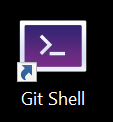
Installing GitHub Desktop will also install a shortcut icon called Git Shell.

Git Shell Desktop icon

If you right-click on the icon and select Properties, you’ll see the comment “Open your preferred shell with Git enabled.”

Let’s select your preferred shell.

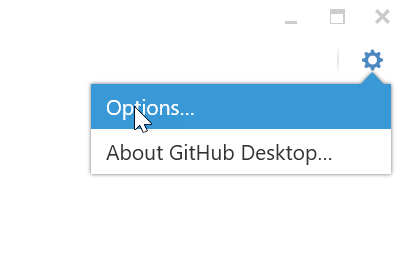
Open GitHub Desktop, and in the upper right-hand corner, click the Gear icon and select Options.

GitHub Desktop options button

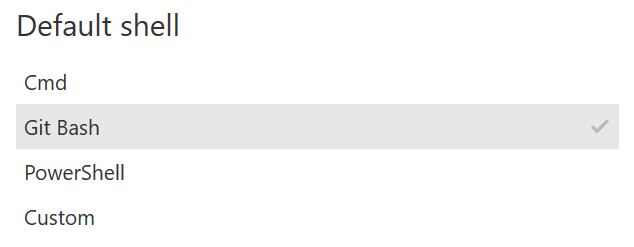
Now select your preferred shell. For me it is Git Bash, because I’ve never taken the time to learn PowerShell (I know! It’s as embarrassing as when I was still using Ctrl+c Ctrl+v as my source control a few years back).

Setting Default shell to Git Bash

And now click Save at the bottom of the page.

Save button at bottom of options screen

And close GitHub Desktop.

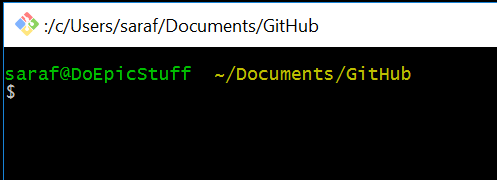
Now when you double-click the Git Shell icon, you’ll see a happy Git Bash prompt waiting for you with your authentication to GitHub.com (and other stuff we’ll cover later!) handled for you!

Git Bash opened

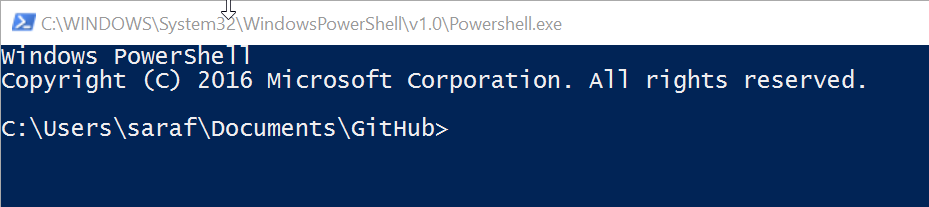
If you preferred PowerShell, then you’ll see a happy PowerShell prompt waiting for you!

Powershell prompt

And that’s it! You can now go back to your command line interface workflows!

How to setup your GitHub credentials (and handle 2FA) on Windows using GitHub Desktop – 038

If you are a Windows user, install GitHub Desktop. It “automagically” (my new favorite word of the day) sets up your credentials, including 2FA.

You are not forced to use the GitHub Desktop UI once you’ve installed it. I mention this because before I started using GitHub Desktop, I didn’t know if Desktop would play nicely alongside the command line. Actually, GitHub Desktop makes using a command line interface even easier! (stay tuned for tomorrow’s tip).

First, you’ll login using your GitHub.com username and password.

GitHub Desktop login screen

Next, you’ll be prompted for you 2FA code.

Two-factor authentication prompt

And the you’re all set! So even if you want to go back to using the command line, you still can! Just check out tomorrow’s tip.

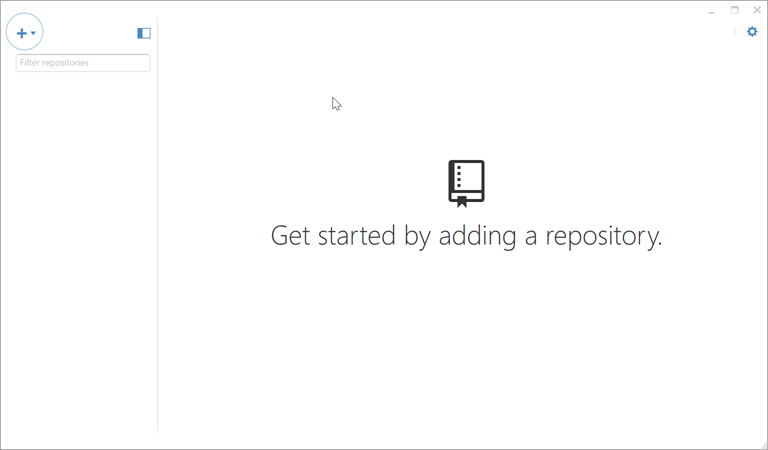
GitHub Desktop - Get started screen

Desktop also does a bunch of other stuff for you that we’ll get to later in this tip of the day series.

How to still create a Pull Request for a branch in your forked repo if the recently pushed branches button isn’t showing – 037

Suppose you no longer see the message to Compare & pull request your recently pushed branches (as shown below), but you still want to create a Pull Request.

There are 2 other ways to create a Pull Request.

Option #1 – use the Branches list in your repo

Your recently pushed branches: created-readme

You can go to the Branches listing in your repo,

branches link to see all branches

and for the branch you wish to create a new pull request for, click on the

Create New pull request button for a given branch

And now you’ll be shown the Open Pull Request form with the same defaults as before. Note again as yesterday, you’re taken to the base repo to open the pull request.

Pull Request form showing merging created-readme branch into base fork master branch

Option #2 – Manually create a Pull Request via the Pull Request tab

I like doing thing manually to truly appreciate what is happening behind the scenes.

First, in your forked repo (e.g. saraford-tips/your-moment-of-github-zen) go to the Pull Requests tab.

pull requests tab on forked repo

Then click on the New pull request button.

New pull request button

Yeah, I’m Captain Obvious here with that above screenshot! But notice what happens. You are again taken to the Open Pull Request page on the base repository.

Pull Request form showing merging created-readme branch into base fork master branch