How to open files in a repo that doesn’t contain a solution in Visual Studio 2015 – 075

tl;dr if you have a repo that doesn’t have a solution, don’t worry. You can still use File – Open – File to open files associated with the repo and Team Explorer will still track those files the same as if a solution were open.

P.S. I’m writing these tips for VS 2015. I’ll need to update for Visual Studio 2017.

For all my adult life (minus 2 years), the Solution file was your go-to starting point in Visual Studio. Even if you create a new text file via File – New – File, Visual Studio creates a new Solution nevertheless.
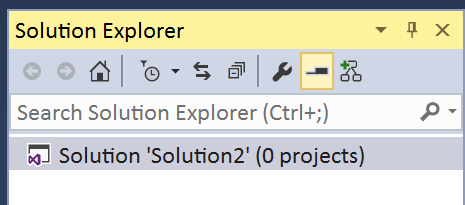
a solution still appears

It’s almost like Visual Studio has a Solution that’s in search of a problem.

Can’t believe I’ve never thought of that one before… Anyways…

Repos that do not contain a Solution

If you open a repo that doesn’t have a solution in it, you’ll see the following:
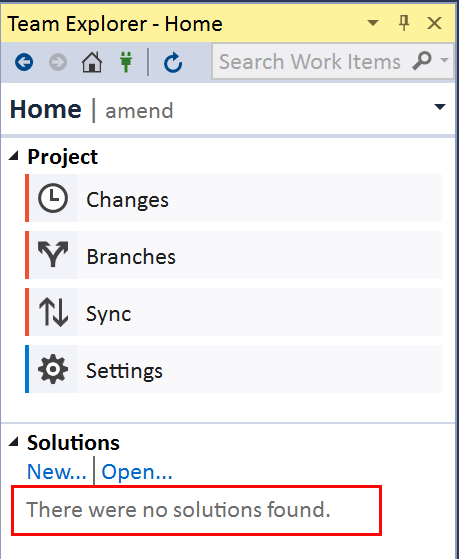
no solution found

You can still go to File – Open – File and open files that are associated with that repo. In fact, File – Open – File will open to that repo’s folder.

Opening a different Solution when Team Explorer is connected

A solution will always take precedence over a repo opened in Team Explorer.

For example, in the previous screenshot, I have a repo named “amend” that’s open, but this repo doesn’t a Solution. If I open a different solution that does not contain a repo, you’ll see that Team Explorer goes offline.

Team Explorer Offline

I guess this is Team Explorer’s way of saying, “Hey Look, I don’t want you to get confused which solution is tied to which repo.”

Switching to a different Repo with a Solution Open

Now having said that, let’s suppose I’m connected to a repo that has a solution, let’s say some ConsoleApplication54 project (you know you have them!) and you have the ConsoleApplication54 solution opened.

If you switch repos (via Team Explorer – Manage Connections) to any other repo, regardless whether it has a solution file opened, you’ll be in an odd state. On one hand you’ll have a solution opened, but Team Explorer will be tracking changes for an entirely different repo. This is the state you couldn’t get in to in the previous section.

It’s almost like a Game of Thrones battle (or so I’m told – haven’t seen or read yet) being played out inside the IDE: solutions vs repos.

How to amend changes to your code in your most recent commit – 074

Yesterday’s tip was about making changes to your commit message. Today’s tip is making changes to your code as well.

Hey my Git experts friends reading this! I’m not sure what the command line equivalent is, so can someone look at my section below on using the CLI and tell me why I have to use –allow-empty?

We’ll start with Team Explorer in Visual Studio and then rinse and repeat with what I think is the equivalent git command.

Amend using Visual Studio

It looks like Team Explorer will let you amend based on whatever changes are in the working directory, but just in case you only want to change one file, I’d suggest staging the file(s )you want to amend first. In a command line scenario, whatever files are in staging are the ones that will be amended. (See previous tips)

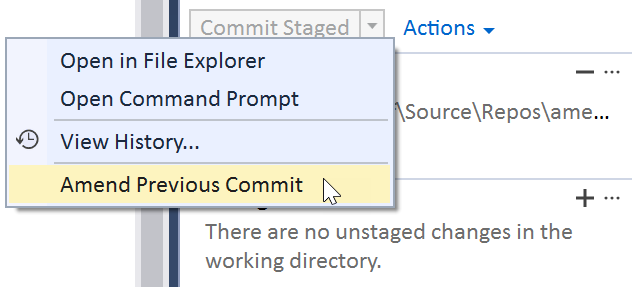
Actions button in Team Explorer

Click on the Actions button and select Amend Previous Commit.

Amend Previous Commit

And you’ll get a new commit ID.

new commit ID shown in TE info bar

Amend using Command Line

Full disclosure: I don’t know when to use the –allow-empty option. I also don’t know what the ramifications of using it are. It seems I need to use this option even though 1. the staged changes are different than those in the commit history and 2. I’ve specified a commit message. TBH I’m not sure what is going on here.

But this is my best guess at the command line equivalent of what Team Explorer is doing.

  1. make changes to your file
  2. use git add to add those changes to staging
  3. git commit –amend -m “new message” –allow-empty or git commit –amend –allow-empty (but I’m not sure)

The below screenshot shows what happens when I don’t use the –allow-empty option.

git commit --amend -m "new message" wants the --allow-empty even though changes are staged

and here’s what happens when I use the –allow-empty, which turns out to be the behavior I want (or as far as I know!)

git commit -m "update readme" --amend --allow-empty shows success

So yeah, if you know what is going on wrt to the –allow-empty option, please let me know!!

How to amend your most recent commit message on your local repo from the command line – 073

Following yesterday’s tip where you learned how not to panic when presented with a vi editor, today’s tip will cover the scenario of what if you wanted to amend your most recent commit message.

Suppose you had a git commit message “updating readmeee” which you’ve caught immediately. The most straightforward way is git commit -m “new message” –amend

git commit -m "updating readme" --amend updating last commit message

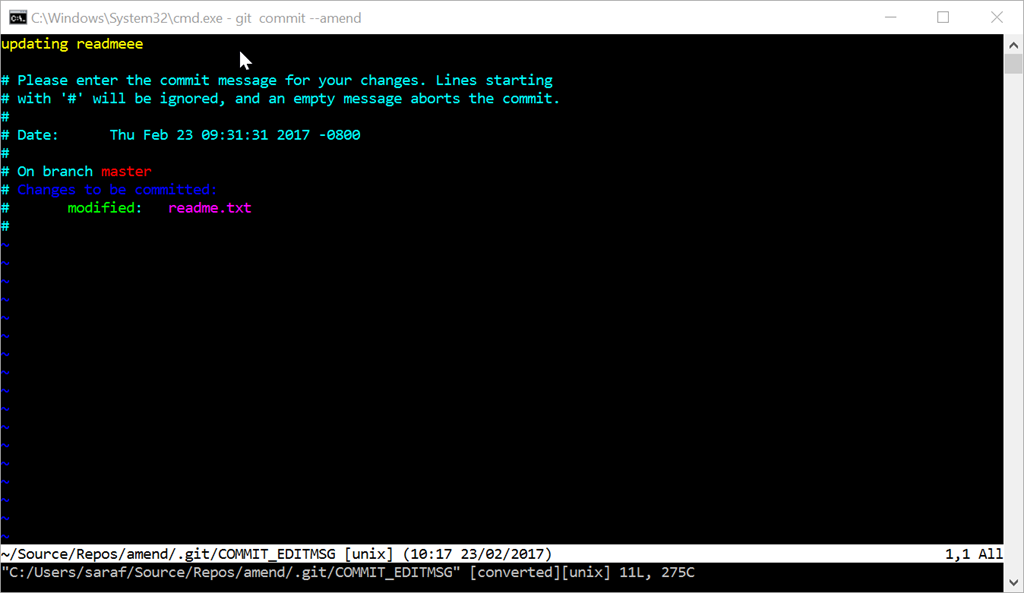
But let’s say you forgot the message flag and now you’re now face-to-face with the vi editor.

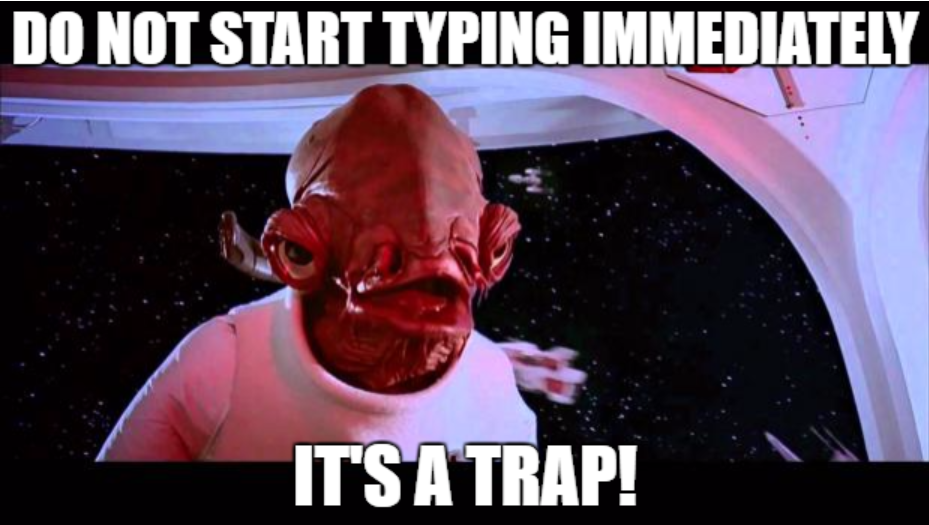
DO NOT START IMMEDIATELY TYPING! IT’S A TRAP!

star wars it's a trap meme

When vi first opens, your cursor will be in command mode, despite seeing the cursor in the editor. (pssst… it’s a trap)

image_thumb[12]

You’ll want to press The status bar at the bottom will change to show —Insert–

SNAGHTML717cfa_thumb[2]

Once you are finished with your edits, hit ESC to enter Command Mode, and then press :wq for write and quit.

and voila, you’ll see in your log that your last commit message has been modified, but the timestamp (and rest of commit history) is still the same.

image_thumb[21]

How not to quit your career when Git opens a vi editor – 072

There’s a joke, “How do you generate a random string? Put a Windows user in front of vi editor and tell them to exit.” Credit to Aaron Jorbin.

Suppose you’re doing research on the git commit –amend -m “some message” command and you forgot the -m “some message” part.

Everything spins around and suddenly I’m elsewhere…*

vi editor - one of the scariest images a Windows user will ever see

I’m in a sandy beach on a tropical isle.

Actually, you’re in the vi editor. Before you start typing anything, stop. Get up, stretch your legs. Odds are you’ve been at your desk for way too long anyways 🙂 Get some coffee and come back and search google what to do before you start typing.

If you are like “Say Yoho! SAY YOHO!!!*” to get out of here without making any changes, you’ll want to hit ESC and then type :q! Don’t think about it. just do it.

typing in the command :q!

You can verify in the git log that the amend had no impact.

*The reason I got into computer programming was because of Scott Adam’s Pirates Adventure text-based adventure game for the TI-99 4A Home Computer. As a 6 year old, it fascinated me how a computer could understand some English commands (get safety sneakers) but not others (open refrigerator – you are in a kitchen after all!) “Say Yoho!” was the command to jump to a different part of the island. Say it too many times in a row and you’d die (I think). Never beat the game as a kid, but later in college, I downloaded an emulator and finally got past those crocodiles!