Tag: windows-only

How not to quit your career when Git opens a vi editor – 072

There’s a joke, “How do you generate a random string? Put a Windows user in front of vi editor and tell them to exit.” Credit to Aaron Jorbin.

Suppose you’re doing research on the git commit –amend -m “some message” command and you forgot the -m “some message” part.

Everything spins around and suddenly I’m elsewhere…*
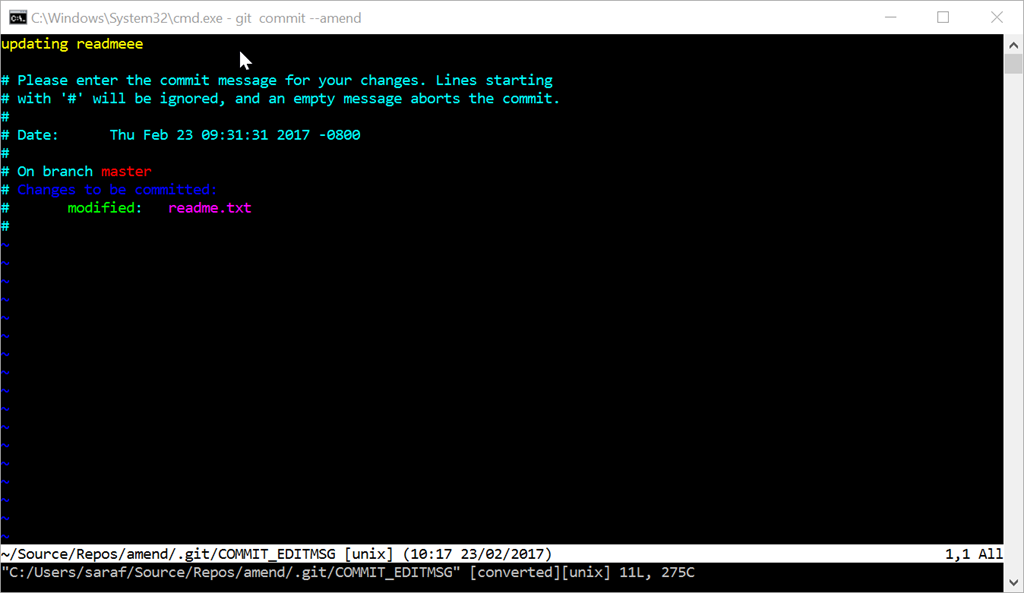
vi editor - one of the scariest images a Windows user will ever see

I’m in a sandy beach on a tropical isle.

Actually, you’re in the vi editor. Before you start typing anything, stop. Get up, stretch your legs. Odds are you’ve been at your desk for way too long anyways 🙂 Get some coffee and come back and search google what to do before you start typing.

If you are like “Say Yoho! SAY YOHO!!!*” to get out of here without making any changes, you’ll want to hit ESC and then type :q! Don’t think about it. just do it.

typing in the command :q!

You can verify in the git log that the amend had no impact.

*The reason I got into computer programming was because of Scott Adam’s Pirates Adventure text-based adventure game for the TI-99 4A Home Computer. As a 6 year old, it fascinated me how a computer could understand some English commands (get safety sneakers) but not others (open refrigerator – you are in a kitchen after all!) “Say Yoho!” was the command to jump to a different part of the island. Say it too many times in a row and you’d die (I think). Never beat the game as a kid, but later in college, I downloaded an emulator and finally got past those crocodiles!

How to use the GitHub tool window to make changes to a Pull Request from a contributor in Visual Studio – 066

We recently launched support for what we call “Maintainer Workflows.” You’ve got an open source project and you’re receiving pull requests. Suppose you want the contributor to make some changes. You can leave comments in the Pull Request asking them to make whatever adjustments, e.g. adding a Console.Read(); in a Console Application project. But what if they don’t respond in a timely manner or never respond at all? Now within Visual Studio you can pull down those changes, review them, make modifications, commit and push back up to GitHub, all within the GitHub tool window!

(P.S. the Pull Request contributor needs to create the Pull Request by keeping the “allow edits from maintainers” checkbox checked by default. see more at bottom of post).

Continuing from yesterday’s tip, let’s say you’ve reviewed the diff for the PR but you want to make one addition.

1. You can click on the Checkout to <pr/pr-title> link button to checkout the branch.

Checkout to pr/2-added-a-message being clicked in GitHub tool window

Clicking on the checkout… link indicates whether the checkout was successful. If not, it’ll tell you to go to Team Explorer – Changes to see what you have uncommited or unstashed.

Local branch up to date message shown

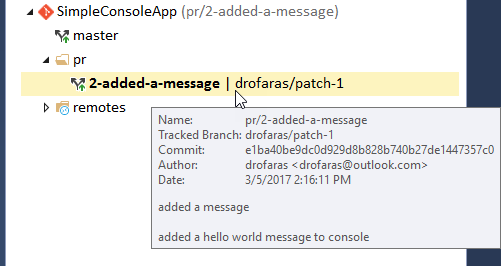
If you want to verify what state you are in, you can go to Team Explorer – Branches to confirm you’ve checked out a PR branch. Hovering over gives you additional information. You can also view in the VS status bar.

Team Explorer - Branches showing the pr branch checked out

2. Open the solution (if not already opened from Team Explorer – Home – Solutions) and then open the file you wish to modify.

In this example, I want to add a Console.Read() under the Console.WriteLine() that came from the Pull Request.

Console.Read() added to the PR by repo maintainer

Don’t forget to save and test your changes! // This is a note for myself 🙂

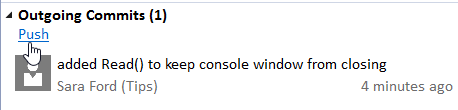
3. Go to Team Explorer – Changes and make your commit(s) to the branch

Team Explorer - Changes showing the commit for the Read()

4. Push your changes back up to GitHub from the Team Explorer – Sync page

Team Explorer - Sync - Push changes

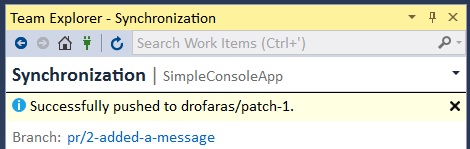
And you should see a success message.

Successfully pushed to drofaras/patch-1

(We’ll cover more about Syncs in VS in a few weeks.)

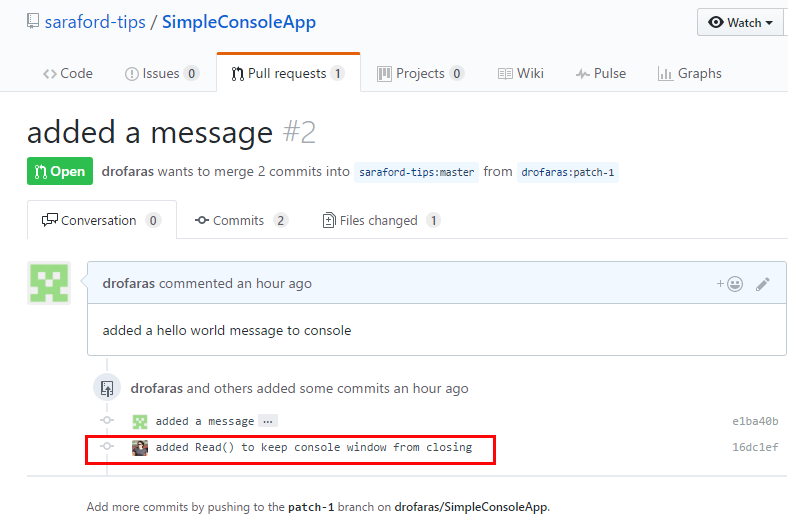
If you go to GitHub.com to review the Pull Request, you’ll see that there’s been a new commit.

pull request page showing the new commit

Recap

Let’s take a minute to review what’s going on here. Remember a Pull Request is the start of a conversation. The actual code for the Pull Request sits on a branch that can be updated at anytime, hence why I say a pull request is the “start” of a conversation. In the past, this branch would be updatable by the person who created it. Now because of the new feature upstream repository contributors to collaborate on a forked branch, the user saraford-tips was able to make changes directly to the branch associated with the Pull Request from user drofaras.

When user drofaras created the pull request, she (or I) kept the checkbox checked to allow edits from maintainers.

allow edits by maintainers

Got Feedback?

I strongly recommend using one of the existing channels for feedback. Of course, I’ll help anyone who leaves comments. It’s just that if you use one of the existing channels, your feedback and questions go to the entire team; whereas this blog is my nights and weekends project, so it’ll take me a while to respond, but I will respond. Just don’t ask me how small my queue of tips has become! O_O

How to review changes in a pull request without switching branches in Visual Studio – 065

I’m disrupting your regularly scheduled tip series to talk about the awesome work the Editor Tools team has been doing at GitHub. I’m too impatient to wait for the series to catch up!

We have a GitHub Extension for Visual Studio that’s available in Visual Studio Gallery / Marketplace which is also an open source project at https://github.com/github/visualstudio. You can go to Tools – Extensions and Updates and under Online search for GitHub to install.

Once installed, you can open the GitHub tool window from View – Other Windows – GitHub

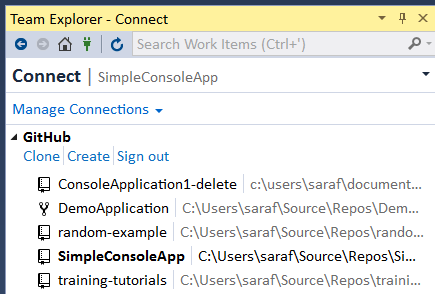
In the interest of time, I’m going to assume you are 1. connected to GitHub (either by signing in via Team Explorer or the GitHub tool window) and 2. in Team Explorer, you’re connected to a GitHub repo, as shown below

Team Explorer - Connect showing connected to SimpleConsoleApp repo

How to review changes in a pull request without switching branches

1. Go to Team Explorer –  Home – Pull Requests

Team Explorer - Home - Pull Requests button being clicked

Clicking Pull Requests will take you to the GitHub tool window, showing all of your open pull requests for your currently connected repo.

Note by default the GitHub tool window shows Open pull requests. You can filter to see closed and all pull requests.

GitHub tool window showing an open pull request 

2. Click on the title of the pull request (e.g. added a message) to view the details.

GitHub - Pull Request Details View

Ignore my funky font sizes. I’m making it to 40 without computer glasses. That one summer 10 years ago was an exception.

Lots of stuff going on here. We see

  • User drofaras wants to submit her (yes, my alias spelled backwards) branch patch-1 (the default name GitHub supplies to branches created via the website) into master.
  • A”checkout” link button, but the goal of this blog post is to review changes without switching branches. (stay tuned for tomorrow)
  • The details about the pull request and the option to view it on GitHub.
  • Lastly, there’s Changes (1) because only one file has been changed.

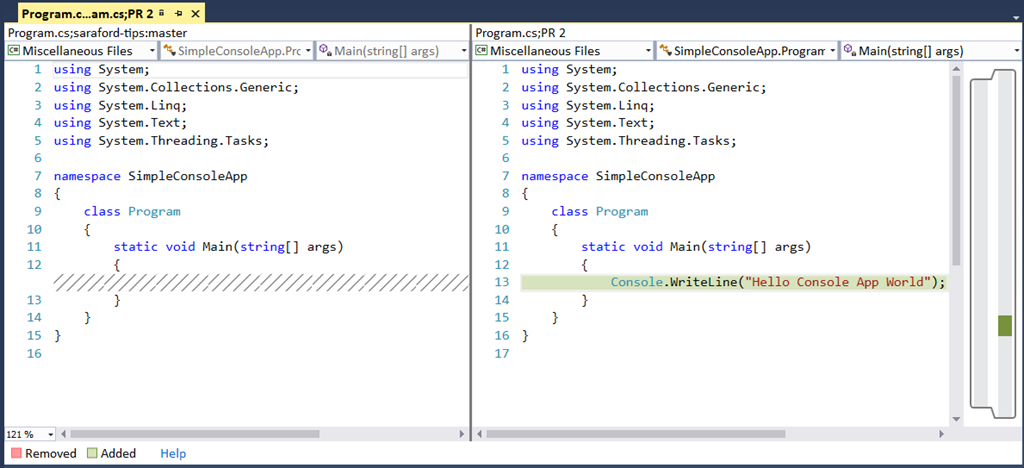
3. Double-Click on Program.cs to view the file diff

VS showing the diff between the two files

And that’s how you can do a diff between two files without switching branches within Visual Studio using the GitHub extension.

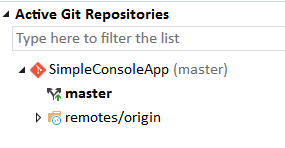
To show we’re still on the same branch as before (e.g. master), go to Team Explorer – Home – Branches to verify.

Team Explorer - Branches showing master as current branch

Got Feedback?

I strongly recommend using one of the existing channels for feedback. Of course, I’ll help anyone who leaves comments. It’s just that if you use one of the existing channels, your feedback and questions go to the entire team; whereas this blog is my nights and weekends project, so it’ll take me a while to respond, but I will respond. Just don’t ask me how small my queue of tips has become! O_O

How to interpret the blue pad lock icon when using Git in Solution Explorer – 063

This blue pad lock icon got me the first time I opened a Git-based solution. At first I thought, “wait a sec… I just created this repo and solution, why are these files locked??” Anyone who has used Visual Studio for a while knows what I’m referring to.

tl;dr – when using Git, the blue pad lock icon means “file is unchanged,” but why didn’t they update the tooltip? In TFVC, SlnExp uses “Checked-in” but in Git, SlnExp uses “Checked in” (no dash), so why not change the words?

For non-windows readers who are interested in what TFVC (a centralized VCS) looks like or those who want more context, here’s a brief overview of what a Solution looks like under Team Foundation Version Control (aka TFS, aka VSO, aka VSTS, etc.)

Using Team Foundation Version Control in Solution Explorer

When you first create a project, you’ll notice that the files have a green + icon, indicating that this file is newly added, but not checked into source control. 

Newly added file to TFVC

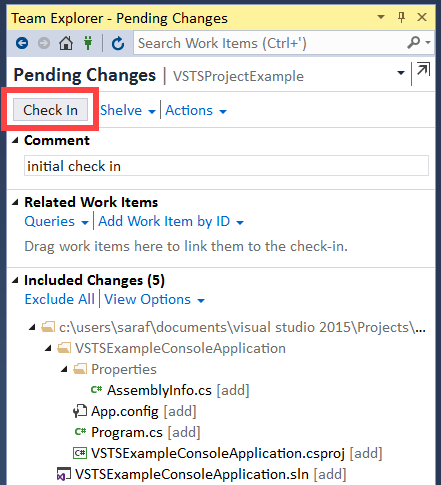
And after you’ve check-in your new files,

Team Explorer - Pending Changes window showing "check in"

you’ll now see the blue pad icon

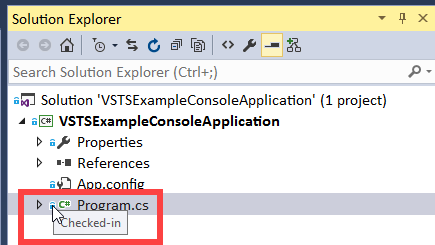
Checked-in icon showing in Solution Explorer

where you can now Right Click to “check out” your file or just simply start editing to “check out” your file.

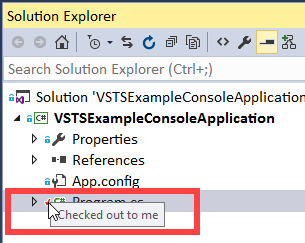
Checked out to me icon in Solution Explorer

Using Git in Solution Explorer

Let’s pause for a second and consider the workflow of Git being DVCS. So “check in” and “check out” states don’t directly map. But Visual Studio users are used to icons have certain meaning. My guess (and this is just my guess, considering I haven’t been on the team in ages) is that they went with the existing set of check-in and check-out icons, hence mapping their semantic meaning to the Git states. Sure, it’s a little strange at first (as mentioned above), but then you adjust and go on with your life.

For example, this is a Git repo with `git status` that has nothing to commit and working tree clean.

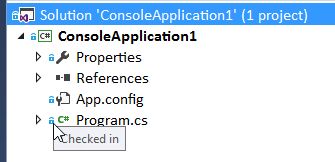
git repo saying "checked in" in Solution Explorer

So although we’re supposed to interpret this as “unchanged”, it’s interesting that the tooltip doesn’t have the dash between Checked and In. At first when I started writing this blog post, I figured SlnExp was using the exact same icons and tooltips, but clearly something is different in a Git repo. I tried having only changes locally versus pushing up to GitHub, but that doesn’t add the dash back.

So despite the missing dash, I’ll adjust and go on with my life 🙂