Tag: CLI

How to understand the "current branch is up-to-date" error when rebasing – 113

This might be a bug with the Git Visualization tool. Via the command line, if your branch can already perform a fast-forward merge, Git won’t let you do a rebase. However, the visualization tool allows for it.

Suppose you create a new branch `experiment` and add 1 commit. Then you try to do a rebase on master. You’ll get the following error.

Current branch experiment is up to date

My guess why this makes sense is because Git is protecting you (or others from you) from rewriting history. In other words, there’s nothing to rewind, so no rebase.

However, the visualization tool allows for it, but I think this is a bug. Hence why always important to experiment IRL!

thinking this visualization is a bug

How to practice a rebase on the command line – 112

In yesterday’s tip, you saw how to visualize a rebase. Today’s tip allows you to practice performing a rebase via the command line.

First, we’ll have master contain one extra commit that isn’t included in your `experiment` branch. For example, you were working on `experiment` and a new commit was added to master (either by you, e.g. bug fix, or from a remote).

master log containing a fileMaster commit

Next, you’ll have a commit on `experiment` that isn’t on master.

experiment log adding a fileExperiment not on master

Since you are on your local machine, you can rewrite history because you haven’t shared or pushed these changes.

From the `experiment` branch, you’ll run

$ git rebase master

git rebase master

and then checkout master and merge in experiment to do the fast-forward merge.

fast-forward merge

One thing the visualization is able to emphasize is how the commit IDs are different for the “added fileExperiment”.

new commit ID

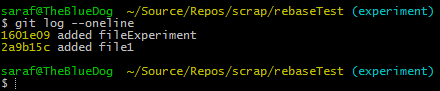
The commit ID `f041b71` is no longer `1601e09` (as shown in the 2nd image for added fileExperiment).

How to know what the capitalized letter means in [Y/n] – 108

I promised myself I’d be honest, brutally honest, about all the things I’ve had to learn. And one of them is about the capitalized letter when you’re presented with such a question in a command line interface.

I’ll admit I was typing in ‘Y’ as a response. Perhaps it wants me to be really sure. Kinda like when you want to get hot water out of a water cooler, you have to press 2 buttons or hold one button down, etc.

The capitalized letter is the default if you were to simply press enter.

For example, if you want to open VS as your external diff tool, as you saw in yesterday’s tip

$ git difftool branch-name file-name

Launch 'vsdiffmerge' [Y/n]?

You can simply press enter, and the vsdiffmerge command will be run!

How to diff a file between two branches using VS as your difftool – 107

Suppose you want to diff a specific file between two branches. The best* git command I’ve found is in this SO answer (only because I’ve found a couple of other sites reference it)

$ git diff branch-name path/to/file

The SO answer says to use `..` in front of branch-name, but I’ve found it works without it. There are WAY too many variants of these commands to keep track of.

I’d love to figure out where this command option is in the official docs but it is pretty overwhelming list.

In a previous tip, you saw how to use VS as your external diff tool. As the blog post title describes, here’s how to do it

$ git difftool branch-name path/to/file

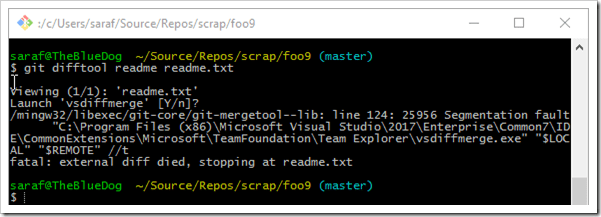
for example, the name of my branch in the image below is `readme` and my filename is `readme.txt`.

I don’t have to provide a path to the readme file since it is at the same location as my current directory.
image

and volia Visual Studio appears**

diff of two different pearl jam song lyrics across branches

* I have no idea if this is the best answer. I’ve read that there’s old syntax and new syntax. I’d love to hear people’s suggestions in the comments!

**I’ve noticed in VS 2017 that VS must be running. Otherwise, the IDE is launched, but the tool doesn’t appear. If you re-run the command via command line, the dif will appear. YMMV

And yeah, I wonder what genre of music I listen to when I write 🙂