How to create a pull request for a bug fix on a branch on a forked repo that you’ve pushed to GitHub – 044

This might be my greatest worst blog post title ever.

In previous tips, you’ve created pull requests as part of the commit workflow when you’ve edited or added files directly on GitHub. In other tips, you’ve cloned repos, created branches, made bug fixes, and pushed those changes up to your forked GitHub repo. Now you’ll submit those bug fixes to the base repo via a pull request.

First, switch to the branch that contains the changes you wish to propose to the base repository.

switching to windows-fix branch

Now to the right of the branch: switch button, click New pull request.

switching to windows-fix branch

And you’ll see the familiar Pull Request form on the base repo. Remember, PRs are open on the base repo, and not on your forked repo. In fact, you can’t find the pull request tab on your forked repo!

Fortunately, our changes have no conflicts, so we are good to go!

Open a pull request form

In the forms below, you’ll want to provide a helpful comment. The title of the PR is just the name of the branch as a placeholder, so provide something more meaningful.
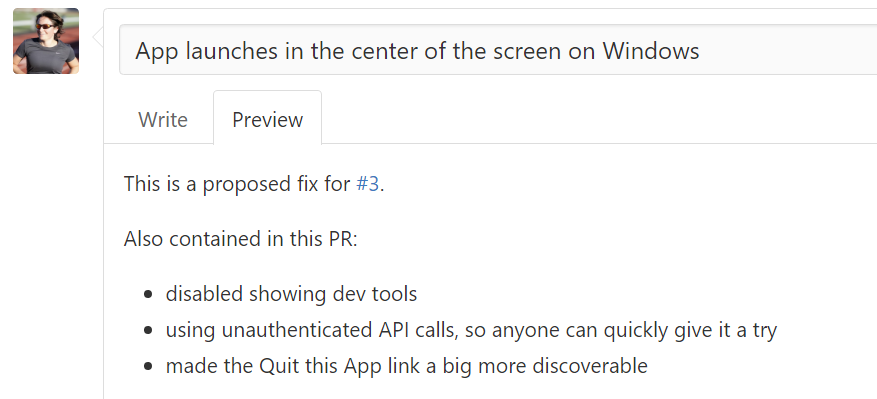
filled out pull request form

Once the PR form is filled out, clicked the Create pull request button, and volia!

created Pull Request shown in base repo

The base repo now has a Pull Request created, and there was much rejoicing!

You might notice that it says #4 when there’s only been 2 other pull requests for this repo. Issues and Pull Requests share the same number listings. At the time of this writing, the order in which things were created in this repo are as follows: #1 PR, #2 PR, #3 Issue, and #4 the PR you’re looking at now.

How to link directly to a line of code in a file hosted on GitHub – 043

It’s a lot easier to point someone directly to a line of code you’re referring to, rather than sending them the link to a file with a message “and now scroll to line 74.”

First, you’ll navigate to a file hosted on GitHub. It could be a file you’ve checked in or any random file in any random repo.

Next, click on the line number that you want to get a link to. In today’s example, you’ll see me refer to one of my sample Electron apps where I forgot to remove the line that shows developer tools for debugging.

Clicking line number in a file on GitHub.com

And volia, check your web browser address bar. You now have a URL for that exact line of code, e.g.  https://github.com/saraford/your-moment-of-github-zen/blob/master/main.js#L74

When you send this link to someone else, the line of code will open around the middle of the screen with the yellow highlight.

How to push a new branch to your repo on GitHub via the command line – 042

I’ve never thought about Feb 11 being the meaning of life day…

Let’s assume on your local repo, you’ve created a branch and made some changes to that branch. Now you want to push up to your repo. It doesn’t matter if your repo is a fork of someone else’s repo or if you created the repo from scratch.

Before I push my changes, I like to review the logs. This is totally optional, but a good sanity check from time to time to make sure you’re not sharing your email address.

To review your logs, use the command

> git log

viewing your logs in git that will go up to github

and I see my email address is using the noreply one from GitHub so I can still get credit for my contributions. (See upcoming tip.)

And now I can push these changes up by using the following command:

> git push origin windows-fix

and you can verify these changes in your GitHub repo.

your recently pushed branches: windows-fix

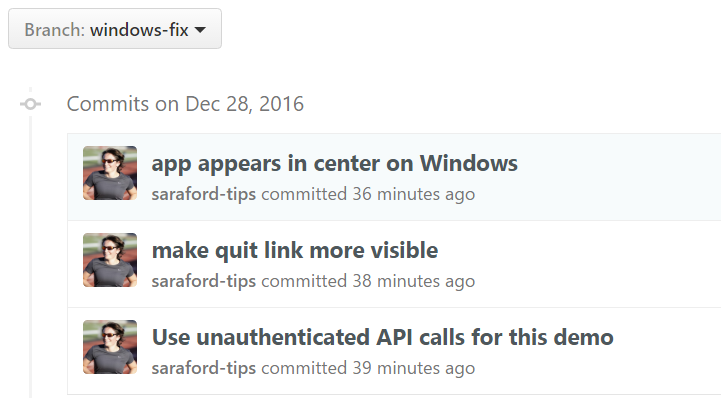
and if you switch to this branch (by clicking the branch name in the previous image), you’ll see the 3 commits listed there.

windows-fix branch showing the 3 commits

If you’re wondering why I’m doing this blog series, it is because I constantly have to look up these commands. That’s the problem you run into when you haven’t been paid to code in 10 years. I’m having to come up with other creative ways to grok this material. I always think this command is either git push <branch-source> <branch-destination> or git push <repo-destination> <repo-source> which neither is the case. The command is actually git push <remote-name> <branch-name> See github documentation. I always forget this because I think that master is the name of the local repo (from doing git push origin master all the time). But again, this isn’t the case. Master is the name of the default branch (and not the repo).

How to create a new branch on your forked GitHub repo via the command line – 041

Suppose you’ve forked a repo and have cloned a local copy. You’re ready to start making changes, but wait! first you’ll want to create a new branch first before making your modifications. (Don’t worry if you forget this step. I always do. Fortunately, you’re using Git now and there’s a way to do anything and everything it seems. I’ll cover how to get out of this state gracefully in a future tip.)

You could use two separate commands

> git branch <branch-name>

> git checkout <branch-name>

or use a shortcut that automatically creates a branch and switches to it using the –b switch:

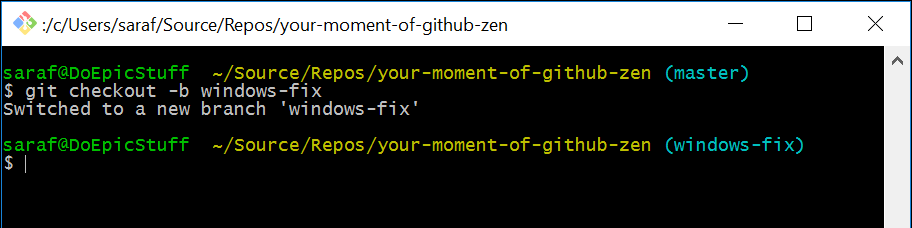
> git checkout –b <branch-name>

as shown in the image below

git command to create and switch to a new branch

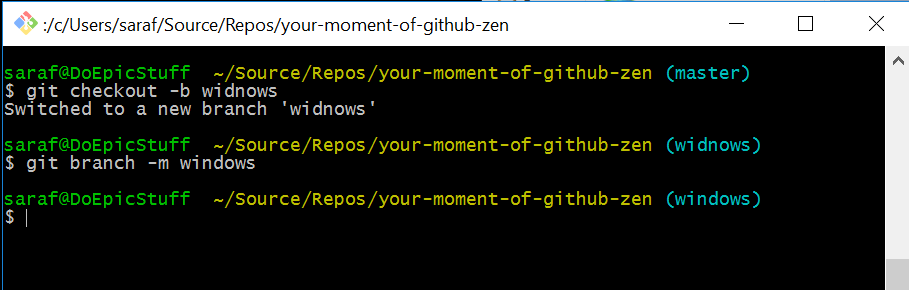
Suppose you’ve made a typo and misspelled windows as widnows.

You can fix this by renaming the current local branch using the following command:

> git branch –m windows

As seen in the image below.

renaming misspelled branch

Now you might be wondering why a –m switch and not a –rn switch. This is because –m stands for move, and since Git started on UNIX-based systems, Git uses a lot of the UNIX nomenclature. So to rename a file in a UNIX system, you need to move the file to its new name. Thanks to this SO answer.