No.
How to fix the "I’ve started making changes on master. How do I get those to another branch?" using Visual Studio – 090
For 20 years, Visual Studio users have started their workday by launching VS and start coding. Now we have to break that “muscle memory” by stopping to think, “Hmm which branch am I on? Do I need to switch branches first?”
You are allowed to switch to a branch, provided that branch doesn’t already have different changes to the same file. You’ll see the happy case, then the #sadtrombone case.
Help wanted: This tip is only for saved changes, *not* committed changes. I don’t know how to undo the “oh shit! I’ve committed on master!” *from within Visual Studio* without dropping to the command line. If someone knows, please share in the comments or on twitter! aka please get my attention – references to Samurai Jack seem to work very well 🙂
Happy Case
Suppose you have a Console Application and you need to add a new file called IDoNothing.cs – yep, how I roll.
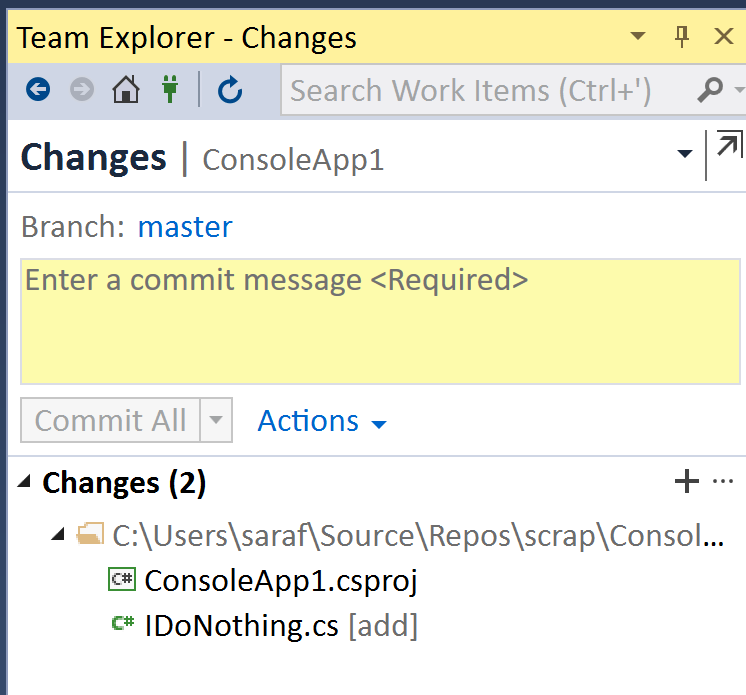
Note that I haven’t committed anything else. These files are only saved.
Team Explorer will still allow you to switch branches. Go to Team Explorer – Branches, and switch to the desired branch.
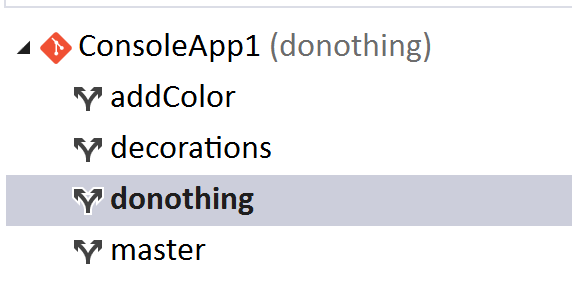
Then you can commit your IDoNothing.cs file into the donothing branch.
#sadtrombone case
From a previous tip, we’ve made changes to the output in our decorations branch. So let’s switch back to master and make some changes to Program.cs, e.g. adding a new method call.

We’ve saved the changes, but haven’t committed them. Now when we try to switch to decorations branch we get an error message.

Yes, that reminds me of the old joke about the helicopter that’s lost over Microsoft HQ. When they the folks on the ground where they are at, they hear, “You’re in a helicopter.” The pilot says, “Thank you!” and plots a new course. The passenger says, “WTF? How do you know what to do after that answer?” He said, “it’s clearly MSFT. You ask a question and get the most technically accurate, but yet not really useful for the given situation answer back.”
Yes, true, you cannot switch because of uncommitted changes, but why is this different than before? Because decorations branch already has a different Program.cs file than what’s in our current branch (master). In the happy case, by adding a new file, I knew there would be no conflict (and given it’s a Console Application, i don’t have many options for a demo 🙂 But when modifying Program.cs, there’s a conflict, so VS says to see Output Window for details:
> Cannot complete the operation because of existing changes to the following file:
ConsoleApp1/Program.cs
Now that’s a useful answer! 🙂
How to commit and visualize code on different branches in Visual Studio – 089
Yesterday’s tip visualized what happens in Visual Studio (and in Git) when you create a branch. Today’s tip visualizes committing code independently in different branches.
First, you’ll see how to commit to separate branches in Visual Studio, then we’ll rinse and repeat in the Git Visualization tool.
Committing to Different Branches in Visual Studio
In this example, I’ve rolled back to the Console Application with only output message. We’re going to add the ChangeColor() method and call on a branch called addColor.
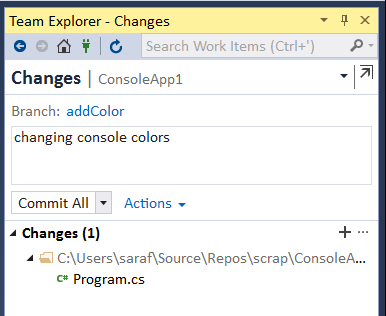
Once you’ve pressed Commit All to addColor, you’re going to discover that you want to experiment with decorations. You can use Team Explorer – branches to create a new branch called decorations.
You’ll want to use master because you want to keep the addColor changes separate from your decorations branches.

and you’ll want to verify you were on master in the dropdown

Add your decorations to your project file
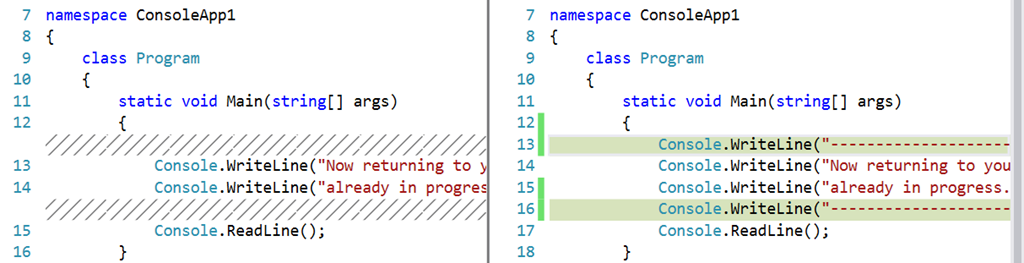
And now commit those changes to your decorations branch.

And now we have 2 different commits on 2 different branches

Visualization of what we just did
First, we’ll want to create and checkout a branch called addColor and make some changes there.

Next, we’ll want to switch back to master and create a new branch from there.

Finally, we’ll make a commit on the decorations branch.

I keep trying to remind myself that whenever I do a checkout, reset, etc. I’m not really going forward and backward in time, but rather I’m moving to a different nodes on a graph. Visualizing what git is doing helps break my timeline mental model.
How to create a branch in Visual Studio – 088
It seems that I have to write these tips in triplicate: 1. command line, 2. Visual Studio, 3. git visualization tool. But that’s been the only way to prove to myself I’m grasping the concepts.
Command line
A college French professor once gave me the advice to never use contractions in class unless I was prepared to never ask him to slow down. I had just learned the equivalent of “I do not know” vs “I don’t know” (something like that).
Applying that advice to software, I don’t want to start using git shortcuts by combining commands until it is clear what the two commands are independently doing. (Yep, I’ll show the shortcut in a second… )
First, you’ll want to create a branch:
> git branch my-branch
Next, you’ll want to switch to that branch:
> git checkout my-branch

Git Visualization
Okay that’s pretty straight forward, but what’s happening conceptually?
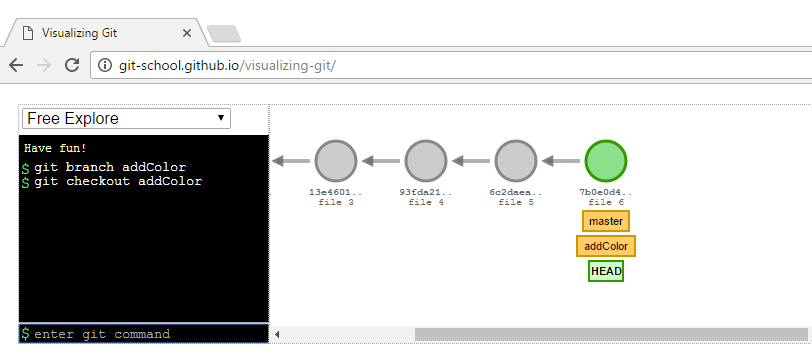
We are on master when we created a branch called addColor while on master and then switched to addColor.
The take home message is that addColor has everything that master has because we created the branch addColor while on Master.
Git Command Line Shortcut
Before we jump into the IDE, let’s take a sneak peek at that shortcut.
Note: in case anyone is following along at home, I first switch back to master to delete the addColor and then recreate using the shortcut.
The shortcut is
> git checkout -b addColor
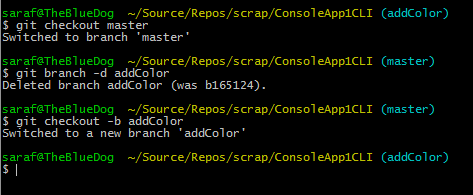
This shortcut says to checkout to addColor and if it doesn’t exist, create it.
Visual Studio
When you’re in Team Explorer, you can go to Branches, right click on the branch you want your new branch to be based on, right-click, and select New Local Branch From…

Then give your new branch a name (and verify in the drop down you picked the correct branch) and leave the checkbox checked…

If you have the Checkout branch checkbox, you’re telling VS to create the branch and do the checkout so you’re now on the addColor branch instead of master.
If you uncheck it, it is the equivalent of creating the branch on the command line, but staying on master.
To confirm you’ve created and switched to the addColor branch, you’ll see that addColor is now in bold.
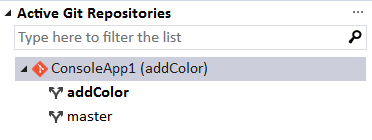
And the branch is also shown in the Visual Studio status bar.

 Sara Ford's Blog