Category: Git(Hub) Tip of the Day 2017

How not to quit your career when Git opens a vi editor – 072

There’s a joke, “How do you generate a random string? Put a Windows user in front of vi editor and tell them to exit.” Credit to Aaron Jorbin.

Suppose you’re doing research on the git commit –amend -m “some message” command and you forgot the -m “some message” part.

Everything spins around and suddenly I’m elsewhere…*

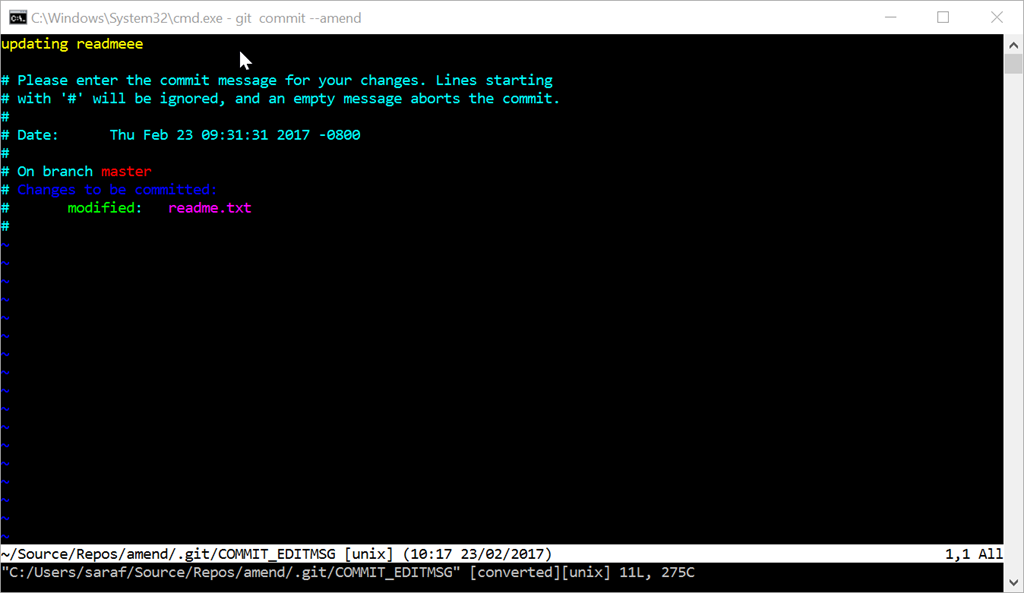
vi editor - one of the scariest images a Windows user will ever see

I’m in a sandy beach on a tropical isle.

Actually, you’re in the vi editor. Before you start typing anything, stop. Get up, stretch your legs. Odds are you’ve been at your desk for way too long anyways 🙂 Get some coffee and come back and search google what to do before you start typing.

If you are like “Say Yoho! SAY YOHO!!!*” to get out of here without making any changes, you’ll want to hit ESC and then type :q! Don’t think about it. just do it.

typing in the command :q!

You can verify in the git log that the amend had no impact.

*The reason I got into computer programming was because of Scott Adam’s Pirates Adventure text-based adventure game for the TI-99 4A Home Computer. As a 6 year old, it fascinated me how a computer could understand some English commands (get safety sneakers) but not others (open refrigerator – you are in a kitchen after all!) “Say Yoho!” was the command to jump to a different part of the island. Say it too many times in a row and you’d die (I think). Never beat the game as a kid, but later in college, I downloaded an emulator and finally got past those crocodiles!

How to undo changes to a file that has been staged in Visual Studio – 071

Almost always, every answer on SO for “how to undo changes to a file in Git…” starts with “well, it depends on what you mean by undo changes.” I’m starting to see why all these answers start by clarifying what you are trying to do.

Personally, there seems to be two cases where I want to “revert or undo” from staging:

  1. I’ve accidentally used git add . and added files that I didn’t mean to add to staging
  2. I’ve changed my mind on whatever code I was writing (e.g. the code didn’t do what I wanted, or more likely, never compiled) and want to pretend I never wrote it in the first place because I forgot to create a branch first

How to unstage changes in Team Explorer

Right-click on the file you want to remove from staging and select the Unstage command.

Unstage command in TE

And Team Explorer will put it back to the Changes list. You can confirm this in the command line as the file will be listed under Changes not staged for commit.

If you’re going for the destructive “let’s never speak of this code again” option, follow yesterday’s tip by right-clicking on the file and selecting the Undo Changes… command.

How to unstage changes in Command Line

Rinse and repeating for the command line, let’s stage our commit using git add Program.cs and confirm it using git status. Although git never says “staged”, you’ll just have to translate “Changes to be committed” to “These changes are staged to be committed”

git status showing a staged Program.cs

Now to unstage the changes, you can read the instructions in the git status (see above).

Running git reset HEAD Program.cs puts it back as an modified file that hasn’t been staged yet.

git reset HEAD program.cs provides feedback

Wow! Git actually provides feedback with this command. You see in the message above unstaged changes after reset. I’ll never understand why Git decides to give feedback on some commands and not others.

And doing one more git status will show you the commands to fully remove the changes, although destructive.

git status showing how to revert or undo changes to file in working directory

And lastly doing a git checkout — Program.cs will undo all changes to that file to the last commit.

command prompt showing nothing to commit

How to undo all the changes to a specific file in your working directory using Visual Studio – 070

I always love Git documentation that includes warnings about destructive commands (like this one) because there’s no way to get this code back (aka a data loss scenario), unless the code happens to be in your favorite editor’s buffer or you still secretly use Ctrl+C Ctrl+V for emergencies – DONT JUDGE ME PEOPLE! =p For example, from unmodifying a modified file

It’s important to understand that git checkout -- [file] is a dangerous command. Any changes you made to that file are gone – you just copied another file over it. Don’t ever use this command unless you absolutely know that you don’t want the file.

I think to myself, “Um, Git, you know the code I’m writing… there’s a reason I never want to speak of this code again!!” It seems Git was designed for people who never have to StackOverflow with cut and paste attempts just to get something to compile and yet forgot to try on a throwaway branch first. It’s once I get it to compile I want to start over as if to convey in my logs, “yep I knew what I was doing all along…”

tl;dr – Today’s Git tip of the day is when you’re feeling, “um, yeah, let’s pretend that never happened.”

Undo changes in specific file in working directory using Team Explorer

In Visual Studio, let’s add a few lines of code in our Program.cs project and hit save. You’ll immediately see Team Explorer telling you that you have unstaged changes in your working directory. Note that I say “unstaged changes” and not “uncommited changes.” Remember, even though Team Explorer lets you jump over staging, there’s still a “middle layer” as seen in the past couple of tips.

Right-click Program.cs and click Undo.

Undo Changes command in TE

Now you’ll be prompted “are you sure” because like the Git documentation says, you won’t be able to get these changes back.

Are you sure VS prompt

Now we’re back to before we made any unstaged and/or uncommitted modifications. Even VS seems to know to pop these changes from its clipboard ring. Wow, I feel for whoever had to test those scenarios!

Undo changes in specific file in working directory using Command Line

I believe this is the command line equivalent of running git checkout — <filename> although I’m not sure what the actual underlying plumbing Team Explorer is doing.

If we want to rinse and repeat from the command line,

First, make some edits in Visual Studio and hit save. We can confirm these changes by doing a git status

git status shows Program.cs modified but not staged

Next we’ll run the dangerous (aka data loss) command git checkout — <filename>

 git checkout -- Program.cs

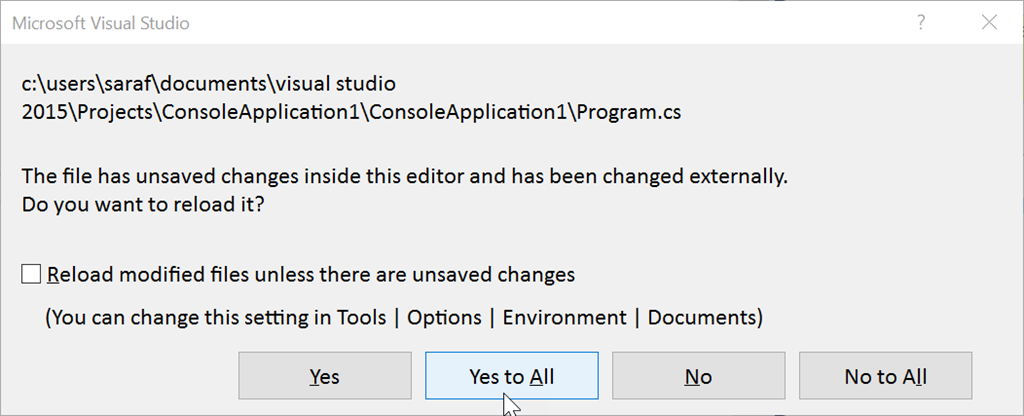
Although Git is like “Meh”, Visual Studio grabs your attention immediately with the old-faithful FILES HAVE CHANGED FILE HAVE CHANGE OMG FILES HAVE CHANGED WHAT DO WE DO?!?! dialog.

Files have chnaged. Reload in VS? dialog

Since we made these changes from the command line, Visual Studio needs to know what to do with the current text buffer. In this case, we purposefully made these changes, so we want to say Yes to All.

And we’ll see that we’re back to our baseline code and no more changes being tracked in Team Explorer.

There are no unstanged changes in working directory in TE

and Git from the command prompt confirms it.

nothing to commit, working tree clean

Aside: What if you had said “No” or “No to All”?

Well, I guess Git won’t be aware of what state your file really is in. If you try to git add or git commit the untracked changes in Program.cs, Git will ignore you. Literally. Git says “nothing to commit, working tree clean.” Team Explorer will also do the same by not giving you any options. But as soon as you hit Save in VS (even if the file is already saved) or even type another character in the text buffer, Git picks back up on the changes.

I guess the take-home message is to hit Yes to All. If you have a scenario where you’d want to say No to All in such a situation (perhaps making this “less dangerous” although there are many, many better ways), please let me know!

How to stage multiple changes within same file using Visual Studio – 069

Why would you want to stage multiple commits of the same file? Actually, I have no idea. This is why I’m writing this series so I can ask you all questions 🙂 Maybe there is no good reason to stage, just like making your bed every morning. Biggest waste of time EVER. You’re just going to mess it up less than half a day later… but I digress…

TBH I originally wrote today’s tip convinced I had found a bug in Team Explorer. I wanted to see what the workflow was like in Visual Studio when staging multiple commits for the same file. However, I confused myself by pressing the Commit Staged button, thinking it was the equivalent of git add <filename> (it’s not). In Team Explorer, doing Context MenuStage is the equivalent of git add <filename>, as you’ll see below…

To explain, let’s start with the command line for the expected behavior, then we’ll rinse and repeat using Team Explorer.

Multiple Stages using Same File using Command Line

First, I’ve written my code to be in a “baseline” state, e.g.

only Console.WriteLine("Hello World") showing

Next, I’ll add a new line

added Console.WriteLine(MyStrings.message);

and via the command line, I’ll run git add Program.cs (or git add . since it is the only file modified) to add it to staging.

Running a git status confirms it’s staged to be committed.

changeds to be committed: modified Program.cs

Don’t git commit yet! Let’s stage another changes to the same file.

Back in Visual Studio, let’s add a Console.ReadLine() to make sure the console window doesn’t go away…

added Console.Read();

Now let’s run git add Program.cs again. Running git status confirms it’s still staged to be added.

Now let’s commit by running git commit -m “two changes added”

git log shows two commit histories as expected

Now let’s rinse and repeat using Team Explorer…

Multiple Stages using Same File using Team Explorer

First, let’s get back to our baseline of just having Hello World. And I’ll hit Commit All to commit those changes.

back to baseline commit in TE

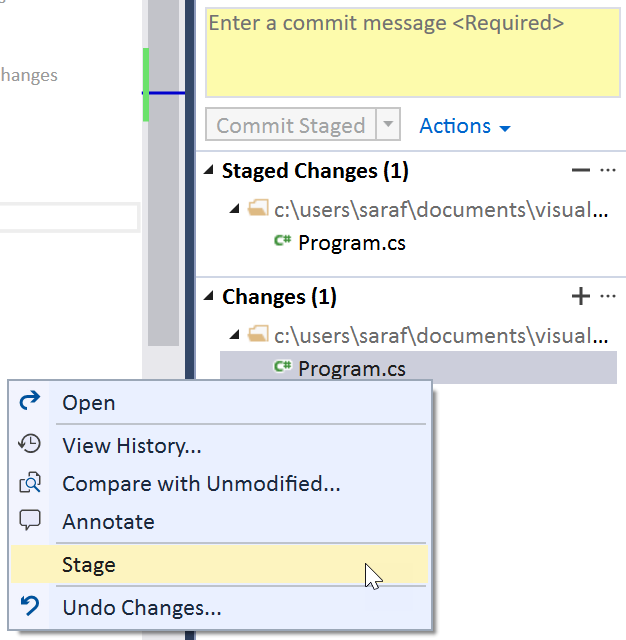
Next, let’s make that first line change of Console.WriteLine(MyStrings.message); but this time instead of hitting Commit All, you want to right click and hit “Stage”

clicking stage in TE

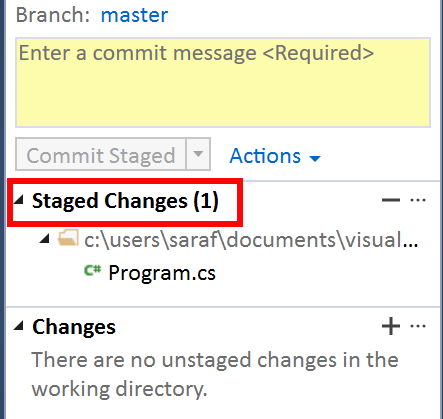
Now you’ll see the change has been staged in TE.

Staged Changes (1) in TE 

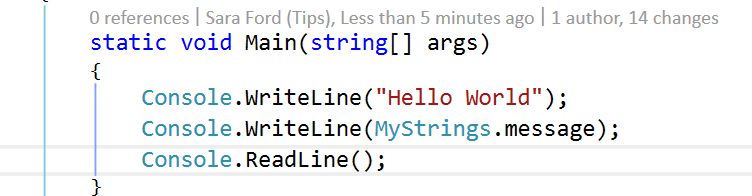
Now let’s add our Console.ReadLine() line…

Console.ReadLine() added

and stage that commit…

Staging a change to an already staged commit in TE

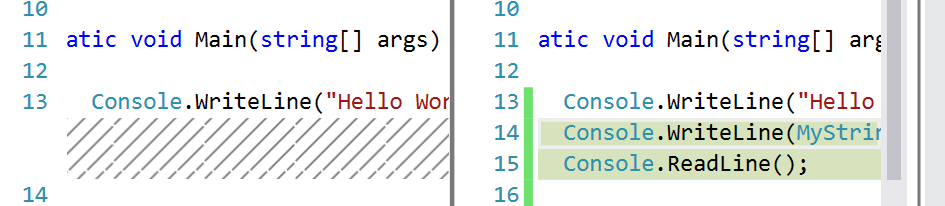
and now under Staged Changes (1), you can right click and hit Compare with Unmodified to see that the 2 new lines have been added to the staging area.

diff between the baseline commit and the 2 changes staged

Clicking Commit Staging in Team Explorer will now add these two new lines to the log.

Commit Staged

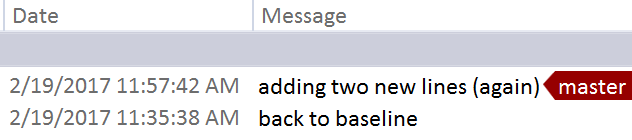
And now checking the history (Status Bar – Click Master (or whatever branch) then View History shows the two commits (baseline and the two new lines).

history in Team Explorer showing last two commits