Month: January 2017

How to commit an optional extended description from command line (Git Bash) – 007

As you saw from previous posts, the UI on GitHub.com allows you to specify an optional extended message.

Commit new file - Add an optional extended description edit field

If you fill this optional extended description out,
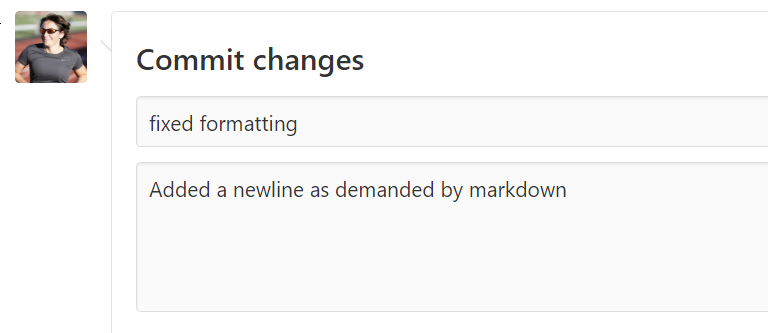
Added a newline as demanded by markdown - extended description shown

you’ll see your extended description comments behind the `…` ellipsis.
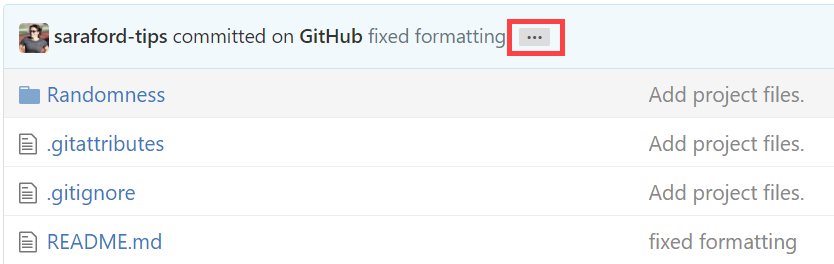
ellipsis as a button on the commit message

Clicking the ellipsis shows the optional extended description.

extended description showing behind ellipsis

How to do add the extended description from the command line

I’ve looked at a few stack overflow answers. There are answers using  two -m arguments, using a literally formatted string (i.e. the ‘$’ at the start of the string), and using a vim editor. This also works for other editors I’ve played with.

For my examples right now, you’re watching me use Git Bash (i.e. Git Shell as setup from Desktop for Windows – I’ll cover more about Desktop for Windows in the upcoming tips).

Using the two -m arguments approach,

git commit message with two -m parameters

and pushing that up to GitHub, you’ll see the optional extended description under the ellipsis.

github.com showing the extended description from command line

Old SDETs never die! What if I added 3 -m arguments?? What will GitHub do?

git commit message with three -m parameters

Looks like each extra -m adds a newline  in the optional extended description, as shown on GitHub.com.

github.com showing a commit message with a newline in description

How to add a new folder from the repo UI–#006

In the previous examples, you saw how to create a new file in the root directory. But suppose you wanted to create a new file in a new directory.

Follow the same steps as before by clicking the Create New File button. Then in the Name your file…  edit box, type your folder name, and then hit a forward slash (the / since it leans forward) .

81BF11C6-3214-4711-AB5B-9C56AF33E159

If you need to rename the new folder, press backspace until you backspace over the forward slash. Then you can retype the name of the folder.

Sometimes when I’m typing in an edit box, I’ll continue to hit backspace even though there’s nothing left to delete. I like that squeaky-clean feeling I’ve deleted it all. But if you’re like me and you’re thinking the cursor will just blink at you at the beginning of the file name edit box, yeah, you’re going to be in for a bit of a surprise. As I mentioned above, hitting backspace at the beginning of the file name edit box will deleted the forward slash, so you’ll now be editing the folder.

image

A 3-legged dog walks into a bar and says, “I’m looking for the man who shot my paw!”  It’s one of my favorites.

And yes, I’ve started experimenting with animated gifs. Where was Snagit back in 2008 when I did the VS Tips? Oh yeah, that’s right. It sat unused because I refused to give up my MSPaint keyboard shortcuts. Hopefully I’ll strike the right balance with animation on the page without too much motion!

How to have the preview render markdown instead of plain text – #005

Sometimes I’ll create a new file, but the Preview doesn’t render the markdown and shows everything in plain text instead. And I’m left scratching my head :confused:

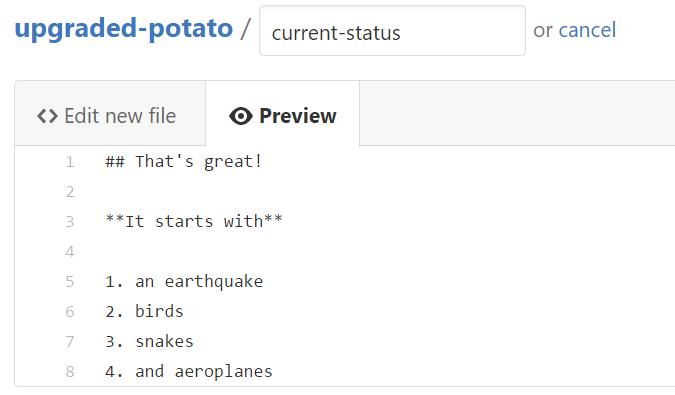
current-status file being edited with REM lyrics but markdown not rendering

If you find yourself in this situation, look at the file extension for your new file (or lack thereof).

current-status not having a file extension

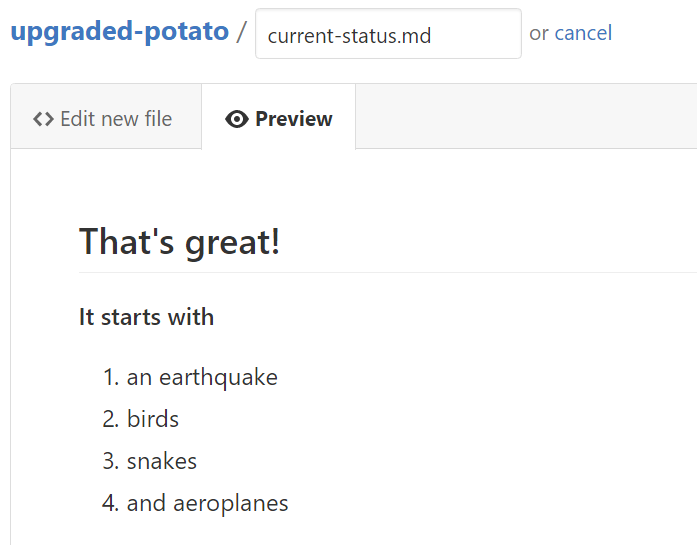
Simply add a `.md` to your filename, and now your Preview will work!

preview now rendering markdown text

BTW if you get a “can’t edit” icon when you try to add the `.md` to the filename,

red no icon when trying to edit filename in preview mode

this is is because you are still in Preview mode. Click on the Edit new file tab to the left of the Preview and you’ll be able to edit the filename.

And Lenny Bruce is not afraid.

How to edit a file directly from the GitHub repository UI – #004

Suppose you have a file that you want to edit in a repo. Similarly to creating a new file, you can also use the UI on GitHub.com to edit a file.

Click on the file you want to edit. In this case, I’ll edit my penultimate FAQ.md file.

FAQ.md listed in the repository list of files

On the page where you can view the contents of the file, to the far right side, there’s a pen icon button to Edit this file.

Edit this file pen icon shown on far right

Clicking on Edit this file will put you in the edit UI, similar to the add new file UI.

And just like in adding a new file, you can specify what the commit message should contain and where the commit should go, either current branch (e.g. master in this image) or a new branch.

Commit changes using default message but custom extended commit message