How to open a file by typing the file name directly from the GitHub repo page – 012

You may not have noticed before, but each GitHub repo page has a Find file button next to the Clone or download button. It’s amazing how many times I’ve clicked the clone button and never even noticed this Find file button.

Find file button on repo page

The File file button takes you to the File Finder page. For example, in the image below, you’re seeing the files from my UX Masters project TheoryC.
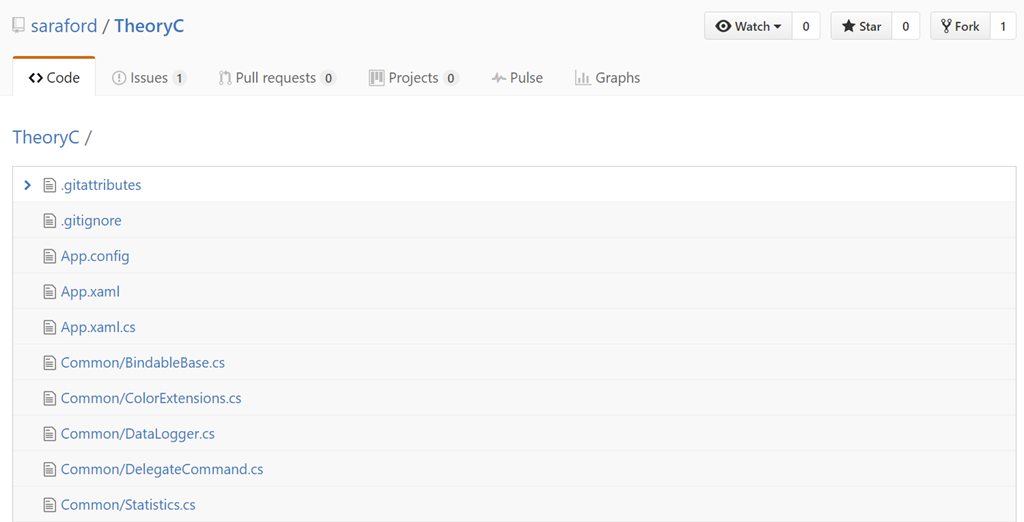
Listing of files in TheoryC repo

And from this screen, you can start typing the name of a file.

But why click a button when you can use a keyboard shortcut?!

GitHub has a great collection of keyboard shortcuts. I’m ramping up on these shortcuts myself, hence this blog series. Let’s start with finding files.

On a repo home page, for example https://github.com/saraford/TheoryC, you can press the letter t to navigate directly to this File Finder page.

Now type the name of the file or folder. e.g. I want to go to the MainViewModel class. So I can just start typing “main”.

File finder only showing files containing main as partial match

Notice how in the previous image all I had to type was “main” and the file finder found three files using partial matching. I didn’t have to specify which folder these files resided in. The search was exhaustive throughout the repo.

To recap, to search for a file via the keyboard, press the letter ‘t’ and then start typing the name of your file. No button clicks required Smile

How to pretend the Windows Start Menu works the old Windows 7 way – 011

For those non-Windows users wondering “What the…This is supposed to be a Git(Hub) Tip of the Day!!” I promise it is. But remember, this is a Windows-first, non-Windows friendly blog series, so from time to time you’ll see some tips that only Windows users can relate to. Think about it this way. If you ever need to use Windows in the future, it can’t hurt to have a few tricks up your sleeve  😉

A coworker was telling me how much he missed the old Windows 7 Start Menu experience, where pressing the Windows Key immediately opens the Run dialog. I’m including this tip here in the series because if you are a Windows user and do not know about this yet, this tip will change your life on Windows.

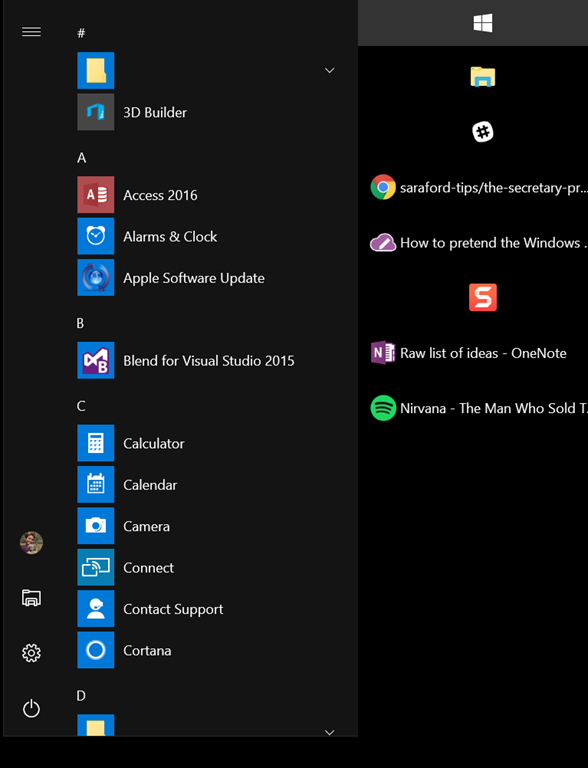
Press your Windows Key and your Start Menu appears.

Note in the following screenshot:

  1. I manually removed all of the live tiles. There’s an option to hide if you right-click on each live tile.
  2. I’ve had the Windows taskbar docked to the right side of my screen since 2005. You’re able to see more items listed and you can read more of each item name, which is especially useful if you have multi-instance apps. E.g. if I had two instances of Open Live Writer open, I’d know which blog post I’m editing. But I digress…

image

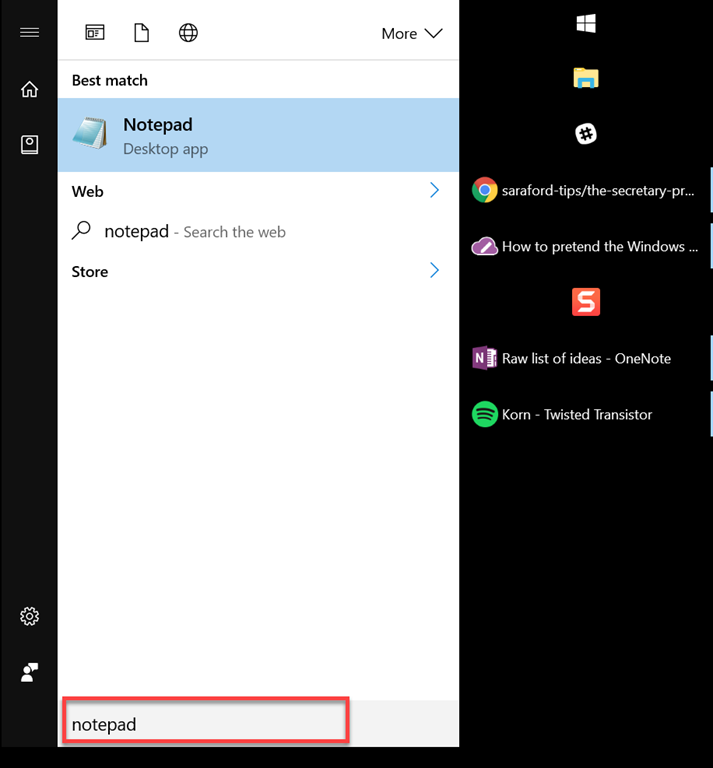
Now for the moment you’ve all been waiting for, take the leap of faith and just start typing, e.g. “notepad”

You’ll see below that the Windows start page thingy changes to the old school run dialog (of sorts). You’ll see whatever you type is shown at the bottom.

image

Be aware that if you mistype a word, like “notefoo”, Windows will kick off a Bing search in Edge for “notefoo.” There’s probably a way to customize this, but just be aware of some interesting Bing results from your typos! Smile

How to change the description of your repo – 010

Suppose you notice a typo in your repo description or you didn’t specify one at the time you created the repo. To the far right, you’ll see an edit button.

Edit button on repo homepage

Clicking this button allows you to edit a description and a website URL.

Editing repo description

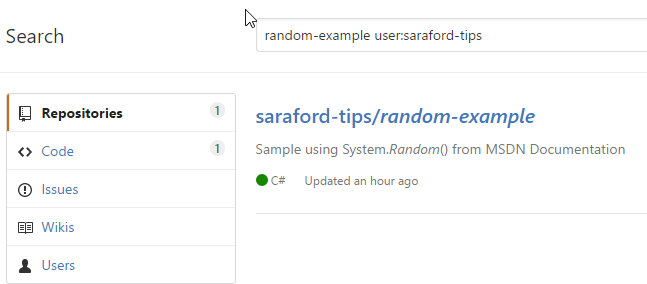
Give it a little while, but your repo description will end up on the GitHub.com search page when you do.

searching for random-example user:saraford-tips in all github.com

I’m sitting here wondering, “is this a useful tip?” but then I remember that feeling I felt when I (finally) found how to do it. Originally I thought I had to update a repo file somewhere, since it took me a while to get used to what files GitHub’s UI gets it’s info from (e.g. license) and what files are metatdata for the GitHub repo itself.