How to undo changes to a file that has been staged in Visual Studio – 071

Almost always, every answer on SO for “how to undo changes to a file in Git…” starts with “well, it depends on what you mean by undo changes.” I’m starting to see why all these answers start by clarifying what you are trying to do.

Personally, there seems to be two cases where I want to “revert or undo” from staging:

  1. I’ve accidentally used git add . and added files that I didn’t mean to add to staging
  2. I’ve changed my mind on whatever code I was writing (e.g. the code didn’t do what I wanted, or more likely, never compiled) and want to pretend I never wrote it in the first place because I forgot to create a branch first

How to unstage changes in Team Explorer

Right-click on the file you want to remove from staging and select the Unstage command.

Unstage command in TE

And Team Explorer will put it back to the Changes list. You can confirm this in the command line as the file will be listed under Changes not staged for commit.

If you’re going for the destructive “let’s never speak of this code again” option, follow yesterday’s tip by right-clicking on the file and selecting the Undo Changes… command.

How to unstage changes in Command Line

Rinse and repeating for the command line, let’s stage our commit using git add Program.cs and confirm it using git status. Although git never says “staged”, you’ll just have to translate “Changes to be committed” to “These changes are staged to be committed”

git status showing a staged Program.cs

Now to unstage the changes, you can read the instructions in the git status (see above).

Running git reset HEAD Program.cs puts it back as an modified file that hasn’t been staged yet.

git reset HEAD program.cs provides feedback

Wow! Git actually provides feedback with this command. You see in the message above unstaged changes after reset. I’ll never understand why Git decides to give feedback on some commands and not others.

And doing one more git status will show you the commands to fully remove the changes, although destructive.

git status showing how to revert or undo changes to file in working directory

And lastly doing a git checkout — Program.cs will undo all changes to that file to the last commit.

command prompt showing nothing to commit

How to undo all the changes to a specific file in your working directory using Visual Studio – 070

I always love Git documentation that includes warnings about destructive commands (like this one) because there’s no way to get this code back (aka a data loss scenario), unless the code happens to be in your favorite editor’s buffer or you still secretly use Ctrl+C Ctrl+V for emergencies – DONT JUDGE ME PEOPLE! =p For example, from unmodifying a modified file

It’s important to understand that git checkout -- [file] is a dangerous command. Any changes you made to that file are gone – you just copied another file over it. Don’t ever use this command unless you absolutely know that you don’t want the file.

I think to myself, “Um, Git, you know the code I’m writing… there’s a reason I never want to speak of this code again!!” It seems Git was designed for people who never have to StackOverflow with cut and paste attempts just to get something to compile and yet forgot to try on a throwaway branch first. It’s once I get it to compile I want to start over as if to convey in my logs, “yep I knew what I was doing all along…”

tl;dr – Today’s Git tip of the day is when you’re feeling, “um, yeah, let’s pretend that never happened.”

Undo changes in specific file in working directory using Team Explorer

In Visual Studio, let’s add a few lines of code in our Program.cs project and hit save. You’ll immediately see Team Explorer telling you that you have unstaged changes in your working directory. Note that I say “unstaged changes” and not “uncommited changes.” Remember, even though Team Explorer lets you jump over staging, there’s still a “middle layer” as seen in the past couple of tips.

Right-click Program.cs and click Undo.

Undo Changes command in TE

Now you’ll be prompted “are you sure” because like the Git documentation says, you won’t be able to get these changes back.

Are you sure VS prompt

Now we’re back to before we made any unstaged and/or uncommitted modifications. Even VS seems to know to pop these changes from its clipboard ring. Wow, I feel for whoever had to test those scenarios!

Undo changes in specific file in working directory using Command Line

I believe this is the command line equivalent of running git checkout — <filename> although I’m not sure what the actual underlying plumbing Team Explorer is doing.

If we want to rinse and repeat from the command line,

First, make some edits in Visual Studio and hit save. We can confirm these changes by doing a git status

git status shows Program.cs modified but not staged

Next we’ll run the dangerous (aka data loss) command git checkout — <filename>

 git checkout -- Program.cs

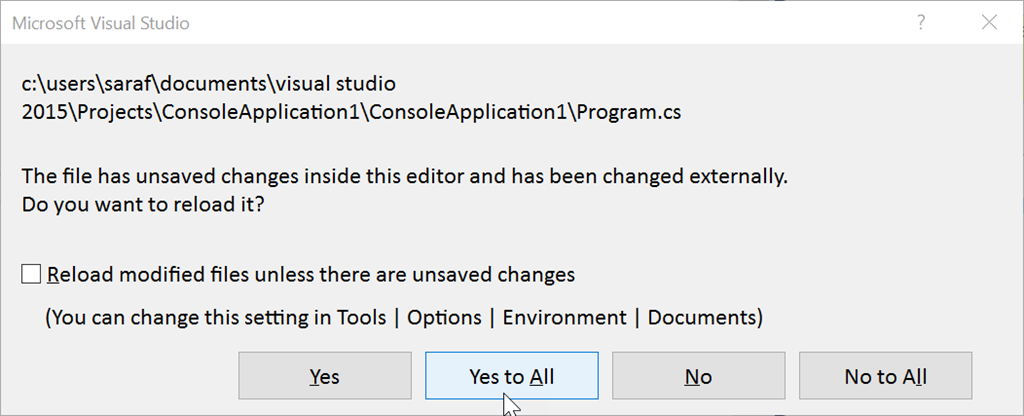
Although Git is like “Meh”, Visual Studio grabs your attention immediately with the old-faithful FILES HAVE CHANGED FILE HAVE CHANGE OMG FILES HAVE CHANGED WHAT DO WE DO?!?! dialog.

Files have chnaged. Reload in VS? dialog

Since we made these changes from the command line, Visual Studio needs to know what to do with the current text buffer. In this case, we purposefully made these changes, so we want to say Yes to All.

And we’ll see that we’re back to our baseline code and no more changes being tracked in Team Explorer.

There are no unstanged changes in working directory in TE

and Git from the command prompt confirms it.

nothing to commit, working tree clean

Aside: What if you had said “No” or “No to All”?

Well, I guess Git won’t be aware of what state your file really is in. If you try to git add or git commit the untracked changes in Program.cs, Git will ignore you. Literally. Git says “nothing to commit, working tree clean.” Team Explorer will also do the same by not giving you any options. But as soon as you hit Save in VS (even if the file is already saved) or even type another character in the text buffer, Git picks back up on the changes.

I guess the take-home message is to hit Yes to All. If you have a scenario where you’d want to say No to All in such a situation (perhaps making this “less dangerous” although there are many, many better ways), please let me know!

Developing my first HoloLens app

Wow. Unity is awesome. No. Unity is freaking awesome.

Seriously. As someone who has had to write her own physics engine three times (1. Space Invaders – my senior project in college, 2. Kinect app – my masters project, and 3. WebTop – Laser and Reflection and Refraction modules – my first developer job in college), I wish I had taken the time to learn Unity sooner.

To learn Unity (shameless plug alert: github is working on a plugin for Unity), I was curious what the experience would be like if I took the most-starred open source repositories graph from https://octoverse.github.com/ and made it into a holographic app.

most-starred open source repositories graph

Here’s what my first take of the above octoverse graph as a holographic app.

and here’s the holo-octoverse repo.

Here’s my suggested order of training (as of this writing on Feb 24, 2017)

  1. Get comfortable in unity before you do anything – https://unity3d.com/learn/tutorials/projects/roll-ball-tutorial TBH, I’d pay for a course that does nothing but teach me how to navigate around a scene in the unity scene. I got motion sickness on several occasions trying to navigate around the scene. True story.
  2. Start with the hololens 100-level trainings offered at the Microsoft HoloLens Academy – https://developer.microsoft.com/en-us/windows/holographic/academy
  3. Get comfortable using the Emulator. The sooner you realize that the dot on the screen is NOT the gaze cursor, the more hours you’ll get back on your life.
  4. Take the pluralsight HoloLens course – it’s similar to the hololens 100 level courses, but with a bit of a different twist, so you’ll learn new things and help retain the info you just learned from the 100 levels.
  5. (Optional) – at this point I knew enough to build my app, so I didn’t continue with the 210 levels, except to grab bits and pieces of things I needed.

Hidden gotchas

  • My absolute biggest struggle was deciding when should a script apply to the entire node collection (i.e. the parent GameObject of all my nodes) or to an individual node. I was going around in circles (no pun intended, as this is a 3D connected graph). Finally, I started splitting scripts out individually (who knows if that is correct) and also I’d rather do more manual work in unity (i.e. wiring up public GameObjects to a script) rather than trying to figure out how to do all that at runtime. I’m confident there’s a better way, but it is a start…
  • Renaming a script in unity – renaming the script in unity will rename the filename (and will update the components using that script for you), but you’ll need to rename the class in Visual Studio (remember, ctrl+dot is your friend). A few times I had to restart unity because of errors.
  • Clearing warnings and errors:
    • If you have any compile errors, you’ll won’t know in Visual Studio. You’ll find out in Unity, at the bottom in the status bar where you won’t know to look at the beginning. You’ll double-click the status bar to see more about the error.
    • Once you think you’ve fixed your error, you’ll need to clear this output window. Otherwise, next time you update your script from VS and switch back into Unity, you’ll might be confused why your error still persists.
  • Always hit the play button in unity to verify there are no script errors. You can catch some null pointer exceptions this way.
  • Using the emulator
    • Sometimes your holograms will appear besides you, or behind you. Or your holograms appear in the bathroom, making people really confused by your tweets.
    • The emulator should come with a “I Accept” button that says the little dot is NOT the gaze for the tap gesture. (Have I mentioned lost hours). I lost a lot of time debugging why my tap recognizer wasn’t firing because I had the wrong cursor over the object.
    • You don’t have to close the emulator each time
    • If you’re just making an update in Visual Studio (e.g. in the multiple project solution), you can just redeploy to the emulator or hololens. You don’t have to rebuild in Unity.
  • For Visual Studio I keep the single-project solution opened to edit my scripts, but I close the solution produced by the unity build every time I’m done with that debugging session. YMMV
  • And honestly, the emulator is great. I used the actual device for sizing, e.g. how large should my object be? How far apart should they be spaced? But take note. if you’re goal is to use in a large space, you’ll need to test in that large space, versus doing your development in a small room.
  • For clipping planes, Microsoft recommends no nearer than 0.5m. Maybe it’s because I’m 5’1 and have practically no arm distance reach (I did karate for 20 years, trust me on this), but I found the near setting that worked best for me was at 0.35. But then again, perhaps holograms need to be placed farther away.
  • Where you develop your app versus where you film your app matters, as I mentioned previously. I was developing my app in a small room, so I had to have the nodes close to me; otherwise, they’d appear within the sofa. However, when you run the app in a large room, it makes you wonder why you didn’t space out the graph more.
  • When you go for a final build, make sure you choose Master instead of Debug or Release in VS. You also will want to delete the previous Release or Debug app on the device before you deploy your Master build.

Miscellaneous Helpful Links

  1. How to change the color of the cube we’re looking at?
    • See the Pluralsight training mentioned above.
  2. How to plot the x,y,z points on a Sphere – aka “how has my Math degree failed me today?”
  3. How to send the gesture command? At first I thought each object could register, but doesn’t seem to be the case
  4. How to use the Tapped event to generate new objects – at first I thought I’d be creating objects at runtime to display the Text overall, but decided not to go this route after all in the spirit of “get something working that you can demo”
  5. How to display 3D text
  6. How to have the text face you when you walk around
  7. How to find a child object

How to stage multiple changes within same file using Visual Studio – 069

Why would you want to stage multiple commits of the same file? Actually, I have no idea. This is why I’m writing this series so I can ask you all questions 🙂 Maybe there is no good reason to stage, just like making your bed every morning. Biggest waste of time EVER. You’re just going to mess it up less than half a day later… but I digress…

TBH I originally wrote today’s tip convinced I had found a bug in Team Explorer. I wanted to see what the workflow was like in Visual Studio when staging multiple commits for the same file. However, I confused myself by pressing the Commit Staged button, thinking it was the equivalent of git add <filename> (it’s not). In Team Explorer, doing Context MenuStage is the equivalent of git add <filename>, as you’ll see below…

To explain, let’s start with the command line for the expected behavior, then we’ll rinse and repeat using Team Explorer.

Multiple Stages using Same File using Command Line

First, I’ve written my code to be in a “baseline” state, e.g.

only Console.WriteLine("Hello World") showing

Next, I’ll add a new line

added Console.WriteLine(MyStrings.message);

and via the command line, I’ll run git add Program.cs (or git add . since it is the only file modified) to add it to staging.

Running a git status confirms it’s staged to be committed.

changeds to be committed: modified Program.cs

Don’t git commit yet! Let’s stage another changes to the same file.

Back in Visual Studio, let’s add a Console.ReadLine() to make sure the console window doesn’t go away…

added Console.Read();

Now let’s run git add Program.cs again. Running git status confirms it’s still staged to be added.

Now let’s commit by running git commit -m “two changes added”

git log shows two commit histories as expected

Now let’s rinse and repeat using Team Explorer…

Multiple Stages using Same File using Team Explorer

First, let’s get back to our baseline of just having Hello World. And I’ll hit Commit All to commit those changes.

back to baseline commit in TE

Next, let’s make that first line change of Console.WriteLine(MyStrings.message); but this time instead of hitting Commit All, you want to right click and hit “Stage”

clicking stage in TE

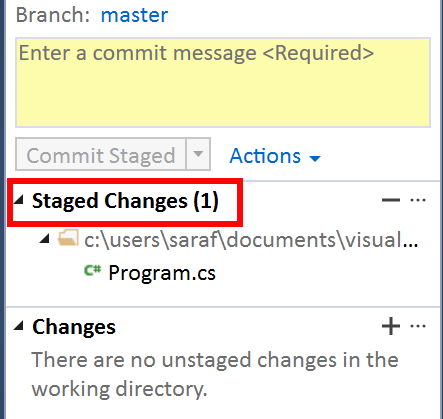
Now you’ll see the change has been staged in TE.

Staged Changes (1) in TE 

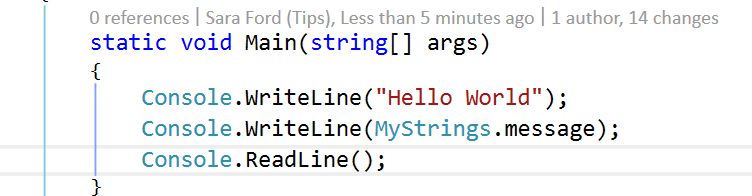
Now let’s add our Console.ReadLine() line…

Console.ReadLine() added

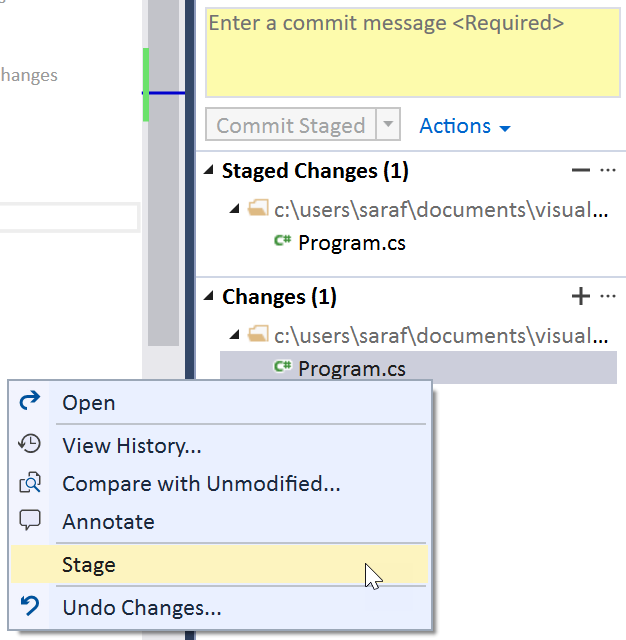
and stage that commit…

Staging a change to an already staged commit in TE

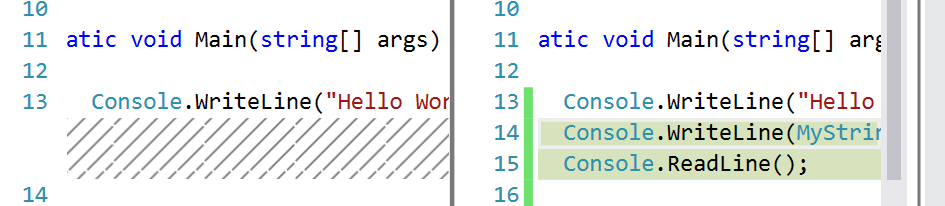
and now under Staged Changes (1), you can right click and hit Compare with Unmodified to see that the 2 new lines have been added to the staging area.

diff between the baseline commit and the 2 changes staged

Clicking Commit Staging in Team Explorer will now add these two new lines to the log.

Commit Staged

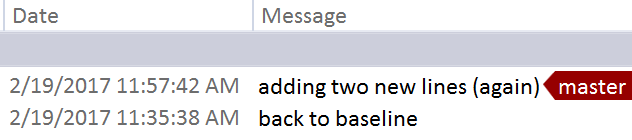
And now checking the history (Status Bar – Click Master (or whatever branch) then View History shows the two commits (baseline and the two new lines).

history in Team Explorer showing last two commits