Month: February 2017

How to add a license (and choose your own licensing adventure) when you first create a repository on GitHub – 047

For the longest time, I thought it was required that you select a README in order to select a license. Although you should have both (ideally) in your repo, you don’t have to create a readme file on the /new page just to set a license file.

In the image below, the Initialize this repository with a README is unchecked, while the MIT License is being selected for the Add a license dropdown button.

adding MIT License without the Initialize this repo with a README checked

Remember, just like a readme, the license for your GitHub repo is only a file that’s within the repo itself (and doesn’t automatically get added to a Visual Studio solution – something that took me a long time to wrap my head around).

LICENSE file shown in repo file listing

But suppose you know you need a license, but want to go over what your options are. There’s a (?) button right next to the Add a license dropdown button on the /new page.

choose a license help icon

Clicking on this help icon button will take you the Choose a License website, a “choose your own adventure”-style site where you can learn more about licensing!

Got a suggestion for the Choose a License website? The website (a github pages site) is an open source project accepting contributions!

Down in the bottom right corner of the footer, you see a link to the repo

Curated with <3 by GitHub, Inc. and You!

I call out this link because adding the “and You!” link was my first ever Pull Request. These Pull Request-related tips won’t really click until you’ve walked through submitting a Pull Request yourself. I hope by sharing my lightbulb experiences from my first few PRs that it will help others get a sense of what the process is like.

How to automatically close Issue(s) when you push a commit to GitHub – 046

You might have discovered this feature accidentally if you’ve ever pushed a fix up to GitHub using the magic words in your commit message. The story goes: You’ve committed a fix and pushed it to GitHub. Next you go to the Issue to close it, but to your (pleasant) surprise, the issue is already closed! How did it know?

I put pleasant in parenthesis because I hate technological surprises. I mean surprises are good, but I want to know what caused the surprise, so I’ll know how to surprise myself again in the future!

Two things must be true for your commit message to close an issue (see GitHub help article)

  1. contains a deviation of the words fix, close, or resolve, immediately followed by #<issue-number>
  2. the commit is on the default* branch (which is master by default, unless you or a repo maintainer has changed it)

If you take away nothing else from this tip, take away this: do not try to use the word Issue, e.g. Fix Issue #3 Otherwise, it won’t work. Gets me every time.

For example #1, suppose you have a repo where you want to delete a file that isn’t being used. You or someone else has created an Issue to track this work.

Delete Class1.cs #3 issue on github

You’ve fired up Visual Studio**, deleted the file from solution explorer (and saved the .csproj so the reference to the file is gone), and opened up the Team Explorer – Changes window to commit the change. You can type in “Fix #3” as the commit message to close Issue #3 in your repo.

commit message: Fix #3

Now when you return to your Issue, you’ll see it has been automatically closed with references to the commit automatically added to the Issue timeline.

Delete Class1.cs showing as Closed with how closed messages added to timeline

Now let’s say you are like me and after years and years and years of habit (and we’re talking about habit since the good ol’ days of RAID – where my MSFTies at!?!?), you put the word Issue in between the Fix and the #3. The Issue won’t get closed and you’ll have to close it manually.


And yes, as this blog post title implies, you can close multiple Issues.

For non-VS users out there, let’s do a command line example. Let’s say you have two Issues out there on your repo on GitHub. I’ll use close this time***, but close(s|d), fix(es|ed), or resolve(s|d) will all work.

git commit -am "Close #4 and Close #5"

*We’ll talk more about default branches later, but if you want to confirm the default branch, go to the branches link above the language bar in your repo.
**As if I could keep myself from blogging re Visual Studio Smile This is a Windows-first, non-Windows friendly blog, meaning I’m doing everything this from a Windows point of view. At some point the series will contain lots of Windows-only tips, but for now, I’m trying to straight the right balance in being non-Windows friendly.
*** In the command prompt example, I edited a readme file. I’m using the shortcut -am to do both the git add and the git commit at same time. More on these shortcuts later!

How to have pull requests added to an Issue’s timeline – 045

You might have noticed that when you create a pull request that refers to an issue, you’ll get an autocomplete dropdown.

Issue autocomplete when editing a pull request

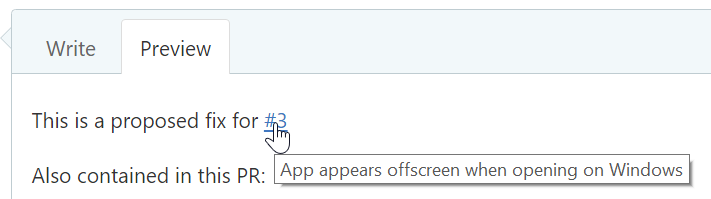
If you just type in the item number, e.g. #3 (no issue title needed), or click on the desired Issue from the list, you’ll see in the preview that the #3 is automatically hyperlinked. Hovering over the hyperlink shows the Issue title as the tooltip.

#3 showing the title of the issue as the tooltip

After you’ve saved your edits (or created the pull request), go over to the Issue in question and you’ll see the pull request added to the Issue’s timeline.

Pull request added to the Issue's timeline

How to create a pull request for a bug fix on a branch on a forked repo that you’ve pushed to GitHub – 044

This might be my greatest worst blog post title ever.

In previous tips, you’ve created pull requests as part of the commit workflow when you’ve edited or added files directly on GitHub. In other tips, you’ve cloned repos, created branches, made bug fixes, and pushed those changes up to your forked GitHub repo. Now you’ll submit those bug fixes to the base repo via a pull request.

First, switch to the branch that contains the changes you wish to propose to the base repository.

switching to windows-fix branch

Now to the right of the branch: switch button, click New pull request.

switching to windows-fix branch

And you’ll see the familiar Pull Request form on the base repo. Remember, PRs are open on the base repo, and not on your forked repo. In fact, you can’t find the pull request tab on your forked repo!

Fortunately, our changes have no conflicts, so we are good to go!

Open a pull request form

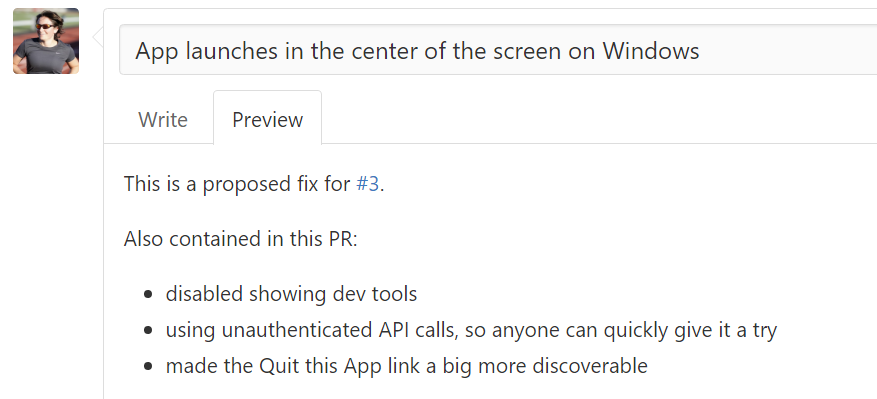
In the forms below, you’ll want to provide a helpful comment. The title of the PR is just the name of the branch as a placeholder, so provide something more meaningful.

filled out pull request form

Once the PR form is filled out, clicked the Create pull request button, and volia!

created Pull Request shown in base repo

The base repo now has a Pull Request created, and there was much rejoicing!

You might notice that it says #4 when there’s only been 2 other pull requests for this repo. Issues and Pull Requests share the same number listings. At the time of this writing, the order in which things were created in this repo are as follows: #1 PR, #2 PR, #3 Issue, and #4 the PR you’re looking at now.