How to show user documents and other content (readme) at the bottom of your GitHub repo homepage – 016

One of the biggest concepts I had to learn when using GitHub.com the first time is that the much of the repository metadata comes from content within the repo files themselves. To illustrate, back in the day on CodePlex, your license and homepage content were stored as part of the CodePlex project, instead of being generated based on the contents of your repository. Once I made this mental switch, GitHub got a lot easier to use. And FWIW, as I learned in UX grad school, it’s much, much easier to learn a new skill than it is to unlearn an old skill to learn new similar skill.

And what I mean by the title of this post is the content that appears at the bottom of the list of files in your repo. E.g. the electron/electron-api-demos shows a few lines of text and then an image, and then the rest of the readme file.

And yes this is a possible duplicate of #003, but if you don’t know this content is coming from a README.md file, you won’t know you need to add a README file. I felt it important to include these points of view.
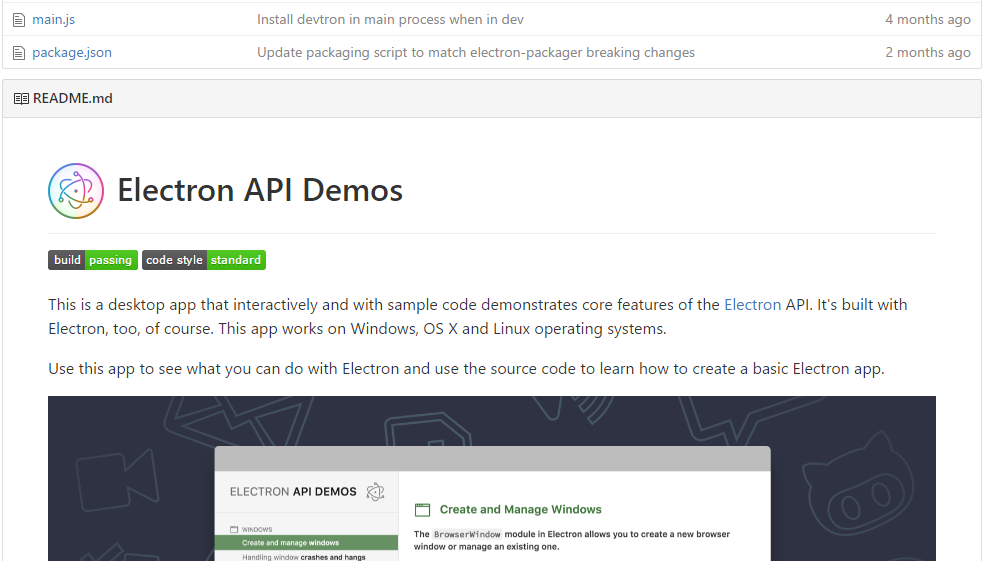
readme file for electron/electron-api-demos shown at bottom of GitHub repo

Let’s say that you did not check the Initialize this repository with a README checkbox when you first created your repository.

Initialize this repository with a README

You’ll won’t see the default generated README.md content (which is just the name of your repo and the description, if you provided one).

These days, you’ll see a nice information box encouraging you to create a README.

Help people interested in this repository understand your project by adding a README box

If you click this button, you’ll be taken to the familiar “Create a new file” UI on GitHub, where it creates a new README.md file. If you use all the provided defaults, you’ll get the same generated README file as if you had checked the Initialize this repository with a README button on the new repository page.
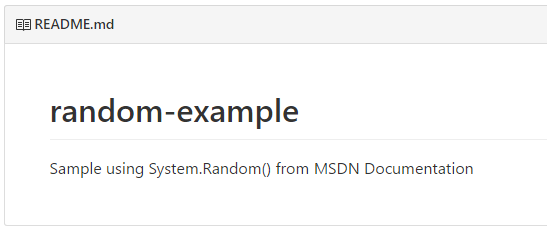
auto-generated README.md text showing on GitHub repo homepage

How to delete a file from a repo directly on GitHub – 015

Suppose you have a file that you want to delete*, but don’t want to break out a command line interface to do so. You can delete the file directly from GitHub.com.

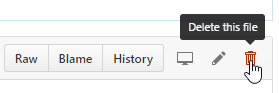
Delete this file button

Next you can commit the changes to delete the file to the commit.

Delete Class1.cs commit changes form

*Note that this Delete this file button only removes the file from this commit on this particular branch moving forward. It won’t delete the file in any previous commit history or other branches (until they are merged and only from this commit moving forward).

If you need to permanently delete a file (or even if don’t, you still need to read this doc if you haven’t already), check out GitHub’s documentation on Removing Sensitive Data.

Why no -r delete option (read: why no recursive delete)? The shortest answer is this is how Git works as a Distributed Version Control System. If one or more people have cloned your repo, and if anyone changes their Git repo history, the repos won’t be compatible anymore (there might still be a way but it’s way beyond my skills as of today). And note how I’m saying this is how Git works (instead of “how GitHub works”). This is Git functionality. If you want to read more for possible options, check out the git-scm documentation on rewriting history.

How to create a branch via the GitHub UI without creating a Pull Request – 014

You don’t have to use the command line to create a branch. You can also create a branch directly on GitHub.com. And even though the Create a Pull Request page appears, you can cancel out of it.

Suppose you want to make changes to a readme, but you know you want to make a few iterations on the file before it is final. Or perhaps you want to preview the readme as it will appear to visitors of your repo before it goes “live” on the master (default) branch. Using branches is a great way to store your changes online (where others can still see) that’s separate from the master branch.

First, you’ll click the README.md file in the repo file list.

Clicking readme.md in the repo list

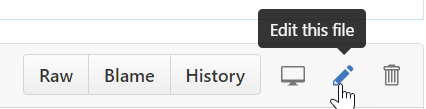
Second, you’ll click the Edit this file button on the far right of the file.

clicking Edit this file on far right side

Next, you’ll make your changes. For my example, I’ll add some content and a link back to MSDN Documentation. (Don’t forget to Preview Changes!)

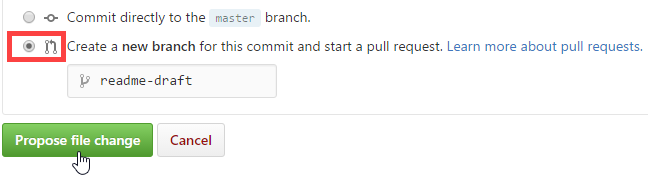
Lastly, instead of using the defaults to commit directly to the master branch, you can specify to Create a new branch for this commit and then click Propose file change.

Create a new branch for this commit selected

Note in the image above I created a branch called readme-draft, but any branch name will do, including the default name generated (not shown, but it is usually username-patch-1).

The next screen to Open a pull request might feel like it is required, but it is optional. Your branch has already been created.

Open a pull request page

Simply click on Code tab or anywhere else to leave this page. You can always go back and create a pull request later, which we’ll cover.

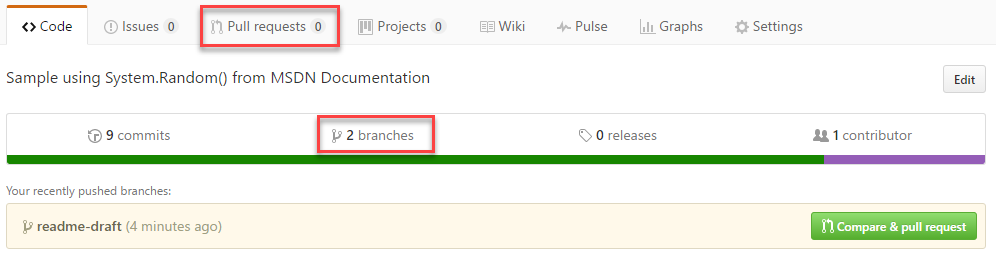
Pull requests 0 and branches 2

How to view all GitHub keyboard shortcuts – 013

To view all the keyboard shortcuts on GitHub, simply press the question mark key on any GitHub.com page and you’ll see the following image:

Keyboard Shortcuts help window for GitHub.com

Pressing question mark key on any page will show you the shortcuts available, whether they are global (for any page) or for a particular page (e.g. Issues).

And as you’ve figured out by now, the Show All link will show all shortcuts, regardless whether they will work for the page you are currently on, hence why there’s so much whitespace in the image above.

I wanted to share this tip now, so you don’t have to wait for me to discover your favorite shortcut. I’ll go over these more over the upcoming months Smile