How to add changes to a Pull Request after you have already created a Pull Request – 020

If I could go back in time, this is one of the first tips I’d tell myself about using GitHub. Don’t think of a Pull Request as the final submission. Think of a Pull Request as the beginning of a conversation about the code you want to merge. It’s difficult to appreciate how a Pull Request is the start of a conversation if you are the only developer on a project, so you’ll see more tips on using PRs with other users later in the year.

At first, creating a Pull Request feels like you’re submitting a homework assignment. You might think that once you turn it in, that’s it. But that’s actually not the case with a Pull Request!

You can still go back and make edits to your Pull Request by making commits to its branch.

From yesterday’s tip, you followed along how to create a README.md file in a new readme-draft branch, and create a Pull Request to merge it into master. But let’s say you want to add more content to your README.md.

First, you’ll want to switch to the readme-draft branch using the Branch:master dropdown button.
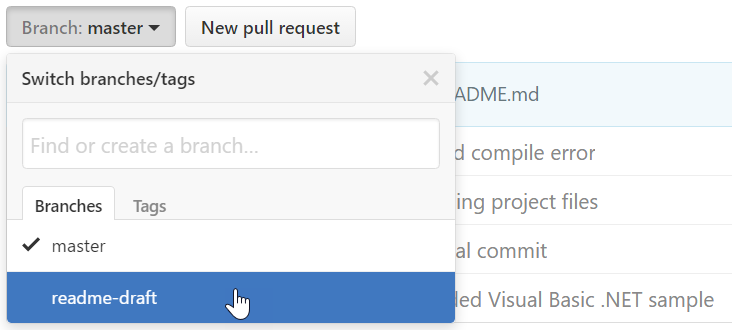
switching from master to readme-draft

In the readme-draft branch, you can click on README.md file and then the Edit this file button on the far right.

In my random-example repo, I’ll add the following sentences to the README.

I’ve switched to real-world sample code because I feel it is easier to grasp Git-related concepts when actual code is being used, rather than using “Hello from File1” or my joke examples. I learned in UX grad school that the more applicable the new information is made, the easier it will be to learn new concepts. You need to have “a hook to hang your hat on,” as the professor would say. E.g. I didn’t find out that cognition means the study of how the brain works, until I was in the 2nd week of class (which was a class called “Cognition”). I was completely lost; whereas all the psychology majors around me were learning the course material faster than Neo learning Kung Fu. My classmates already had a hook to hang their hats on, whereas I was learning that people study this stuff without going to med school.

Now commit these changes to the readme-draft branch (not a different branch). 

Commit changes form for committing to readme-draft

So what’s happened?

Let’s pretend we never created a Pull Request. If you go to the readme-draft branch, you see your changes, just as you’d expect from previous tips.

readme.md showing updates in readme-draft branch

But we already created that Pull Request, so let’s take a peek at it.

Go to the Pull Requests tab, and click on Updated the readme to view the Pull Request.
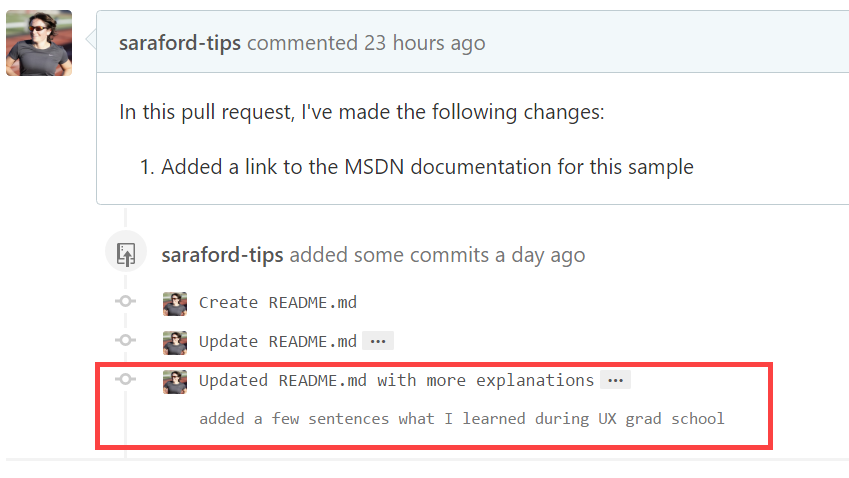
Pull request now showing the most recent commit to the branch

The item circled is the commit we just did. Remember, this list above is of commits and not the files that were modified. I can’t recall how many times I’ve had to silently remind myself this.

How to create a Pull Request for an existing branch in your own repo in GitHub – 019

Yep, if you’ve been reading this series, you knew this tip was coming.

For explanation purposes, I’m going to ignore for now the Compare & pull request buttons you’ve probably been seeing if you’ve been following along at home. Why? Because I find it more straightforward to explain how things work when you have to set it up manually the first few times. Otherwise, it’s just magic happening under the scenes.

The scenario is you’ve created a README.md file in a branch called readme-draft on your repo. You created the README.md file in this non-master branch, because you wanted a few days to work (and sleep) on your writing. Now that you are ready to commit the file, you want to merge it into master. Let’s also assume (for now) you are like me, a solo developer on many of your repos.

(aside: I’m pretty sure the only way to do a merge on GitHub is via a Pull Request, even if you are the only developer. Here’s the corresponding SO question/answer to sanity check.)

First, you’ll click on Pull requests tab. (It doesn’t matter which branch you are currently viewing.) Then click on the New pull request button.

New Pull Request button on Pull Request tab

Next you’ll need to specify that you want the readme-draft branch (head) to be merged into the master branch (base).

(If you tried the other way, you’ll immediately get a message that “readme-draft is up to date with all commits from master,” because remember, the readme-draft was based from master only 2 commits ago.)

compare: master dropdown button switching to readme-draft

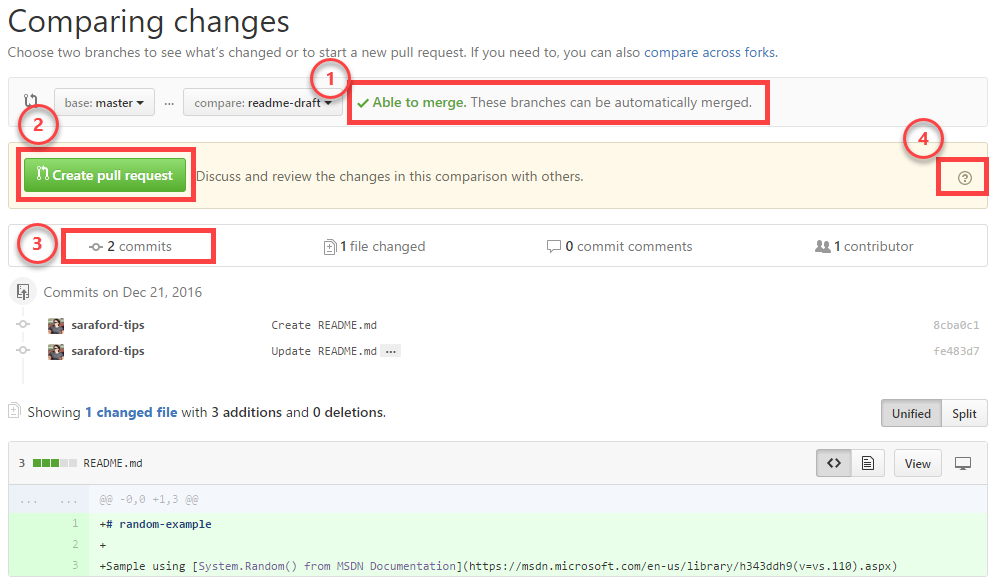
Alrighty, lots happening on this page, but let’s chill, and only pay attention to 3 things, plus some lagniappe.

Comparing changes page of a Pull Request

On this comparing change page, you’ll see the following items:

  1. Able to merge. These branches can be automatically merged – Awesome. This means no merge conflict, so we’re good. We’ll cover merge conflicts later. It’s only mid-January Smile
  2. Create pull request – This is the action you’ll take next.
  3. 2 commits – something that took a bit of getting used to for me is that this is the number of commits included in this branch, and not the number of files.
  4. Guides – using pull requests –  there’s a little help button sitting off to the far side taking you to the about pull requests guide.

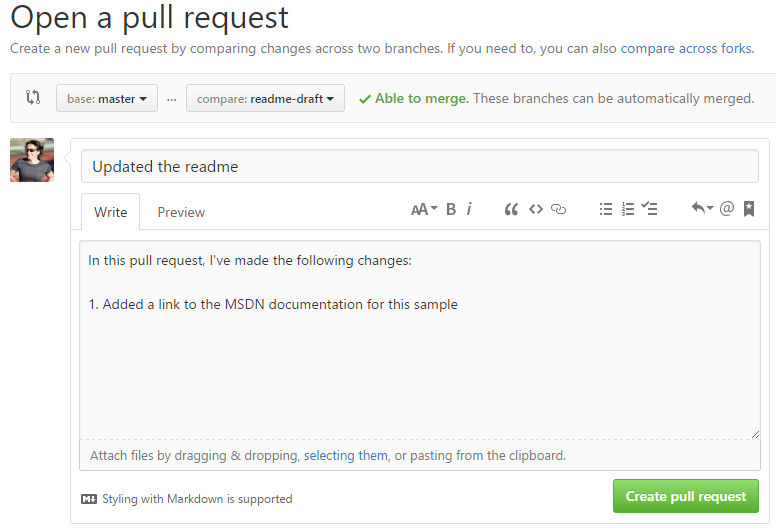
Press the Create pull request button and the Open a pull request form appears.

Open a pull request form page

“What? Another commit form????”  Well, that was my first thought creating my first Pull Request (or PR as I might sometime refer to it as).

My second thought was, “why doesn’t GitHub just use my last commit?” But recall, your last commit is just that… your last commit to a branch. It might say “fix typo” whereas the other 5 commits might talk about all the changes and updates you made to that branch. So you need a new form to represent all your work on that branch.

My third thought was “okay, on closer look, this isn’t the standard commit form after all. So… where does this title and description go?” Glad I asked. This title “Updated the readme” and description “In this pull request…” will be shown as an item on the Pull Request page for the repo (the page when you click on the Pull Request tab.) Think of this as the overall description for your branch.

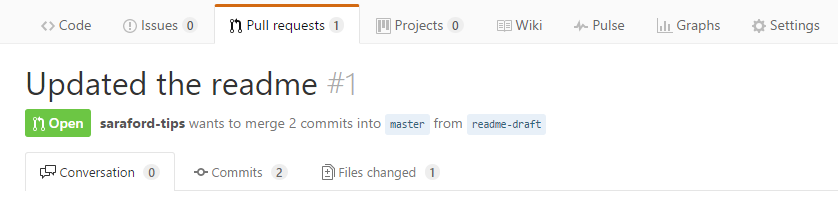
Without further ado, click Create pull request.

Updated the readme pull request created

And there you go! Your first pull request!

The Pull Request has been created. Note this does not mean your code has been merged. This just means your branch as been marked as wanting to be merged, in case there are other contributors on your repo that want to give you feedback. Your code will be merged once you click the Merge pull request button, but we’ll stop here for today. We’ll cover everything on this page in future tips.

Instead of providing end-to-end walkthroughs, my goal is to provide the smallest, yet practical, bites of information to chew on for 24 hours at a time. This is my personal spin on how to best deep dive into things.

How to make a commit to a non-default branch using GitHub – 018

Suppose you have multiple branches, and you want to make a commit to a branch that isn’t the default branch (which is almost always master, unless a repo maintainer changed it).

In my random-example repo, I added a README.md file to a readme-draft branch. Suppose you have a similar README.md file in a non-master (or non-default) branch in your repo and you want to update it via the GitHub UI.

First you want to switch to the readme-draft branch by clicking the Branch: master dropdown button.

Branch: master dropdown button switching to readme-draft branch

Second, you’ll want to edit the README.md file. See previous tips for end-to-end walkthrough. In my example, I added a link to the MSDN documentation where I got the sample code.

Next, to save your edits to the README.md file, you can either commit to the readme-draft branch or create a new branch based on the readme-draft branch.

Commit changes either on readme-draft or new branch off of readme-draft

Now if this seems a bit different, it should! Before we were committing to the master branch. This time we’re on a different branch than master, and we could create a new branch (`readme-draft-draft` or `whatever-1`) based off of this current branch (readme-draft).

Again, this is one of those things about Git you have to get comfortable with. Creating a branch is a lightweight process because of how Git works (more on that later, probably late Feb or early March).

For this example, let’s keep it simple. You can commit directly to the current branch, i.e. readme-draft, by clicking the Commit changes button.

Now if you click Code (or go to the repo homepage), you’ll see the following changes:

repo file listing for branch readme-draft 2 commits ahead of master

A few things to notice in the previous screenshot:

  1. You are still viewing the readme-draft branch.
  2. This branch is two commits ahead (1. the creation of the readme.md file – done prior to this tip, and 2. adding the hyperlink to the readme in this commit)
  3. The text `System.Random() from MSDN Documentation` is now blue, indicating the committed hyperlink change

How to switch branches on a repo using the GitHub UI – 017

Similar to `git checkout <branchname>` you can do something similar on a repo using the GitHub UI.

I’m an extremely visual person. For me to understand a concept, I have to physically see it, even if it is just a drawing representing the concept. For a long time, I thought a branch in Git would only contain the diffs. Seeing a branch represented on GitHub.com helped me appreciate what Git is doing.

Using my random-example repo, I have 2 branches which you can see from the repo bar. In this demo, my master branch does not have a README.md file, but my readme-draft branch contains the README.md file. (Let’s say I used the GitHub.com UI to create the README.md file and committed the file to a readme-draft branch, as seen in previous tips).

You can “switch branches” by clicking the Branch: master button located the top of the repo list of files, and then selecting the name of the desired branch, e.g. readme-draft in the example below.

Branch: master button drop down showing 2 branches

Now when you switch to the readme-draft branch, you’ll see the dropdown button change to indicate the new branch.

viewing the readme-draft branch list of files

A few callouts:

  1. The branch button has changed from master to readme-draft
  2. GitHub tells you where this branch is in respect to the default branch. Note I say default branch and not master branch… more on this in future tips (but know the master is the default when you create a new repository.)
  3. Not only do you see all the same files from before on master, you also see the new README.md. Welcome to the world of Git!

This is when it clicked in my brain that a branch contains a snapshot of whatever it was based off of when created (in this case, readme-draft was created based off of the master branch) and then any modifications made to it (i.e. I added a new README.md file to the readme-draft branch).