How to restore a deleted branch that is associated with a Pull Request in your repo – 024

Suppose you want to restore a branch that’s been deleted after you merged a Pull Request. (TBH: I’m not sure under what conditions you want to restore a branch that’s been merged. If you need to make more changes, my guess would be to create a new branch and a new Pull Request. I’m curious to hear other’s thoughts in the comments.)

But when you go to your list of branches by clicking the Branches link above the repository language bar

branches link above repository bar

You’ll find that your recently deleted branch (e.g. readme-draft) isn’t listed.

list of all branches

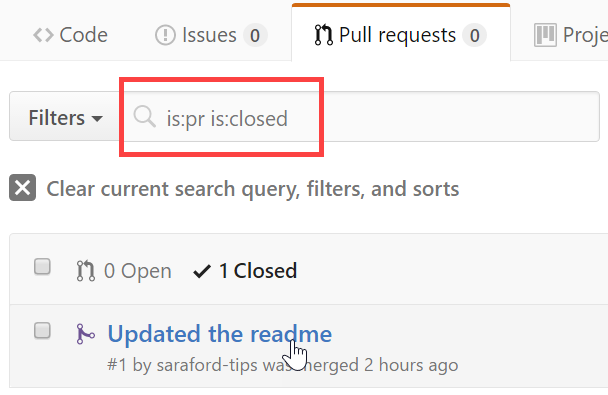
Since the readme-draft branch you saw me delete from the previous tips is tied to a Pull Request, you can navigate back to that Pull Request (make sure you search for closed Pull Requests!!)

searching for closed pull requests

and now you’ll see the button to restore the deleted branch.

Restore the delete branch button on closed pull request

Clicking on Restore branch button takes you right back to where you were at in the Pull Request before you deleted the branch, with the exception of history that you’ve restored the branch.

image

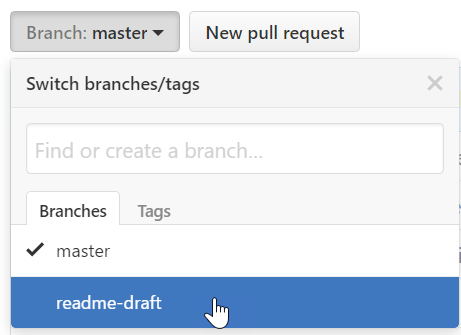
You’ll also see the branch come back in the Branch:master dropdown switch button.

Branch dropdown switch button showing readme-draft again

How to tidy up after merging a Pull Request in your own repo – 023

Following yesterday’s tip, after a Pull Request has been merge, you’ll see a message suggesting that you delete the target branch.

Pull request successfully merged and closed - the readme-draft branch can be safely deleted

But why would I want to delete this readme-draft? What data do I lose if I delete it?

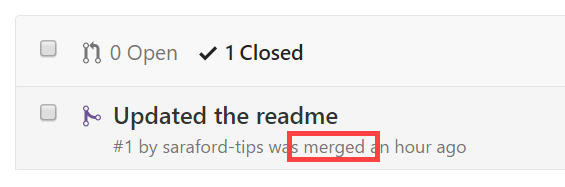
First, let’s talk about this possible data. The data around the conversation was captured as part of the Pull Request, which was only closed (not deleted), so you can still find it on GitHub.

Merged pull requests are considered closed when searching

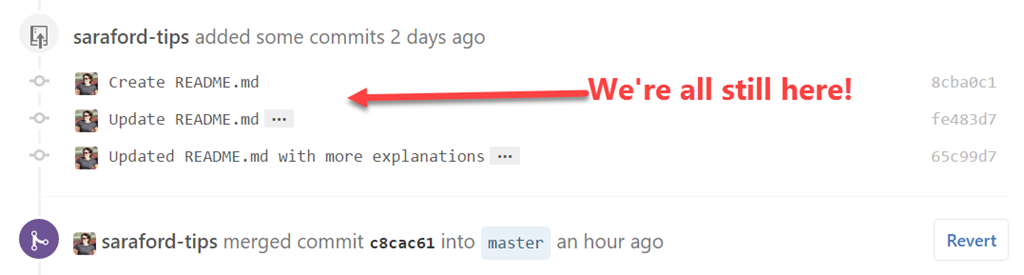
Second, the data around the commits was merged into master, so that’s not being lost. Stay tuned to the end of this blog post to see a screenshot of these commits sticking around after I delete the branch.

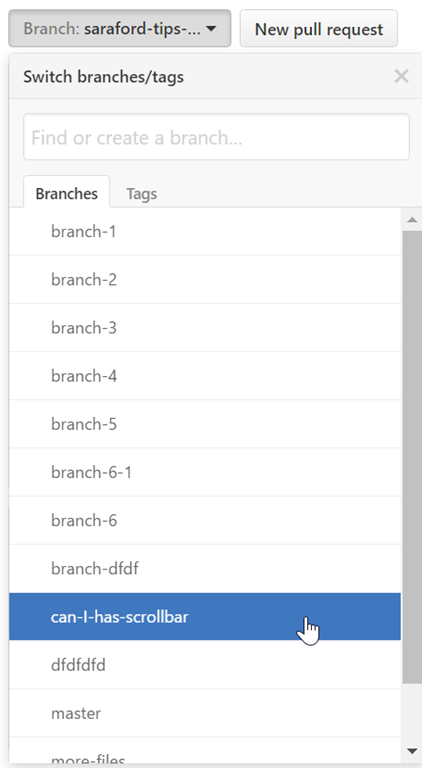
Third, you most likely won’t need to use this branch again. Over time, as your number of merges increases, you’ll have a long list of branches.

switch branches dropdown using a scrollbar to list all branches

Hence it is considered good practice to clean up after your pull requests.

Fourth (and probably most importantly), this is a fundamental difference in how Git works compared to other source control systems. Branches are just pointers to a snapshot in time. More on this in upcoming tips when I start to play with Git command line concepts.

Lastly, you can always restore! Stay tuned to tomorrow’s tip.

Let’s delete this readme-draft branch. Click on the Delete branch button, and volia!

deleted the readme-draft branch message

And you can look a few lines up and see that the Pull Request still contains all the commits, regardless that the branch was deleted.

commits are still listed in the Pull Request after merge

How to merge your own pull request on a branch you created on your own repo – 022

Today’s tip completes the workflow started in Tip 019 – How to create a pull request for existing branch in your own repo. The scenario is you have a readme you’ve created on a branch and it’s ready to be merged. Even though you are the only contributor to the repo, you still have to use a Pull Request to merge, if you are using GitHub.com to handle the merge instead of command line.

Remember, a pull request is the start of a conversation, even if you are the only developer on the repo. Reviewing your own Pull Requests is kinda like practicing conversational French by yourself. Nothing wrong with practicing your vocalization, but a Pull Request was designed to get points of view from other people. Consider the following true-story exchange:

Host family: “Est-ce que tu veux dîner?” (Want to go to dinner?)

Me: “Non, J’ai faim,” as I shake my head no saying “I’m hungry”

Host family: O_o

In yesterday’s tip we saw that master (the base branch) has 13 commits (at the time of this blogging),

master branch showing 13 commits

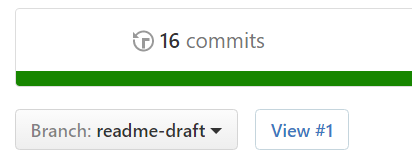
but readme-draft branch (the target branch) has 16 commits.
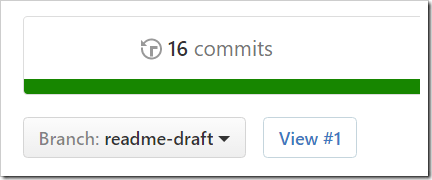
readme-draft branch contains 16 commits

Using my random-example repo, you’ll watch me merge Updated the readme (PR #1) into the master branch in the steps below.

This branch has no conflicts - Merge pull request

Two things to note

  1. There are no conflicts with the base branch (aka master) because we’re adding a new file that doesn’t currently exist in master
  2. There are options to how we could merge this pull request (the dropdown arrow in Merge pull request), but you’ll read more about these in upcoming tips.

Clicking on Merge pull request presents you with a form to fill out

Merging a pull request form

“What?? Another form?? Didn’t I already fill out a form when I created the Pull Request???”

My thoughts exactly Smile When you created a Pull Request, you filled out a form to start a conversation. This form is documenting the merge. These comments will live in the Git log, whereas the Pull Request title and comments live on GitHub.com.

In the scenario where you are making a code contribution to someone else’s repo (i.e. a repo you don’t have commit access to), you wouldn’t see these options to do the merge. But in the case where you want to merge branches in your own repo, you are documenting that you approve and merge your own code, aka you’re merely having a conversation with yourself! Smile

Use the default comments and click confirm merge and you should see the following message:

Pull request successfully merged and closed

Going back to the repo homepage, you know see that master has gone from 13 commits to 17 commits (13 original commits + 3 commits from readme-draft + 1 commit for the merge = 17 commits)

master now showing 17 commits

I’m covering the easiest scenarios right now to get warmed up, and also, because I’ve never tried playing with the other Merge pull request dropdown options yet. But that’s why I’m doing this series… to force myself to learn!

How to see a list of which commits a branch contains on GitHub – 021

I’m calling out this functionality now because after 2 years of using GitHub, today is the first time I’ve ever noticed this button on this page! And it’s sitting right in front of me!! O_O

At the time of this writing, my readme-draft is 3 commits ahead of master.

This branch is 3 commits ahead of master

But suppose you want to see which commits these are.

First, switch back to the master branch (just to get the commit ID of the last commit there that readme-draft was based on, since I haven’t updated master since.)

In my example, my master branch only has 13 commits. Click on this Commits link directly above the language bar.

Commits link above the language bar

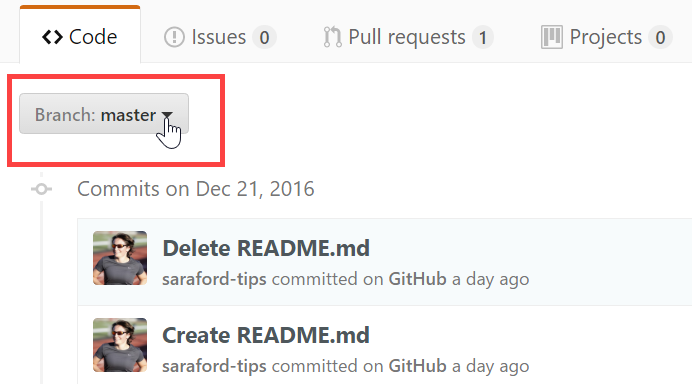
Now you’re looking at all the commits for this master branch. Note the last commit on master is “Delete README.md”

List of all commits for master branch

Now at the top of the page, you’ll notice the button I’ve failed to see for the past 2 years.

Branch switcher dropdown button at top of commits list page

Click on the Branch: master dropdown button to switch to the readme-draft branch.

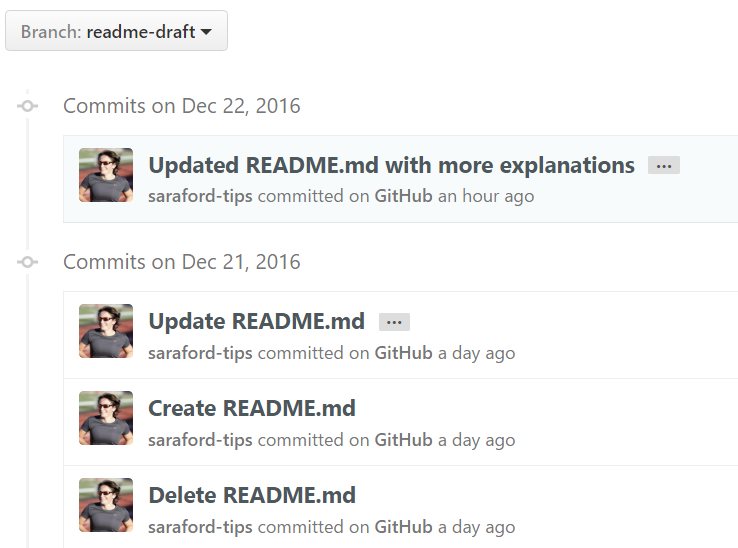
Now you see the list of commits in the readme-draft branch.

list of commits for readme-draft branch

Note that the last commit shown in the image is Delete README.md, which is the last commit on the master branch. Listed above are 3 additional commits in the readme-draft branch, as the first image of this blog post said there were 3 commits ahead of master.

You could (and should) compare commit IDs, listed on the far right of each commit, since the commit message could be the same for different commits. But for this trivial example, I’m only showing the titles of the commits.